Hosted Mail
If you are a Pro Plan or Enterprise Plan user, you have access to multiple different ways to send emails from Invoice Ninja. We offer OAuth integrations with both Google and Microsoft allowing you to send emails from your own email address.
Send with Gmail / Microsoft
Connecting either Gmail or Microsoft involves the same steps. Below is a short video showing the steps.
Note: Both the initial authentication and the connection to Gmail must use the same OAuth account. ie if you attempt to connect bob@gmail.com you must select this email address for authenticating with Google, and then also allow permissions for this email address to send email. Cross account linking is not possible.
Once you have connected your OAuth account, you can select either Gmail or Microsoft as the Email Provider in
Settings / Email Settings
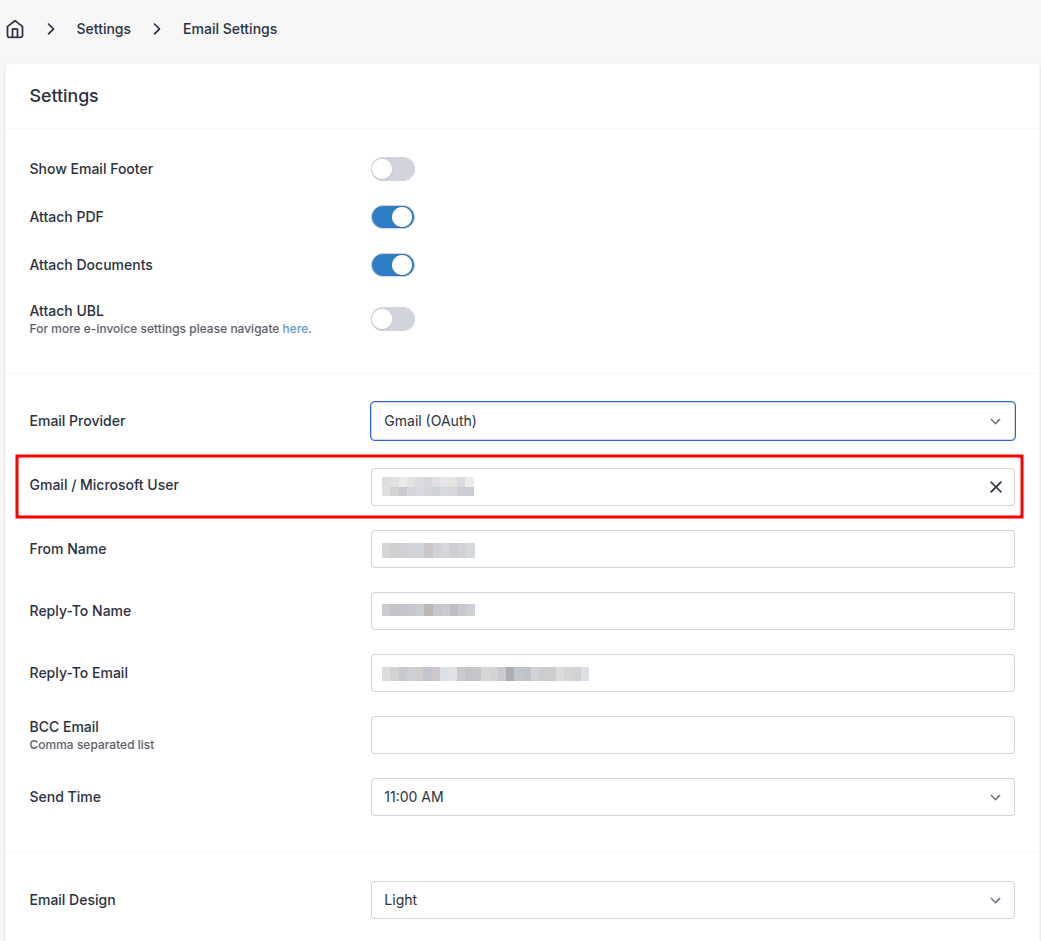
After selecting the email provider, you'll then want to select the user who has been authenticated to send emails from the field beneath this.
Send with Postmark
If you prefer to send bulk emails via PostMark, then this is also supported. We do not throttle the outbound emails using Postmark, so this is suitable if you require a high throughput email service.
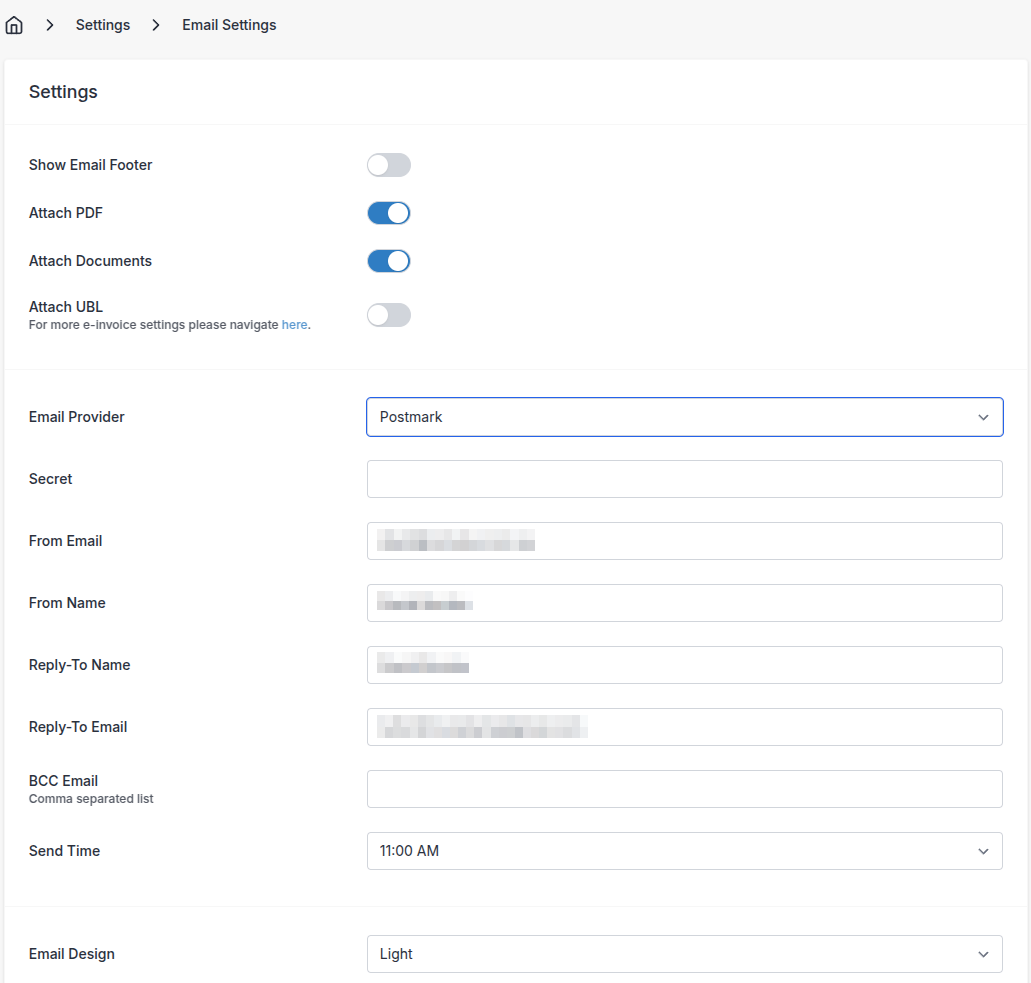
Simply add your Postmark API token to the configuration in
Settings / Email Settings
Warning! You must configure a sender signature in Postmark, else Postmark will reject all email attempts. To do this, ensure the email address of your primary user in Invoice Ninja matches the Sender Signature you configured in Postmark
Send with Mailgun
If you prefer to send bulk emails via Mailgun, then this is also supported. We do not throttle the outbound emails using Mailgun, so this is suitable if you require a high throughput email service.
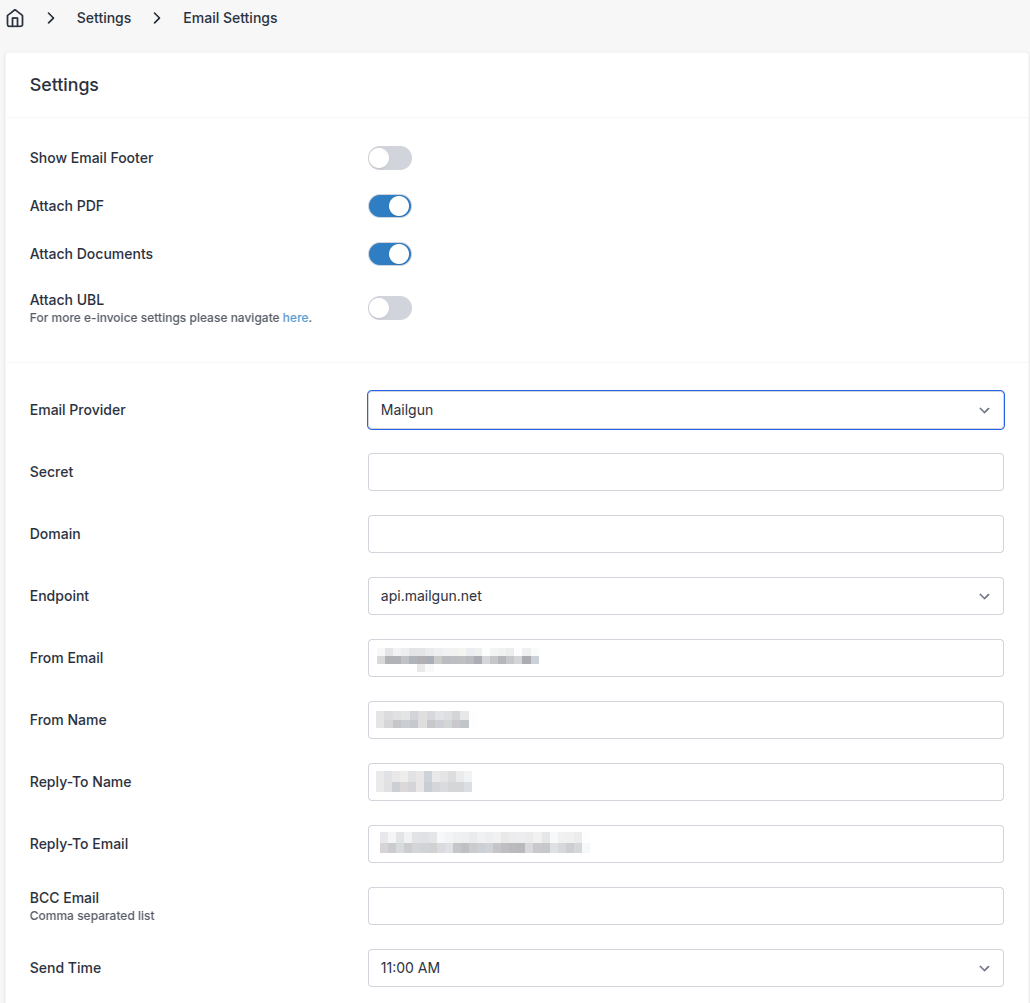
Ensure to fill in both your Mailgun Secret and Domain that has been configured.
Handling Spam / Contacts unsubscribing from your emails.
Email delivery is hard the large email providers such as GMail, Yahoo, Microsoft are continuing their fight against unsolicited / spam emails from filling the inboxes that they serve.
In 2024 it will become even harder with additional checks in place on all emails to ensure that only high quality emails arrive to a users inbox.
In particular, their focus is on working unsubscribe links within emails. Previously we have not needed to insert an unsubscribe link into an invoice email, however now it will become a standard part of all outbound emails to include a unsubscribe link.
All ourbound emails that are sent from the Invoice Ninja Hosted Mail Service (maildelivery@mail.invoicing.co and maildelivery@invoicing.co) will now contain a working unsubscribe link. If you are sending via your own provider (PostMark / MailGun / GMail / Microsoft) we will not be injecting these unsubscribe links into your emails.
If your client clicks on an unsubscribe link, they'll be taken to a page where they can opt out of receiving emails from you. This will mark their client record as "DO NOT SEND" and you will also receive a follow up email advising that this action has been taken by your client.
For more information, you can read this great article from
Send with SMTP
You can also configure your own SMTP server to send emails from Invoice Ninja.
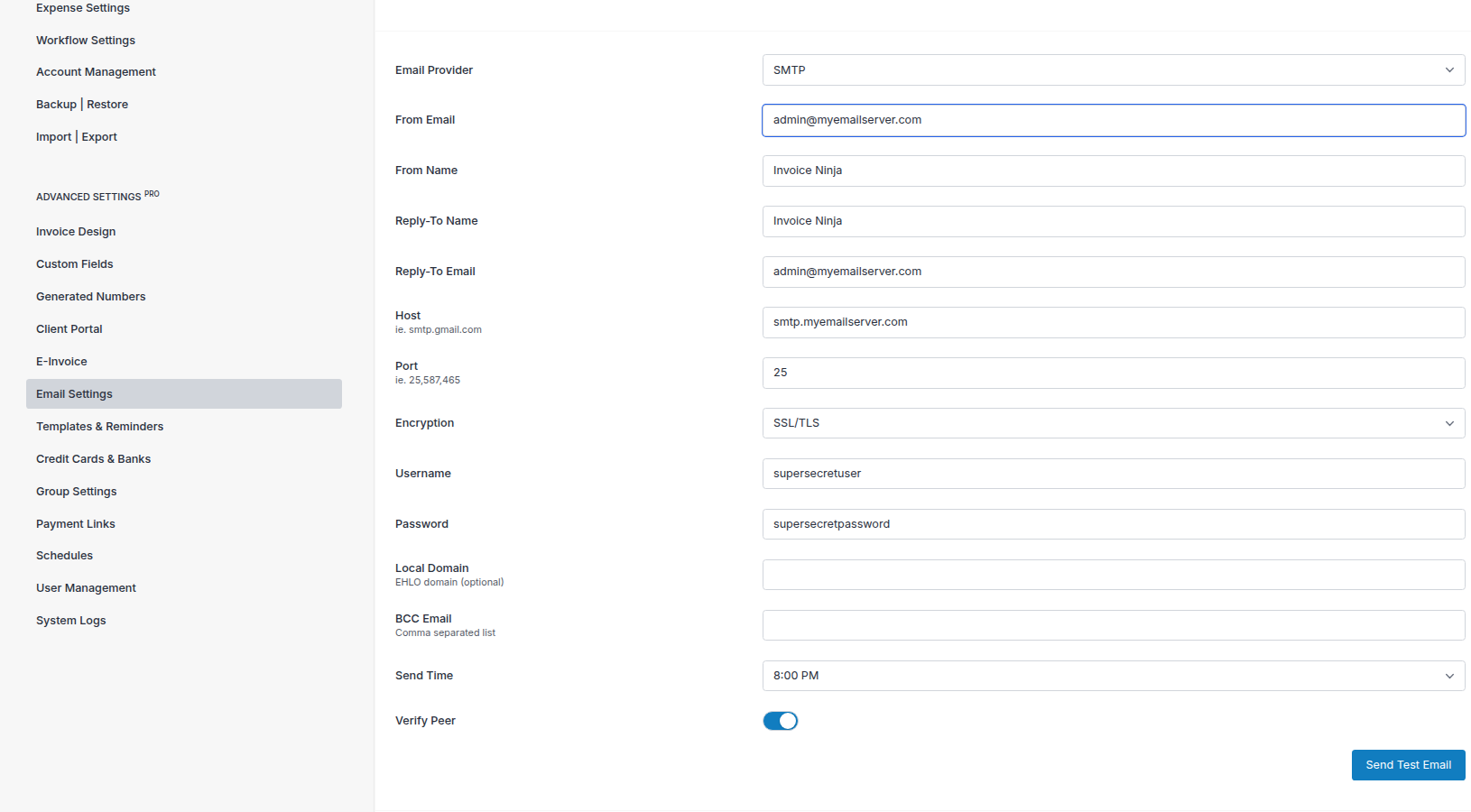
The following parameters are supported:
- Host ie smtp.gmail.com
- Port ie 587,25,465
- Encryption ie tls,ssl,starttls
- Username SMTP username
- Password SMTP password
- Verify Peer (verifies the identity of the SMTP server, including checking the certificate and hostname)
You can use the Send Test Email button to test the configuration and send a test email to ensure that your SMTP server is working.
Send with Brevo
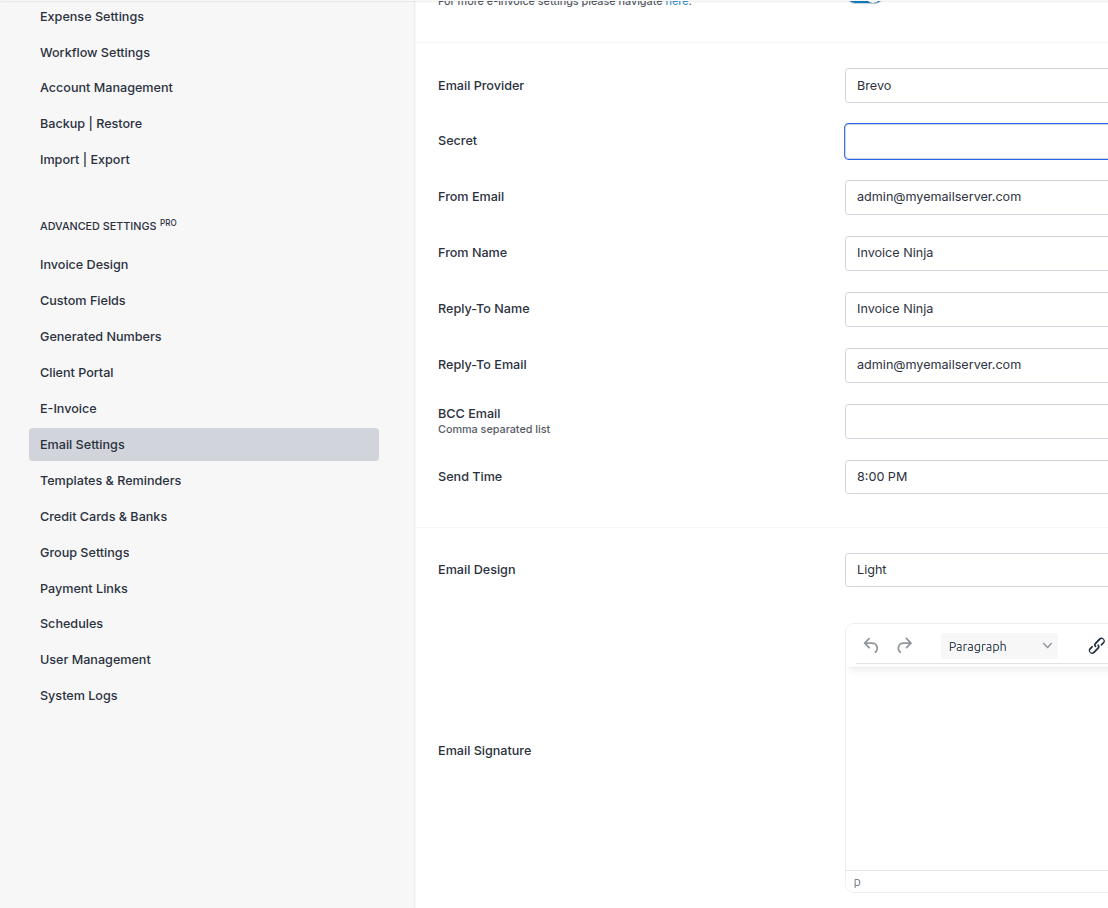
If you prefer to send bulk emails via Brevo, then this is also supported. We do not throttle the outbound emails using Brevo, so this is suitable if you require a high throughput email service.
The only configuration required is your Brevo API key.
Webhook configuration (delivery & bounce tracking)
When email providers report back on what happened to a message — delivered, bounced, or marked as spam — Invoice Ninja uses those events to update the email status shown in your dashboard and to flag problem recipients so you stop emailing dead or hostile addresses.
If you send through the default Hosted Mail service, this is fully automatic — delivery, bounce, complaint and unsubscribe handling is built in and requires no setup on your part.
If you are sending through your own provider account (the Postmark, Mailgun or Amazon SES options above), you can optionally enable webhooks so this tracking still works. The credentials you enter under Settings / Email Settings are the ones the webhook is validated against — you do not need server access.
Postmark
In your own Postmark server, add a webhook pointing at:
https://invoicing.co/api/v1/postmark_webhook
Add a custom HTTP header so the request authenticates, using the same Postmark server token you entered in Settings / Email Settings:
X-API-SECURITY: your_postmark_server_token
Then enable the Delivery, Bounce, Spam Complaint and (optionally) Open events.
Mailgun & Amazon SES
Delivery webhooks for Mailgun and Amazon SES rely on a signing key (Mailgun) or SNS topic (SES) that is managed at the platform level. If you need bounce and delivery tracking wired up for your own Mailgun or SES account on the hosted platform, please reach out to support so we can enable it. If you self-host, see the Mail Webhooks guide for the full configuration.