Get Started
Invoice Ninja helps freelancers, small businesses, and agencies send invoices, quote work, track time and get paid. Once your account is set up, you can invoice a client in any currency, accept online payments, run reports, and give customers a branded portal to pay and manage their documents — all from the same place.
This guide walks through the parts of the app you'll actually use day-to-day. Each section explains what something is, when you'd reach for it, and how it connects to the rest of the system.
Invoice Ninja is available on the web and as a native app on iOS, Android, macOS, Windows, and Linux. Everything is synced to the same account, so you can start an invoice on your phone and finish it on your laptop.
Key Concepts
A few terms appear throughout the guide. Understanding them up front makes everything else easier.
- Client — a person or company you invoice. See Clients.
- Contact — an individual email address attached to a client. A client can have multiple contacts (for example, Accounts Payable and Operations) and each contact gets their own Client Portal login.
- Invoice — a bill sent to a client. See Invoices.
- Quote — a priced proposal that can be converted into an invoice once the client accepts it. See Quotes.
- Recurring Invoice — a template that automatically generates and sends invoices on a schedule (weekly, monthly, annually, and so on). See Recurring Invoices.
- Payment — money received against one or more invoices. See Payments.
- Credit — a balance owed to the client, which can be applied to their future invoices. See Credits.
- Expense — a cost you've incurred, optionally billable back to a client. See Expenses.
- Product — a reusable line-item template (description, price, tax) you can drop into invoices and quotes. See Products.
- Client Portal — the customer-facing side of Invoice Ninja, where contacts view and pay their invoices. See Client Portal.
Initial Setup
When you first sign in you'll land on an empty dashboard. Working through the steps below in order will get you from a blank account to sending your first paid invoice.
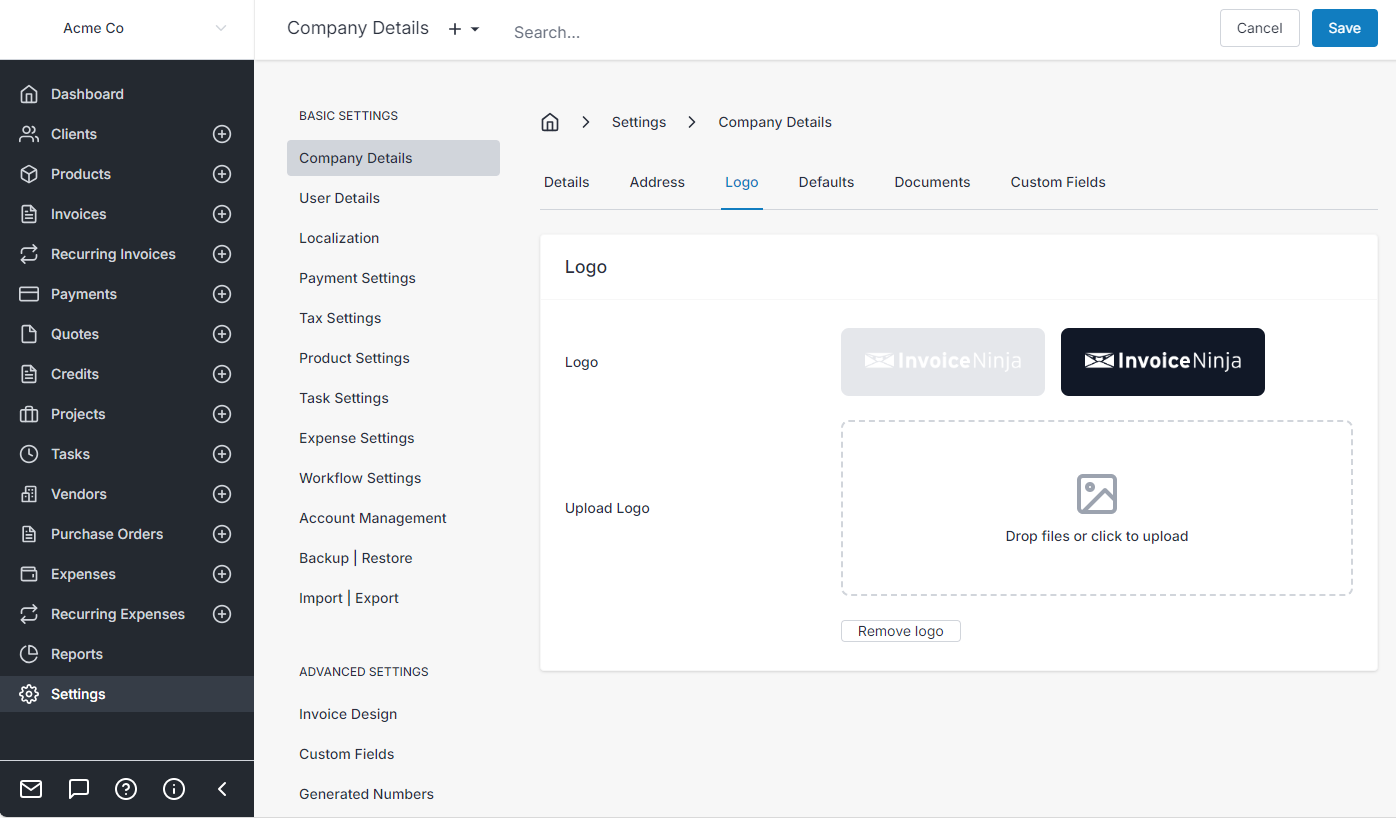
1. Set Up Your Company Details and Logo
Your company name, address, and contact information appear on every invoice, quote, and email you send. Your logo is displayed on PDFs, in emails to your clients, and across the client portal.
Settings > Company Details
For best results use a landscape-oriented logo — it displays most cleanly across emails, PDFs, and the client portal.
2. Configure Your Company Defaults
Company defaults are the starting point for every new invoice, quote, and client — things like default payment terms, reminder behaviour, and invoice design. Setting them once up front saves you repeating yourself later, and individual clients can still override them when needed.
3. Set Up Taxes and Localization
If you charge tax, configure it before creating your first invoice so tax lines appear correctly from the start. You can set invoice-level taxes (one tax applied to the total), line-level taxes (a different tax per item), or both — and localize currency, date format, and terminology to your region.
Settings > Tax Settings
For detailed tax setup — including multiple jurisdictions, per-client tax rules, and compliance modes — see Taxes.
4. Create Your First Invoice
Once your company details, defaults, and taxes are in place, you're ready to invoice. The video below walks through the full flow: adding a client, listing items, customising product columns, setting your invoice number pattern, and sending.
See Invoices for the full reference.
5. Connect a Payment Gateway and Get Paid
Connect a payment gateway so clients can pay online directly from the invoice email or the client portal. Invoice Ninja integrates with all major gateways including Stripe, PayPal, Authorize.Net, Square, and many more.
For the full list of supported gateways and setup instructions, see Payment Gateways.
Important Functionality
1. Enter A Payment
Enter a payment received and record it against an invoice.
2. Reverse A Payment
Reverse a payment entered incorrectly and restore invoice balance.
3. Refund A Payment
Refund a payment made with options to refund via the payment gateways.
Good To Know
These details won't change how you use the app day-to-day, but are worth knowing if a figure on an invoice ever looks slightly different from what you expected.
Currency Precision
Invoice Ninja stores and calculates values in the client's currency, using the currency's standard precision (typically two decimal places — for example, $41.64). For unit prices below 1 — common for per-unit components, fractions of an hour, or low-value parts — precision is supported up to six decimal places (for example, $0.123456). Values with more than six decimals are rounded.
- $0.123456 — supported
- $0.1234567 — rounded to $0.123457
Quantity Precision
Quantity fields support up to six decimal places regardless of currency, which is useful for time entries (for example, 1.25 hours), weights, or measurements.
Line-Level vs Invoice-Level Tax
You may see a small, expected difference in totals depending on whether tax is applied per line or to the whole invoice. This is caused by rounding on each line versus rounding once at the end:
| Description | Line Level Tax Calculation | Invoice Level Tax Calculation |
|---|---|---|
| Item 1: $10.33 | $10.33 × 10% = $1.033 → $1.03 | - |
| Item 2: $10.33 | $10.33 × 10% = $1.033 → $1.03 | - |
| Item 3: $10.34 | $10.34 × 10% = $1.034 → $1.03 | - |
| Subtotal | $31.00 | $31.00 |
| Tax Calculation | Sum of rounded individual taxes: $1.03 + $1.03 + $1.03 = $3.09 | Total × Tax Rate: $31.00 × 10% = $3.10 |
| Total | $34.09 | $34.10 |
Both approaches are valid — choose whichever your accountant or local tax authority prefers.
Where to Go Next
Once you're up and running, these pages cover the rest of the app in detail.
Working with customers
- Clients — add clients, manage contacts and locations
- Client Portal — what your customers see
- Vendors — the businesses you buy from
Billing and revenue
- Invoices · Quotes · Credits
- Recurring Invoices — automated subscriptions and retainers
- Payment Links — share a hosted checkout URL
- Purchase Orders
Payments and banking
Operations
Compliance and reporting
Configuration
Frequently Asked Questions
See the FAQ.