Products
Creating Products
There several ways for a product to be created, including:
- Admin Portal > New Product
- Admin Portal > Settings > Import | Export > Import .CSV documents for batch product creation or imports.
- Manually entering new product information on a new line of an invoice or quote. Note that when using this method, the product quantity used in the first invoice will be set as the Default Quantity for that product.
- As a developer you can create API calls to create, update, delete, export, or perform bulk actions on products, using API references from the Invoice Ninja API Documentation. Templates for Integratomat and others have not yet been implemented.
Products can also be used to represent services rendered. For example, you could have a product entry for service calls, with a price set to your hourly rate, and use the product quantity to represent the billable hours.
Viewing Products
You can view the products in the Invoice Ninja admin portal by going to the Products module in the left navigation menu and clicking a product name.
You can also export the products as a CSV file using the API or the Export function under Settings, to analyze them in an external application.
Editing a Product
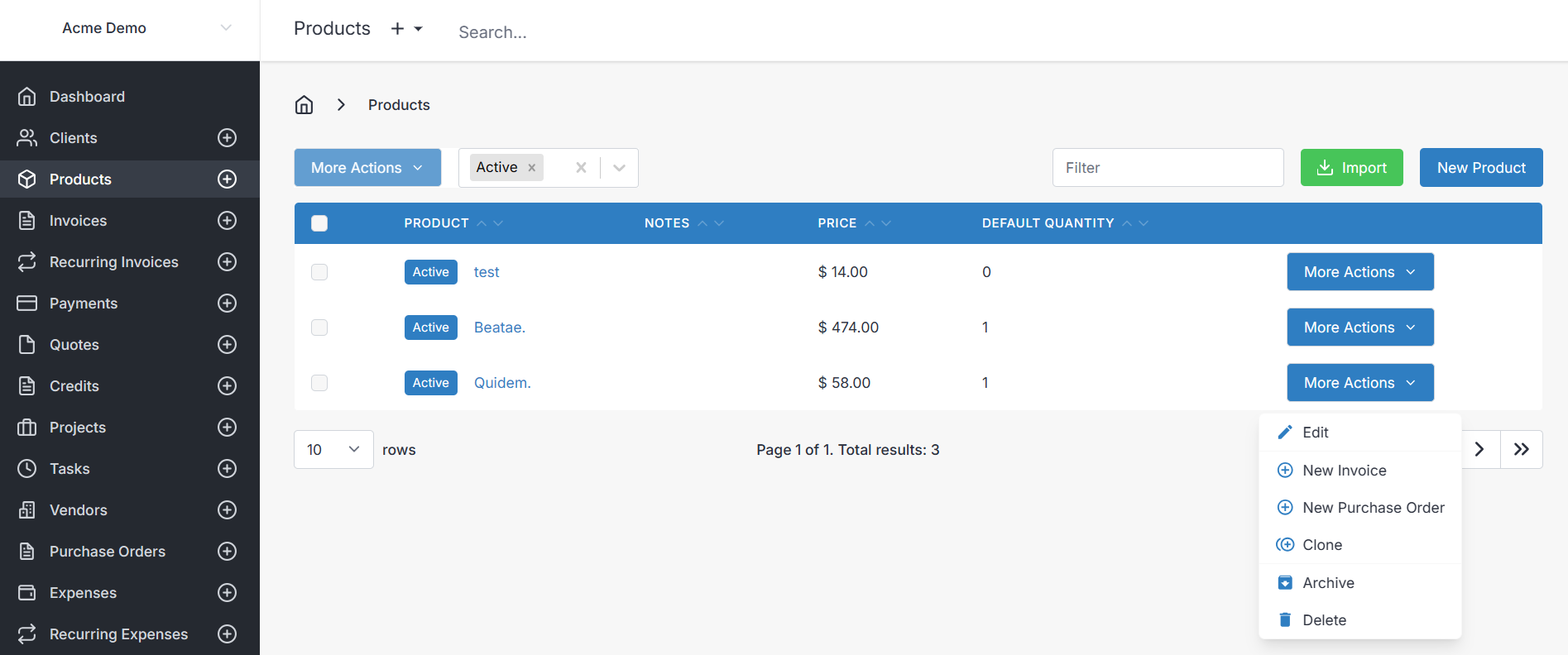
Select the prodct, or select More Actions>Edit to enter the editing view.
Functions
There are a few functions available from the products More Actions dropdown:
- Edit - Edit the product
- New Invoice - This button will take you to a New Invoice page, with the product you're viewing as a line item and the default quantity for that item already entered.
- New Purchase Order - This button will take you to a New Purchase Order page,
- Clone - This button will take you to a New Product screen, with the exactly same product details as the product you are viewing, allowing you to easily clone your product, and make any edits you need to before saving it as a new product.
There are only a few fields that apply to a product:
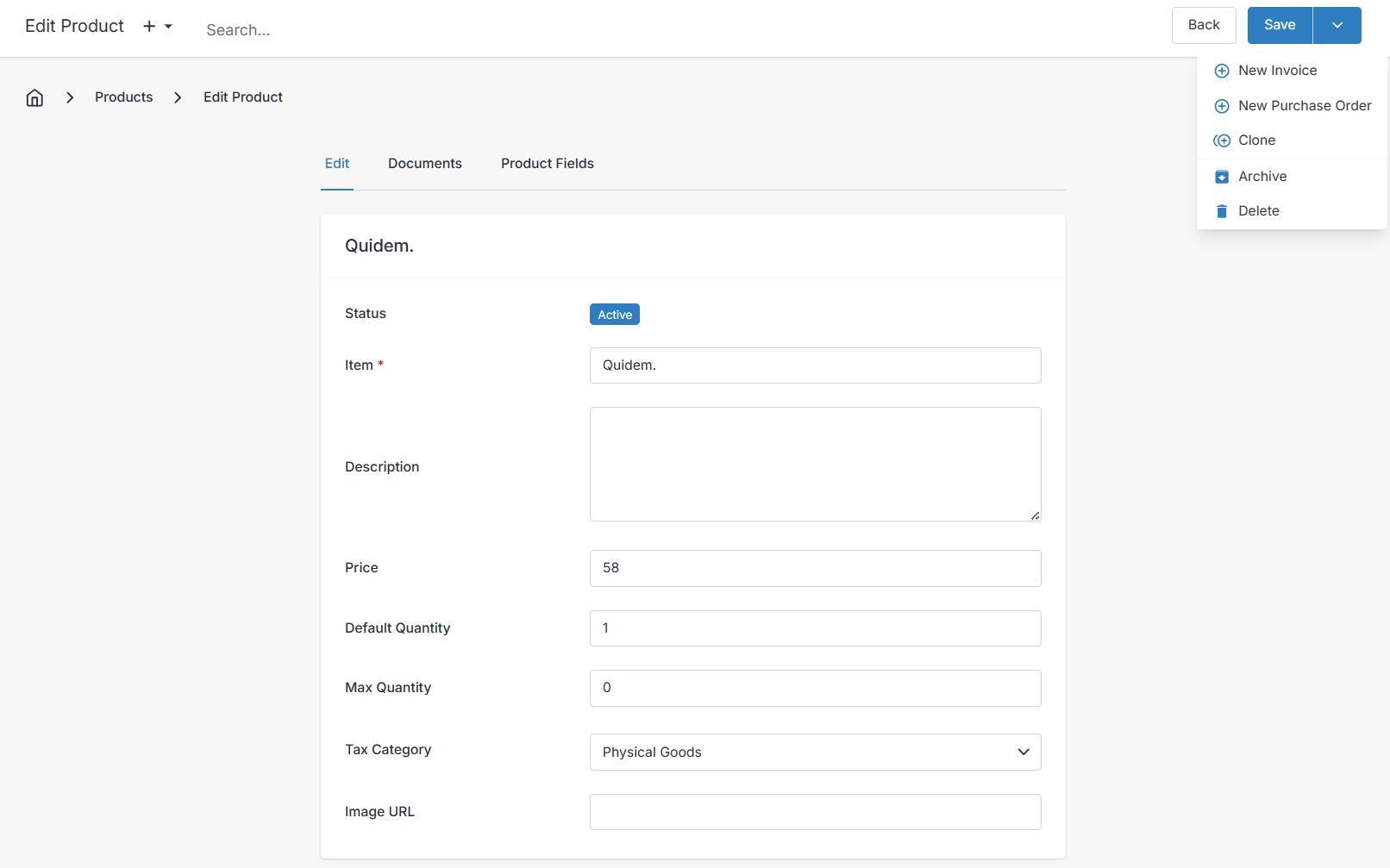
- Item - This is the name of the product itself, which will appear on invoices.
- Description - The product description, which will appear on invoices. Note that PDF generation of invoices and quotes will process any HTML formatting you use here. Furthermore, when Enable Markdown is turned on under Settings>Account Management>Overview, you will be able to enter markdown text into the product descriptions also, and it will appear formatted in your invoices, quotes, etc.
- Price - The standard price of your product.
- Default Quantity - The default quantity is used automatically when the product is added to an invoice or quote.
- Max Quantity - The maximum quantity for the product when it's being applied to an invoice etc.
Documents
The Documents pane allows you to upload and view documents that are linked to the product. These files are only accessible through the admin portal (or client portal if client documents are enabled). This feature is useful for uploading product signage, detailed product descriptions, or technical documents.
Note that uploaded documents are saved in the "public/storage" directory in a folder structure using hashed folder names to match the product entry, so backup this directory along with your database to preserve your attached documents.
Custom Fields
You can apply advanced custom attributes to products called Custom Fields. See: Custom Fields
Inventory Tracking
If you run a business which stocks products, tracking inventory levels is an important component of running a business. In Invoice Ninja, tracking inventory is super simple.
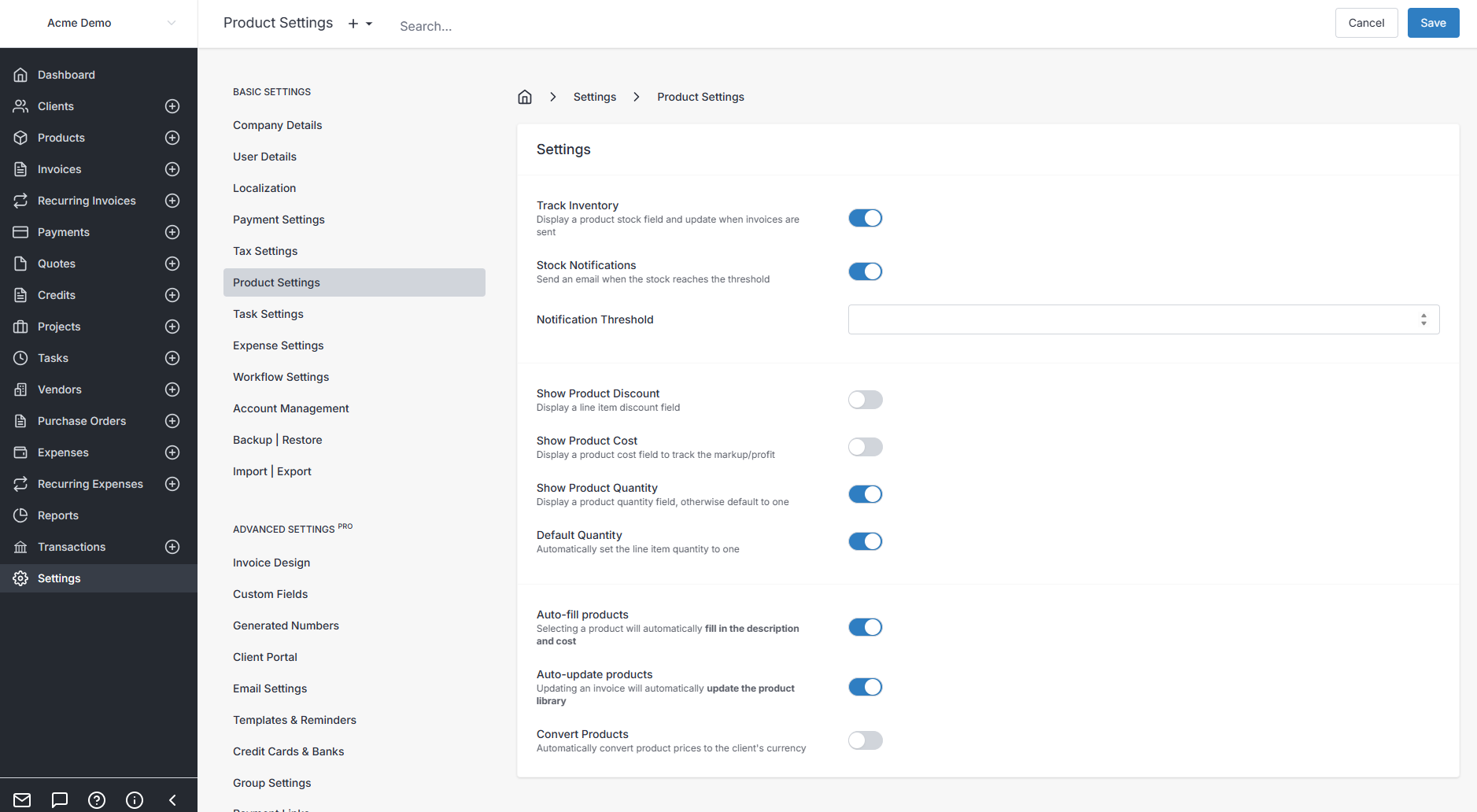
Simply turn on Track Inventory in the Product Settings panel. You can also add notifications when a product reaches a threshold, and you will receive an email notifying you of the current stock level. For more fine grained control, you can assign thresholds directory on the product itself.
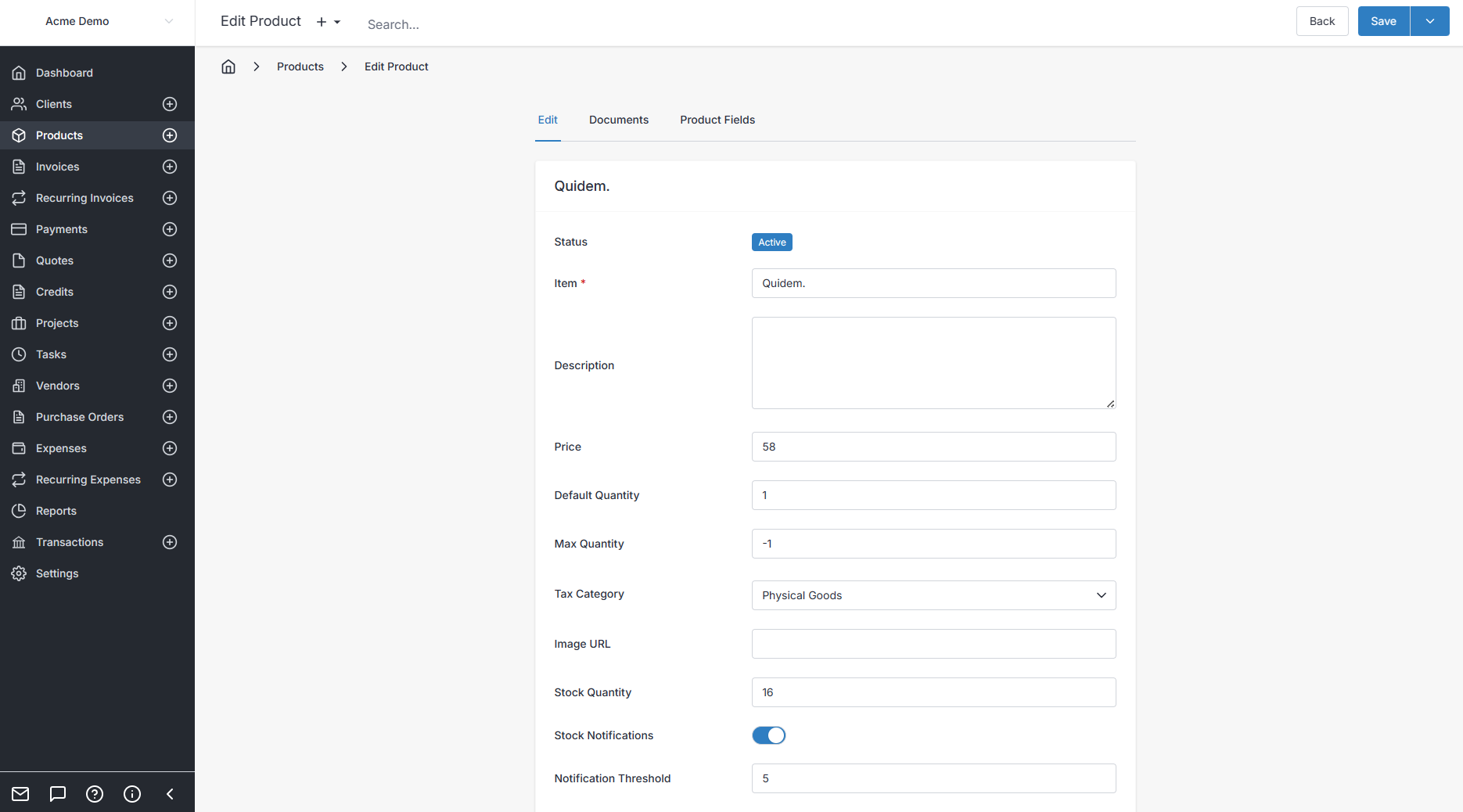
To view the current stock levels, simply viewing the product will show the current level.
If you want a spreadsheet of all your prouct's stock levels, you can go to Reports, select Report Product and it will download a .csv of all your products including stock levels.
You can also combine the Purchase Order module to update your inventory level automatically, see Purchase Orders for more info.