Transactions
Overview
Invoice Ninja has partnered with Yodlee and GoCardless, top data providers, to gain access to bank & credit card data feeds. This partnership gives Invoice Ninja users worldwide access to major banks and enables them to connect their accounts for automatic reconciliation of payments and expenses.
Bank Accounts
Settings > Credit Cards & Banks
You can view and add bank accounts in the settings section of the application.
Please see Banking for details.
Transactions List
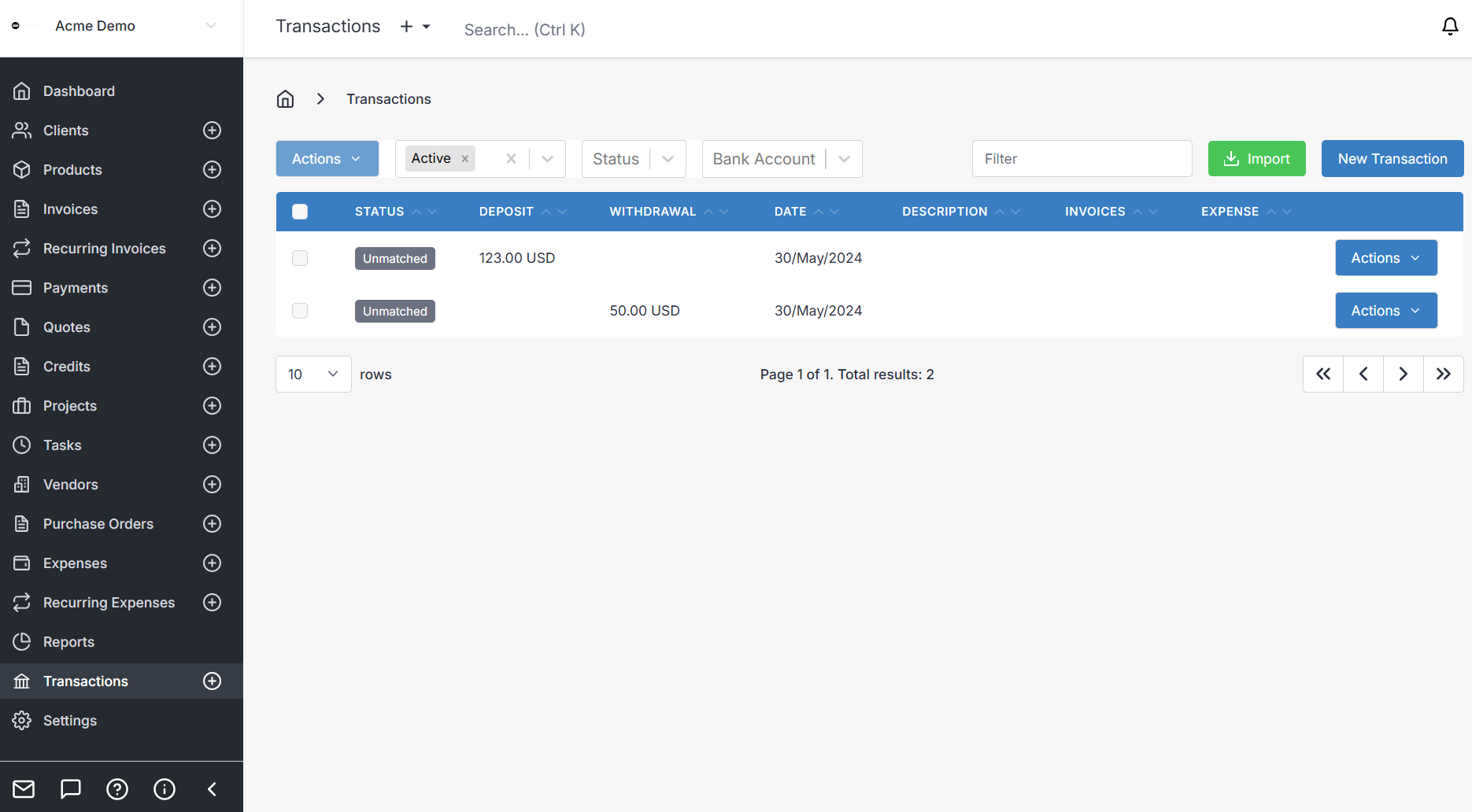
The transactions overview displays all of your transactions and their status.
-
Bank Account - Filter the account you are viewing transactions for.
-
Status - Defines the status of the transaction.
- Unmatched - A new transaction that needs to be matched to a Invoice or Expense
- Matched - A transaction that (based on predefined rules) has been matched to a Invoice or Expense
- Completed - A transaction that has been matched AND linked to a Invoice or Expense
-
Deposit - The amount of income for the transaction.
-
Withdrawal - The amount of the expense for the transaction.
-
Date - The Date of the transaction.
-
Description - The description of the transaction.
-
Invoices - The linked invoices (visible when completed)
-
Expenses - The linked expenses (visible when completed)
Create a Manual Transaction
To create a manual transaction click on the New Transaction button
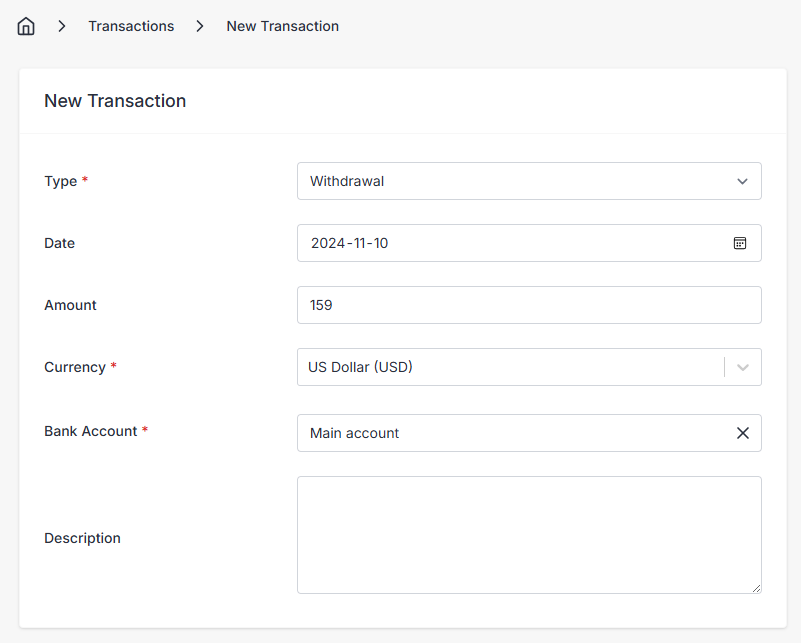
Select a Type:
- Deposit for income
- Withdrawal for expenses
Fields:
- Enter the Date of the transaction
- The amount
- Select the currency of the transaction
- Select the bank account to link the transaction to
- Enter a description. For auto matching, if you enter the invoice number we will automatically find and match the related invoice.
Matching Transactions
When you click on a transaction a second window pane will open which will show you the matching options:
Transaction Status
A transaction can appear in three states:
- Unmatched - A transaction that is unmatched is a transaction that has yet to be processed or categorized. When a transaction is created in the system, its first status is unmatched.
- Matched - A transaction that is matched means that Invoice Ninja has calculated (based on a set of rules) the correct matching for this particular transaction. In the matched state, the transaction can be Converted (to either an expense or payment) or it can be recategorized manually.
- Converted - A transaction that is converted means that either Invoice Ninja or a user has matched and converted the transaction into either an Expense or Payment. The details and linked objects can be viewed by clicking onto the transaction.
Converting a transaction to an expense - Expense Matching
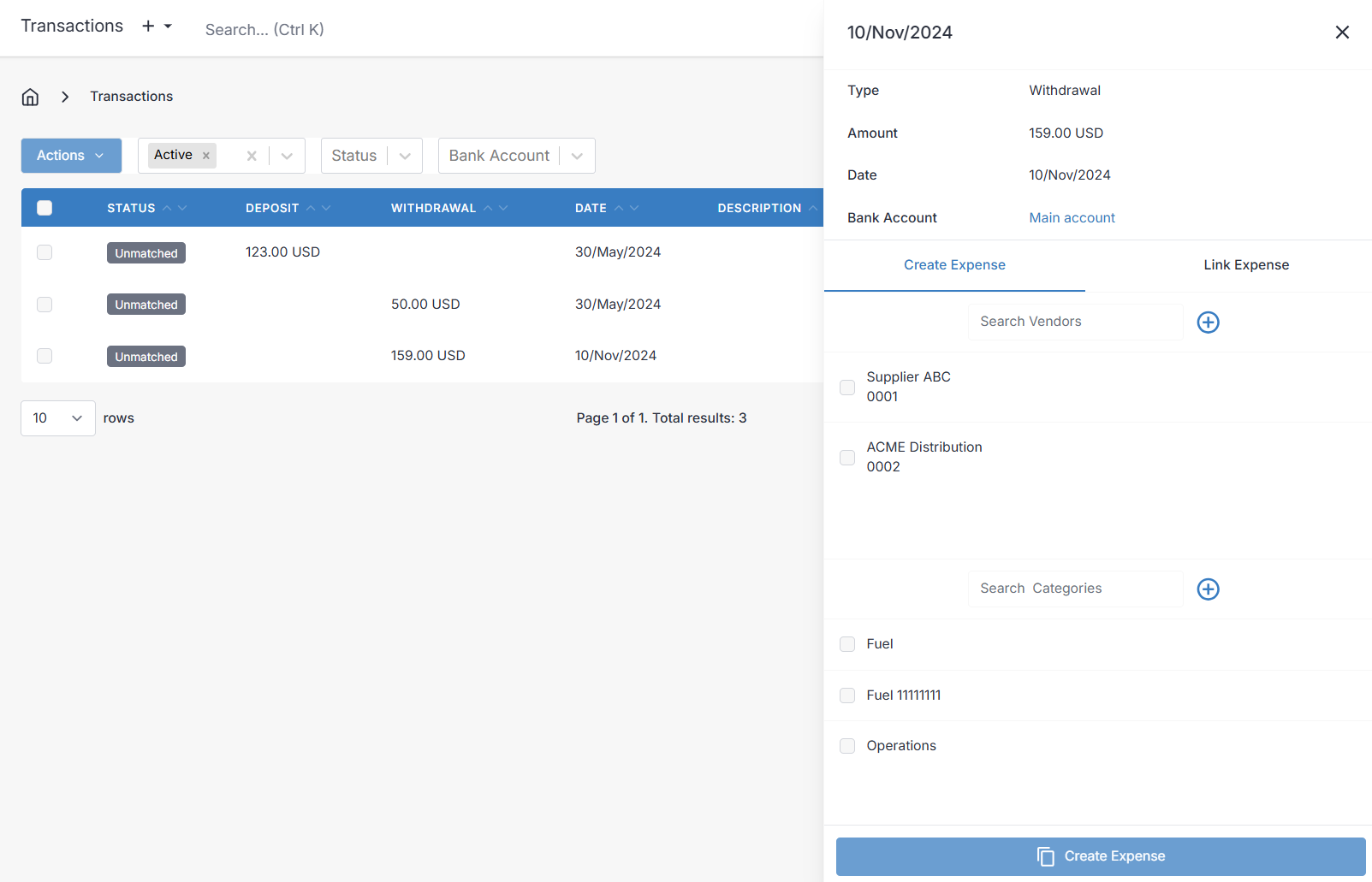
When you click on the transaction row of a WITHDRAWAL, a side panel will appear as above.
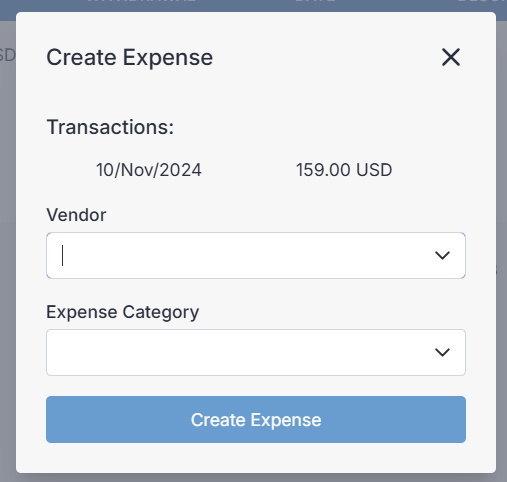
From this panel you are able to assign a Vendor and/or an expense category to this transaction. When you are satisfied, just click on Convert to expense. The system will then process the transaction, convert it to an expense and finally link the expense and transaction together.
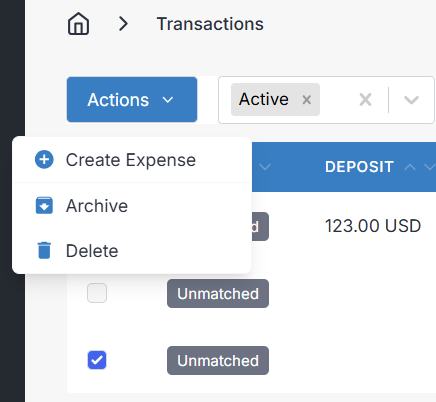
Alternatively, you can select the checkbox next to the transaction, then Actions>Create Expense as shown below:
Converting a transaction to a payment - Invoice Matching
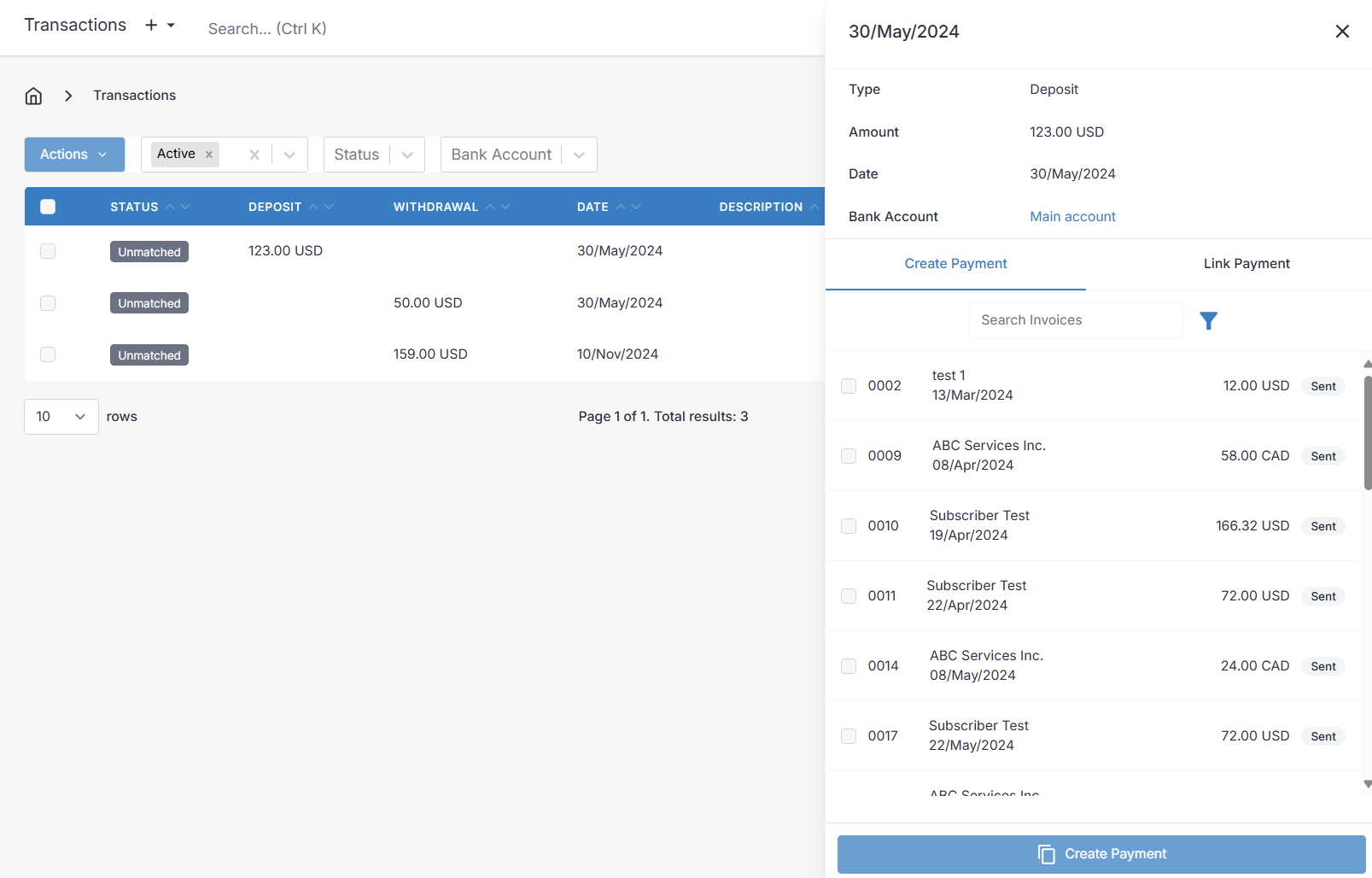
When you click on the transaction row of a DEPOSIT, a side panel will appear as above.
From this panel you are able to click on a range of invoice which are to be associated with this transaction.
When this has been completed, click on the Create Payment Button. The system will then process the transaction, creating a payment for the full tranasction amount, apply the payment to the associated invoices, and then link the invoice / transaction and payments together.
Manually Importing Bank Statements
If you prefer to import your data using .csv files from your bank, you can upload these directly into Invoice Ninja.
You can import these from:
Transactions > Import

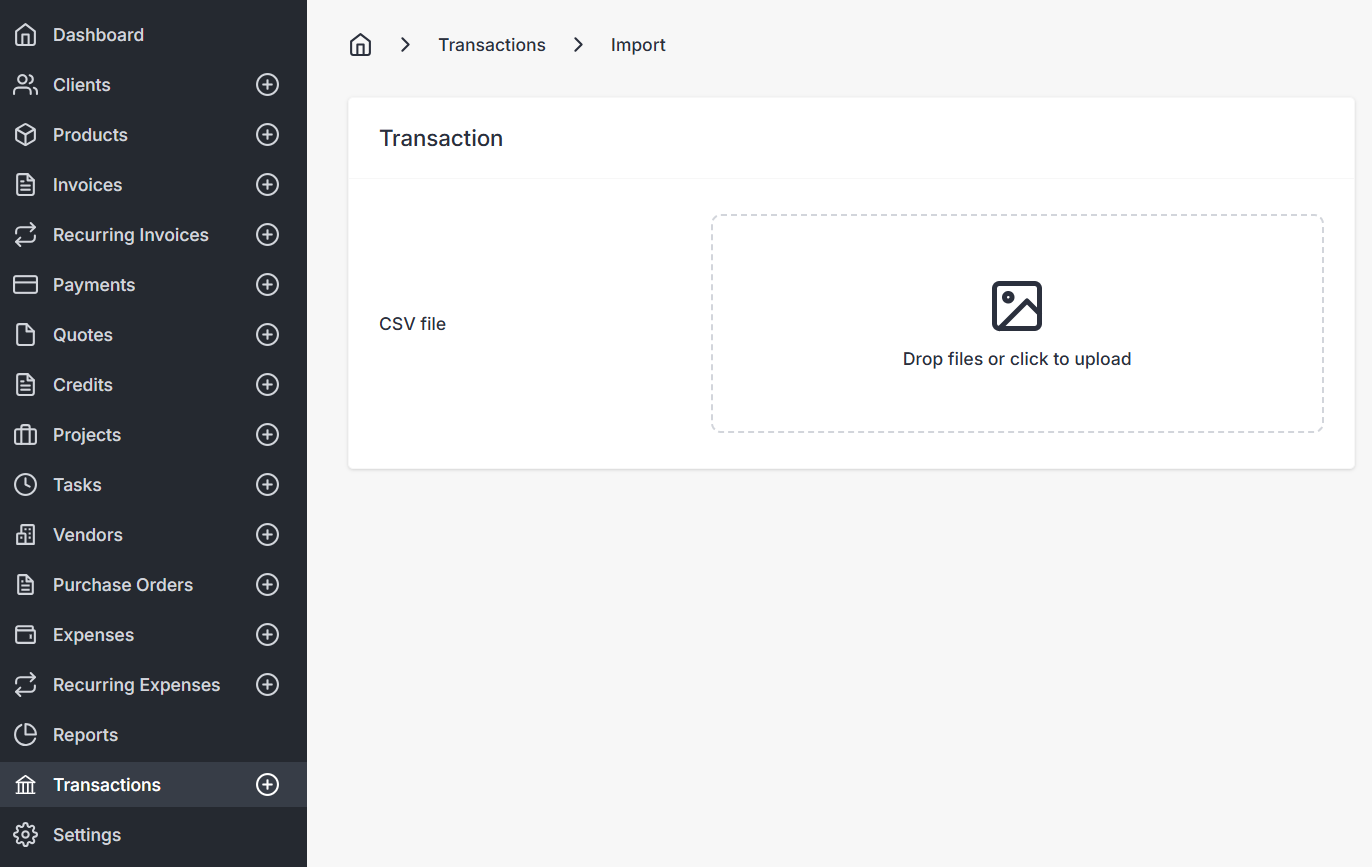
You'll need to have created a Bank Account prior to this, so the transactions are linked to the correct bank account.