Import and Export
Import Data
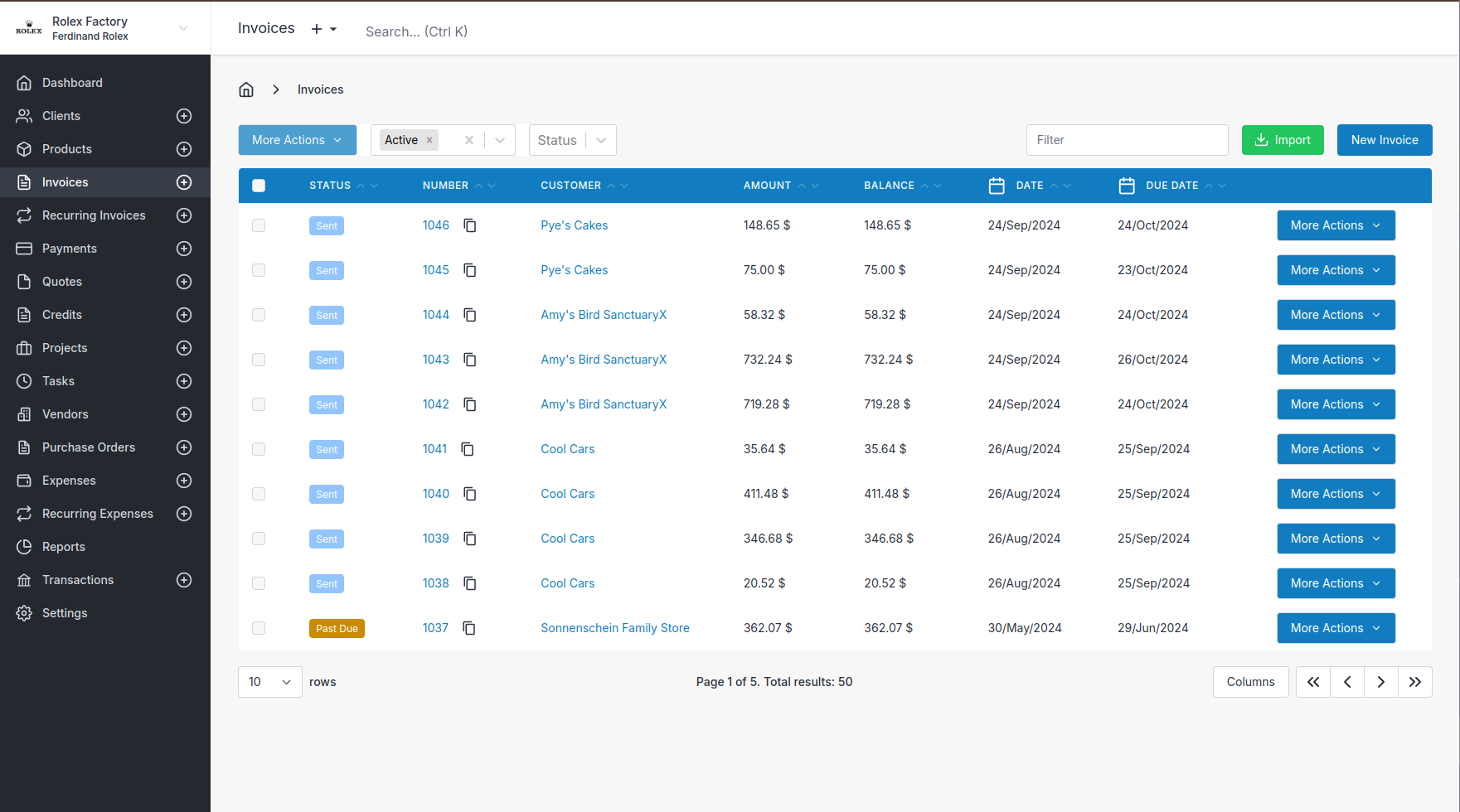
You can import data into Invoice Ninja from CSV files or other accounting software from anywhere in the application using the green Import Button.
Note Numbers are imported based on your company currency format. ie USD currency will parse a period (.) as the decimal, EUR with parse a comma (,) as the decimal separator.
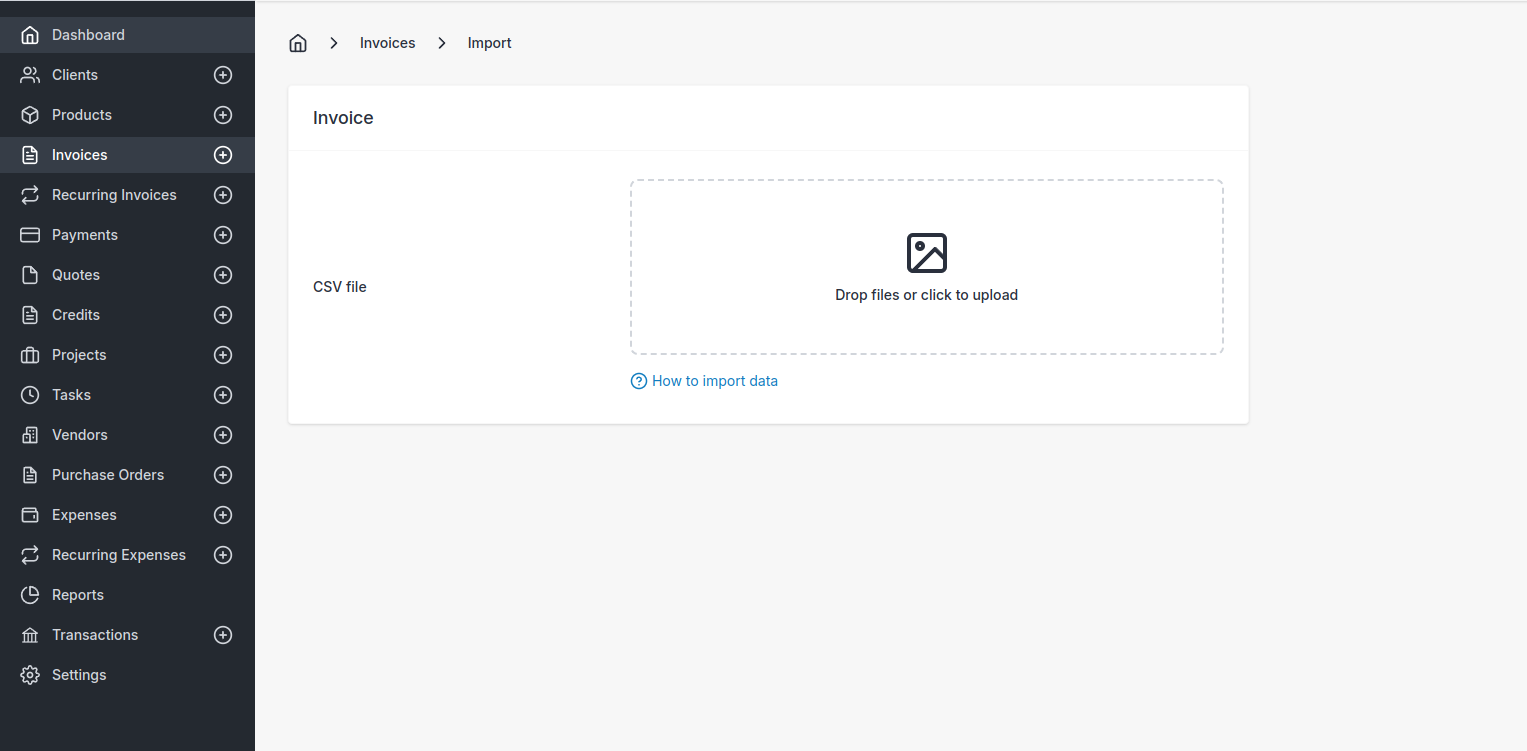
First start by uploading your CSV file to the dropzone.
This will upload the file and we will perform column matching and return you to a new page.
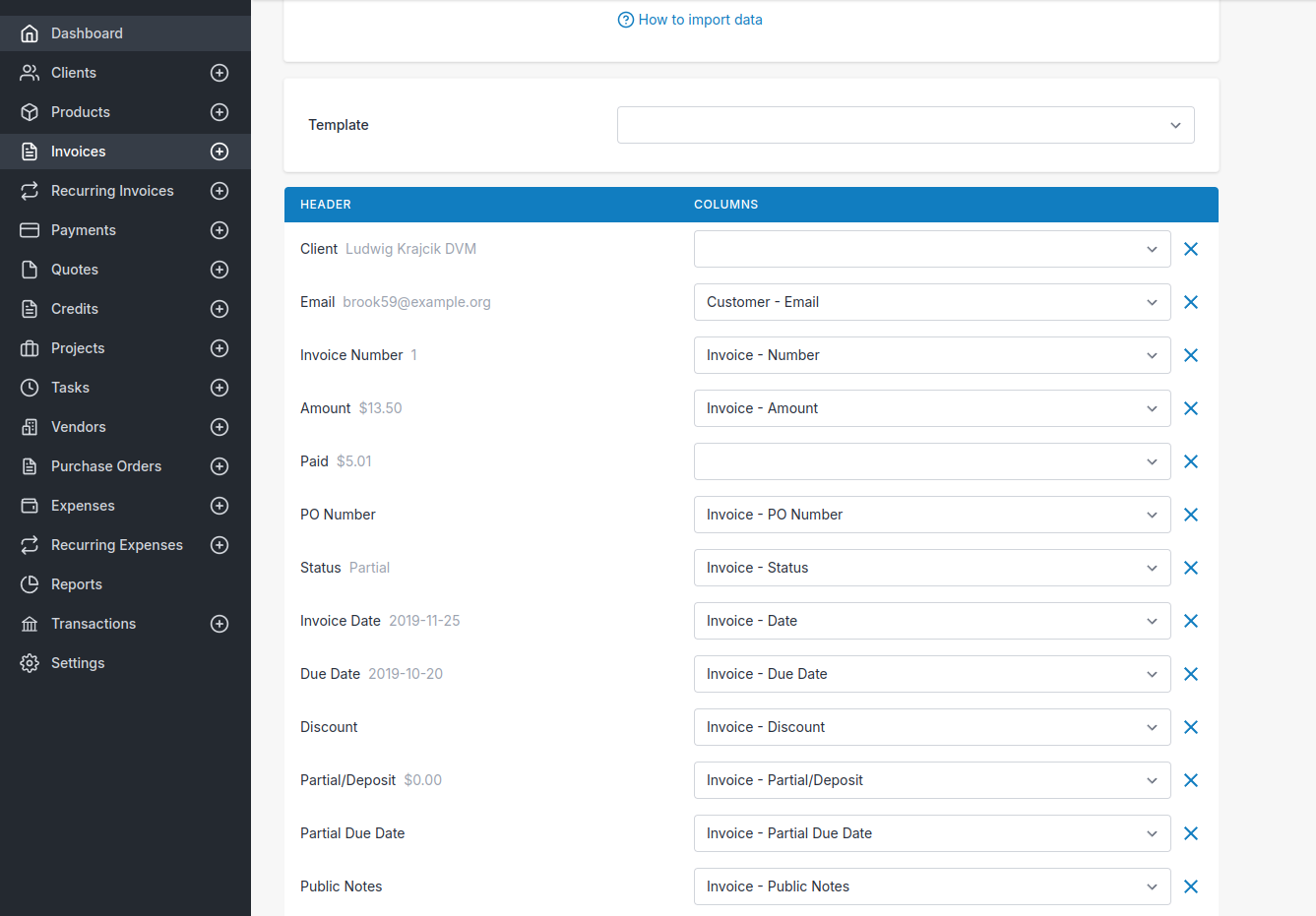
Here we match the column from the CSV (left column) with the matching Invoice Ninja columns (right columns). From here you can adjust the mappings and when they look correct, click on Import.
The system will then process the CSV file and email you the results of the import.
If you regularly import the same file format, the application will offer you the ability to save the import columns as a template. You can select the template from the dropdown when importing.
Importing Invoices
There are some special considerations when importing invoices.
- A invoice number must be included in the file and must be unique.
- If you have multiple line items you wish to include within the same invoice, use the same invoice number for each line.
- Each line item MUST include a quantity and cost column for the calculations of the invoice total.
- If you wish to include a payment on the invoice, add a payment amount column and reference the amount paid.
Importing / Updating Products
As well as importing new products, you can also update existing products!
Invoice Ninja will check for existing products with the same Product/Item name and instead of creating a new product, it will update the product with the new data.
Note Invoice Ninja will only update active products, archived/deleted products will not be updated instead NEW products will be created.
Third Party Import
Freshbooks
From the Import page, select Freshbooks and then upload your clients and invoices files, we'll do the rest!
Invoice2go
From the Import page, select Invoice2go, upload your invoice file and we'll do the rest!
Invoicely
From the Import page, select Invoicely and then upload your clients and invoices files, we'll do the rest!
Wave
From the Import page, select Wave Account and then upload your clients and accounting files, we'll do the rest!
Zoho
From the Import page, select Zoho and then upload your contacts and invoices files, we'll do the rest!
Export Data
There are several ways to export data out of Invoice Ninja:
Export Function using Reports
Using the report you are able to generate reports and filter them down. When you are ready, there is an Export button which will export the data to csv for instant downloads.
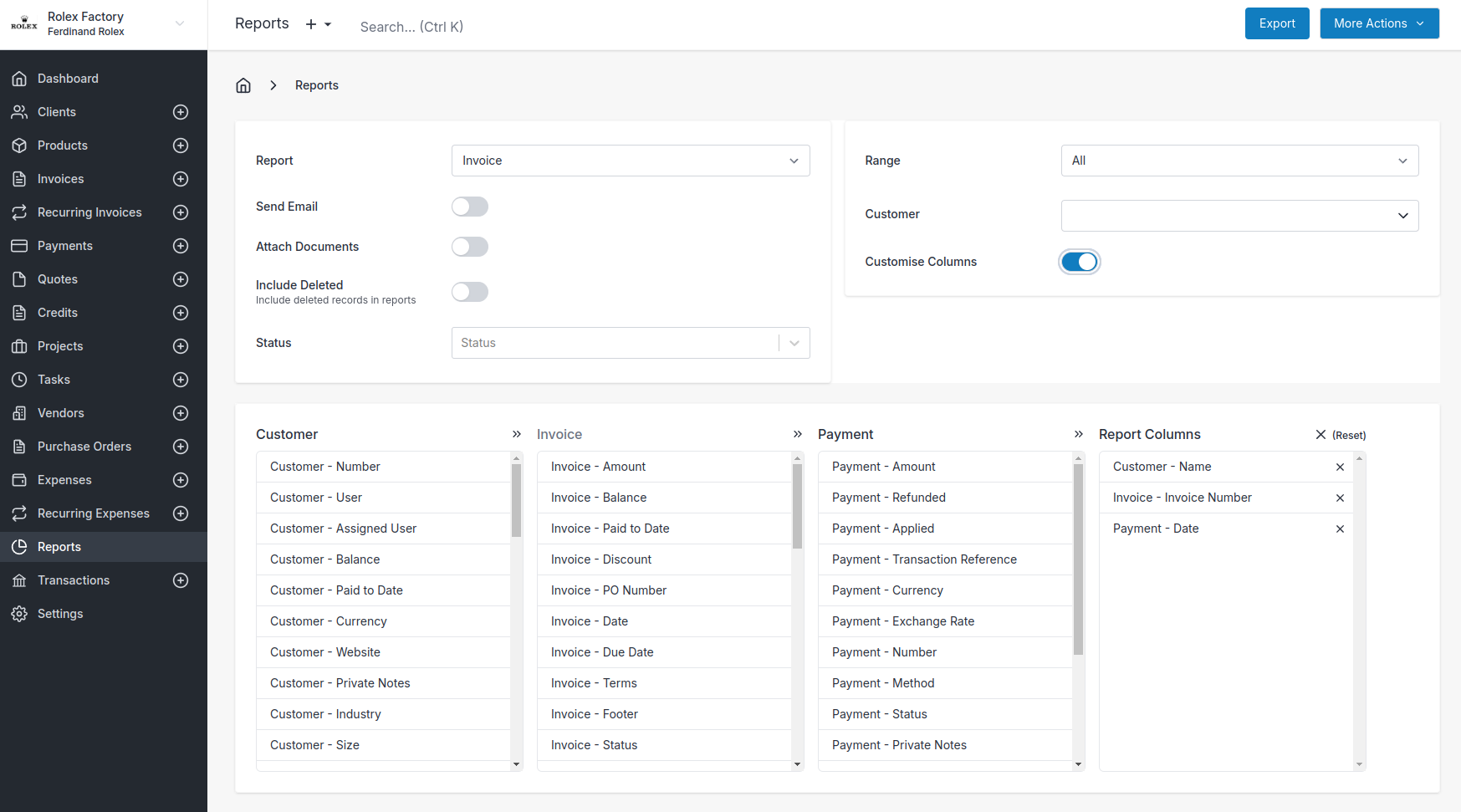
From the reports menu you are able to curate custom reports including the ability to customize the columns that you wish to export.
You are also able to use the Schedule action to automatically email a report to a selected email address on a regular basis.
Backup Function
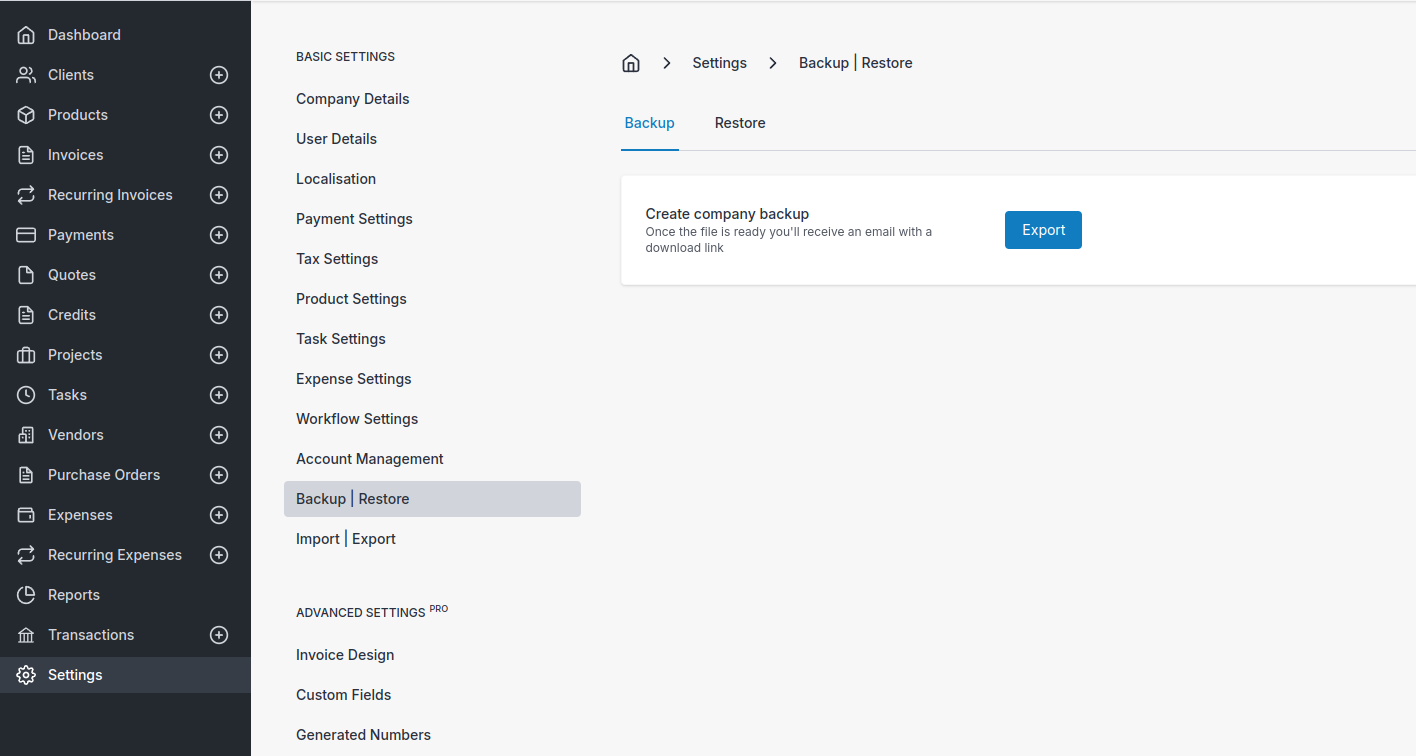
Settings > Backup | Restore
Full system backups and restores can be performed from this section of the application. You can create a full backup which will be emailed to you for safe keeping.