Reports
Reports turn the day-to-day activity inside Invoice Ninja — invoices sent, payments received, expenses logged, taxes collected — into the numbers you (or your accountant) actually need at quarter-end. Whether you're a freelancer reconciling a single client, a small business preparing for tax season, or an agency tracking profitability across dozens of projects, the Reports module is where raw records become answers.
Every report is built from the same filters at the top of the screen, so once you learn one you've effectively learned them all.
- Report — the record type to report on: Clients, Invoices, Quotes, Payments, Credits, Expenses, Recurring Invoices, Products, Invoice Items (which, unlike Products, also includes invoiced Tasks), Profit and Loss, and more. Your choice here controls which columns are available.
- Status — limits the report to records in specific states. This won't appear for types that have no status (Products, Profit and Loss). If you're reporting on received payments, for example, set the status to Completed so you don't pull in failed or pending ones.
- Range — a preset date window (This Month, Last Quarter, This Year, and so on) or a Custom range you type in yourself.
- Client — narrows the report to a single client, where the record type is client-related. It won't appear for something like a Product report.
- Products, Vendors, Projects, Expense Categories — extra filters that show up on reports where they make sense (Expense, Invoice Item, Product Sales).
Additional Report Toggles
Not every toggle applies to every report — you'll only see the ones that make sense for the type you've picked.
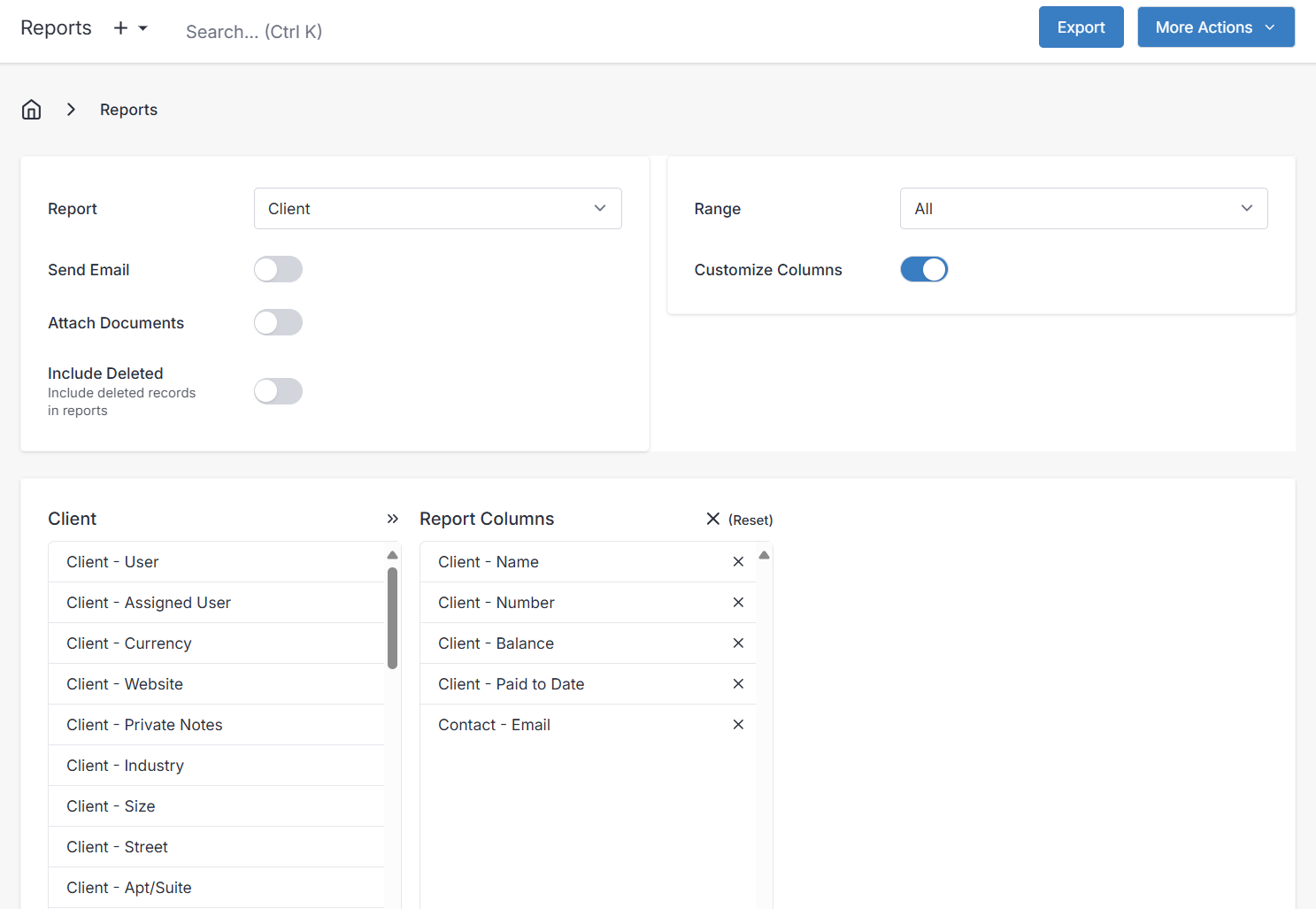
- Send Email — instead of downloading the CSV, emails it to the currently logged-in admin user as an attachment. Useful when you're running reports on a device you'd rather not save files on.
- Attach Documents — also emails a ZIP of any documents attached to the records in the report. For example, running an Invoice report with this enabled will also email you every receipt or contract you'd previously attached to those invoices.
- Include Deleted — pulls in deleted records. Handy if you've deleted a client (see Clients) and still need to reconcile historical numbers.
- Customize Columns — drag and drop between the left column and Report Columns to pick exactly which fields land in the CSV. The available columns follow whichever report type you've chosen.
Run the Report
Once the filters are set, you have two ways to see the output — Export to CSV, or Preview on-screen. Both sit in the top-right of the Reports screen.
Export generates a CSV you can open in Excel, Google Sheets, or LibreOffice — ideal for backups, deeper analysis, or handing off to an accountant. If you've ticked Send Email, the CSV arrives in your inbox instead of downloading directly. Under More Actions you'll also find Preview (for reports that support it) and Schedule, which drops you into the New Schedule screen so a report can run on a recurring basis and email itself to you automatically — good for a monthly P&L or a weekly aged-receivables check.
Preview
When a report supports Preview, choosing More Actions > Preview renders the result on screen in a table you can scan without leaving the browser.
Filtering in Preview
The first row of the preview table is a set of text fields you can type into to filter the results live. The Download CSV file button above the preview then downloads only what's currently visible. In the example below, PAYMENT TRANSACTION REFERENCE is filtered to "manual", so Download CSV file returns only those three rows.
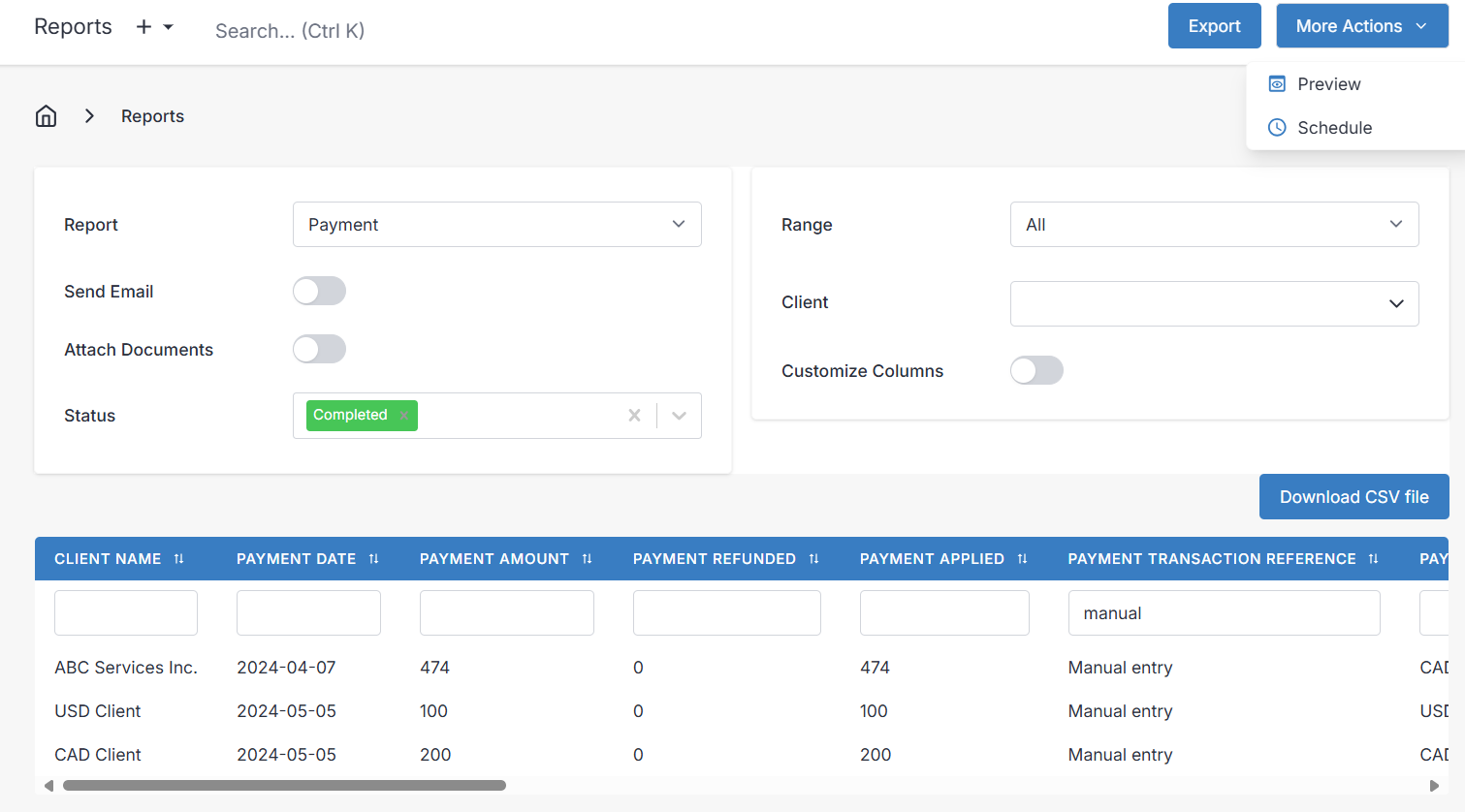
To download every row for the report — filtered or not — use the Export button at the top right instead.
Special Reports
A handful of reports have a shape that doesn't fit a single flat table, so their columns can't be customised. These are the ones that tend to matter most at tax time and when you're reviewing how the business is actually performing.
Product Sales

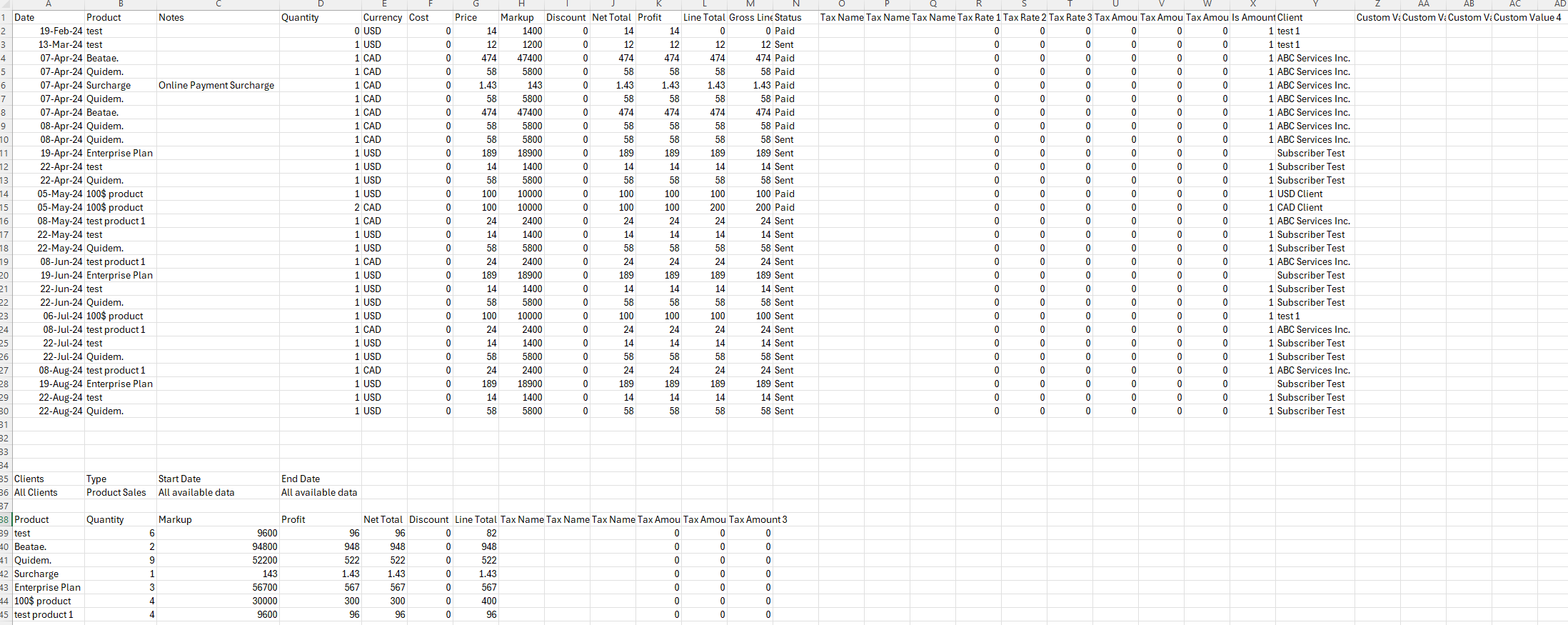
The Product Sales report answers two questions at once: which products sold, and how profitable are they? The first table lists each individual sale by date. The second totals quantity, markup, profit, and other figures per product — so you can see at a glance which offerings are pulling their weight and which aren't worth restocking.
Profit and Loss Report
This is the report most accountants reach for at year-end. It sums your revenue, your expenses, the profit (or loss) that falls out of the difference, and the taxes you collected and paid along the way.
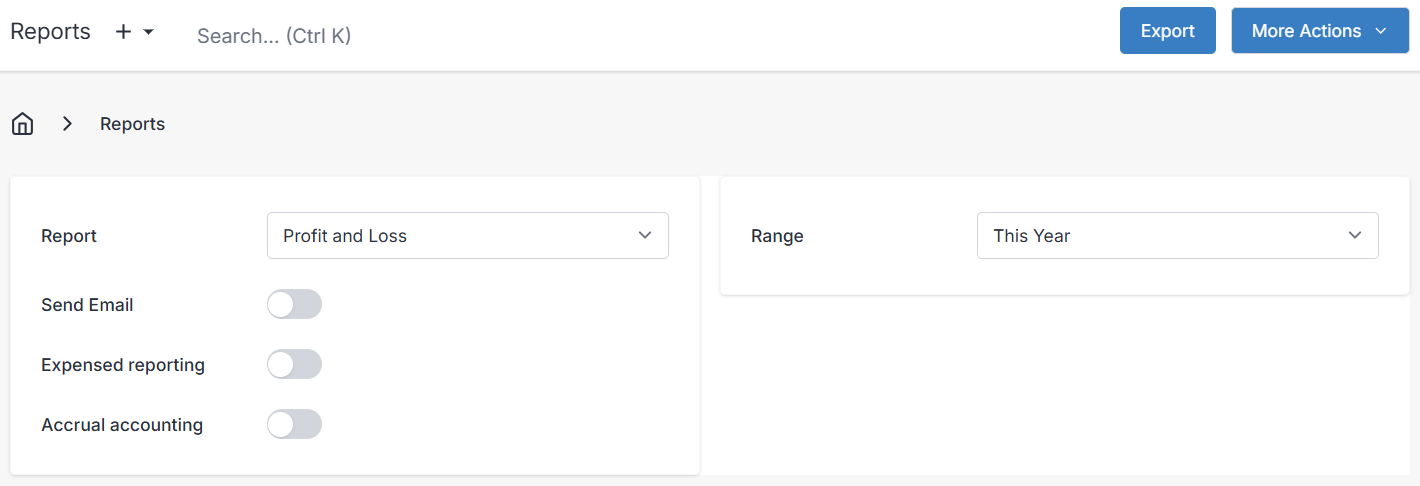
Two toggles change how the numbers are tallied, and they matter. When Expensed reporting is on, every expense in the period is counted regardless of whether it's been marked paid; when off, only expenses you've actually paid are counted. When Accrual accounting is on, every invoiced total in the period is counted whether or not the client has paid; when off, only payments actually received are counted. The combination lets you switch between a cash-basis and an accrual-basis view without changing your data. Include tax adds tax collected on revenue (shown under Total Revenue as Total Taxes) and tax paid on expenses (shown the same way under Total Expenses) into the totals.
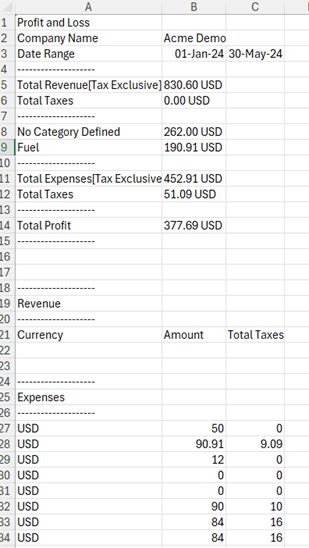
Expenses are broken down by category so you can see where the money actually went. In the example above, $830.60 in payments received less $452.91 in expenses gave a $377.69 profit, with $51.09 of that expense figure being tax paid.
All amounts are converted to your company currency (set under Settings > Localization). If you recorded payments in CAD and USD but your company currency is USD, every line in the P&L is converted to USD. A breakdown of revenue, expenses, and currencies sits at the foot of the report. If you need finer detail on specific tax types or a line-by-line list of payments or expenses, run one of the dedicated reports instead.
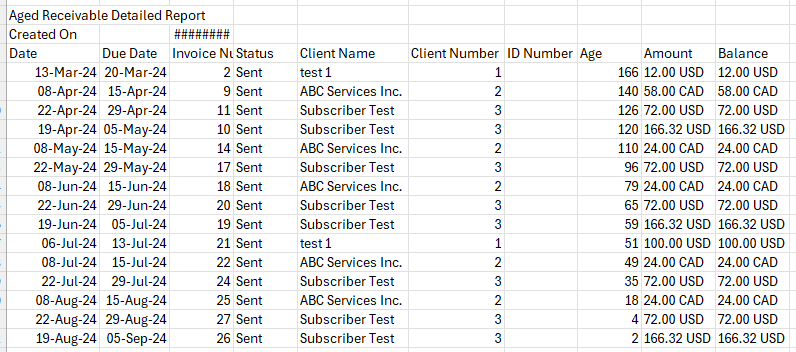
Aged Receivable Detailed Report
When a client hasn't paid and you need to know exactly which invoices are outstanding and for how much, this is the report. It lists every unpaid invoice with its balance — the raw material for a collections call or a dunning run.
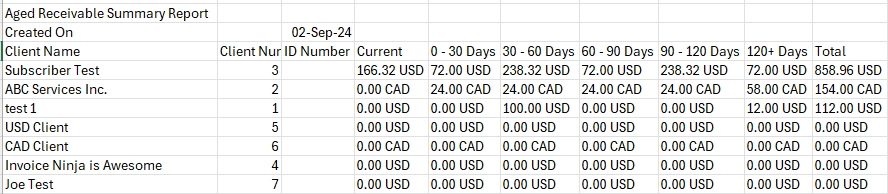
Aged Receivable Summary Report
The summary version rolls those same unpaid balances up per client and drops them into aging buckets, so you can spot your slowest payers at a glance without wading through every invoice.
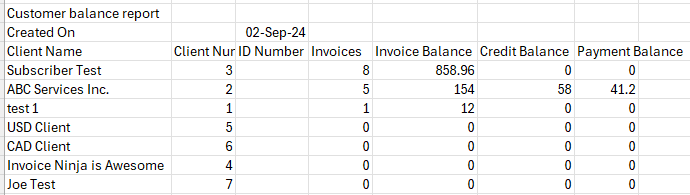
Customer Balance Report
A per-client snapshot of invoices, credits, and payments — the report to run when you want to know, client by client, exactly where each one stands with you right now.
Customer Sales Report
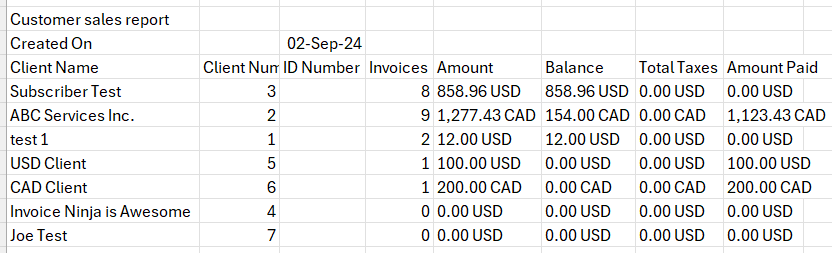
For each client, this totals invoiced amount, outstanding balance, taxes, and amount paid. It's the "who's worth what to the business" view — useful when reviewing your top accounts or planning who to nurture next.
Tax Summary Report
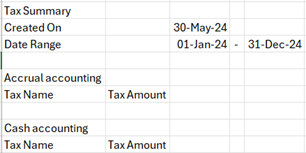
The Tax Summary Report totals every tax collected in the chosen date range, broken down by each tax rate's name and percentage. If you collect multiple rates — GST plus a state sales tax, or VAT across jurisdictions — this is the report you'll use to calculate input tax credits and to file returns. For the bigger picture on how tax is configured and applied, see Taxes.
User Sales Report
If more than one person on your team creates invoices, the User Sales report totals the number of invoices, the total invoice amount, and taxes (converted to company currency) for each user. It's the accountability view — useful for commissions, performance reviews, or just seeing who's been busy.
One caveat: if an invoice wasn't explicitly assigned to a user, it won't count against any of them. That's why the example below shows 22 invoices totalling 2,548.39 USD but the two users listed each show zero — none of those invoices were assigned to them.

Advanced Customization Tips
For charts, pivot tables, or deeper analysis, open the exported CSV in a spreadsheet tool such as Microsoft Excel, Google Sheets, or LibreOffice. From there you can select the data range for auto-totals, format it as a table, and build whatever charts or summaries you need.
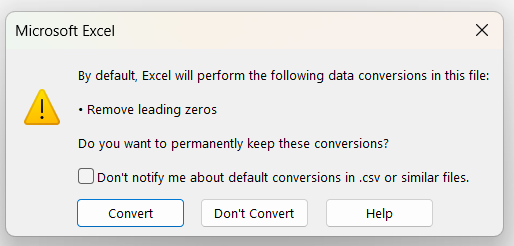
If Excel prompts you to remove leading zeros when opening the file, choose Don't Convert. Some Invoice Ninja fields (invoice numbers, client numbers) legitimately start with zeros, and you want those preserved.
Between the filters, custom columns, scheduling, and spreadsheet follow-up, there are far more ways to slice the data than are worth listing — but this should give you enough of the mechanics to build whatever view your business actually needs, whether that's tax-season preparation, product-sales trends, or a quick accountability check on staff billing. If you're pushing this data into your accounting software, the QuickBooks integration may save you the CSV step entirely.
Tax Reports
TIP: If you are looking for an explanation of tax or sales tax report features, see this article: Tax Accounting Tips