Vendors
A vendor is the counterpart of a client: instead of someone you sell to, it's someone you buy from. If a client represents the money flowing in, a vendor represents the money flowing out. Think of your accountant, your hosting provider, your office supplier, or the contractor you hired for a one-off piece of work — any person or business you pay for goods or services belongs in the Vendors module.
Keeping a tidy list of vendors is what lets Invoice Ninja connect your spending back to real counterparties. Every expense and recurring expense can be tagged to a vendor (optional), and every purchase order must be issued to a vendor (required). Once those links are in place, you can answer questions like "how much did we spend with this supplier last quarter?" without digging through receipts.
Creating Vendors
There are a few ways a vendor record can come into being:
- Vendors > + Vendor
- The + quick-add button in the left navigation
- During expense entry, where you can create a new vendor inline
- API Integrator: Zapier, Make, APISync, or manual API calls developed using the API Documentation
A vendor can represent either a person (a sole trader, a freelancer you subcontract to) or a company. If you don't supply a vendor name, the first contact's name will be used as the display name instead.
Vendor Module View
Selecting Vendors from the left-hand navigation of the admin portal brings you to a table view of every vendor on file. From here you can sort by column, add or remove columns, filter the list to show archived or deleted vendors, and jump straight into creating a new one. Each row has an Actions menu on the right where you can edit, comment, archive, or delete the record.
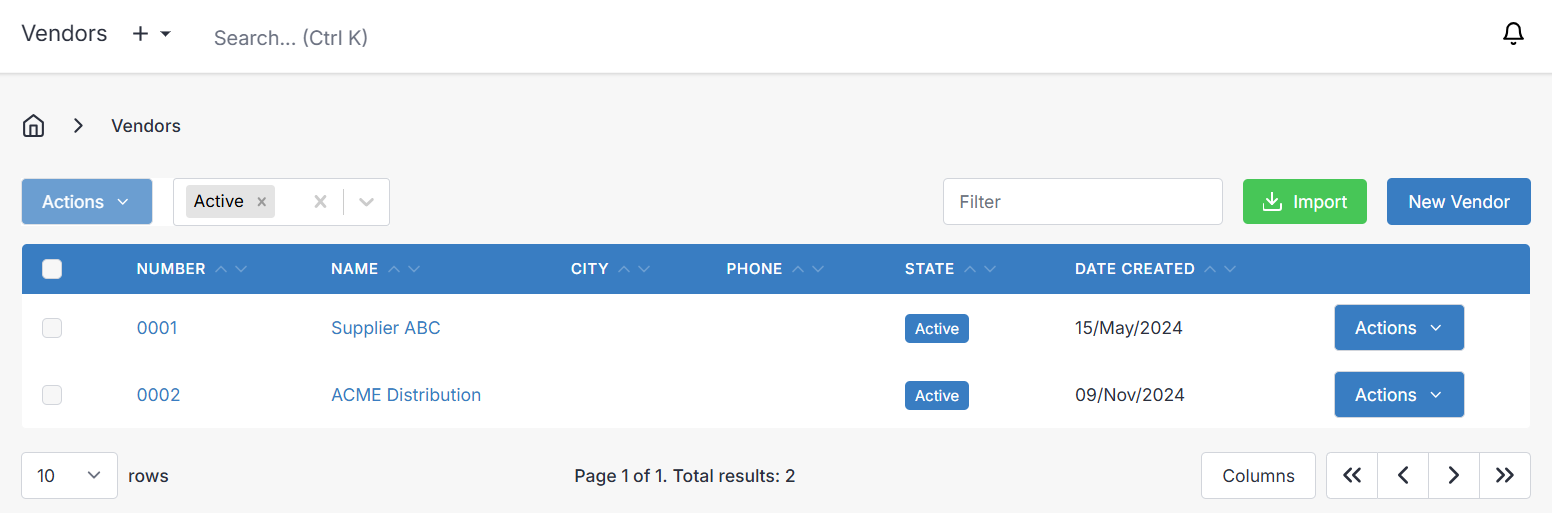
Actions Dropdown
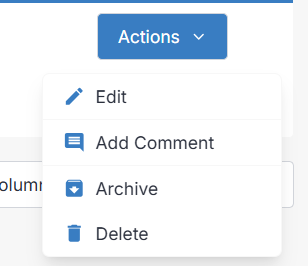
Common Tasks
Change a Vendor's Currency
By default every vendor uses your company's currency, but if a supplier invoices you in something different you can override it on the vendor record. Open the vendor, click Edit, and switch the currency under the Additional Info > Settings section. The chosen currency will be applied to any purchase orders you create for that vendor going forward.
Archive a Vendor
Open the vendor and choose Archive from More Actions (or from the vendor list menu). Archiving simply hides the vendor from the default views — nothing else changes. Their purchase orders, expenses, and history all remain intact and can still be viewed by filtering the list to show archived records.
Restore an Archived Vendor
On the vendor list, change the status filter at the top of the table to Archived, open the vendor, and select Restore from More Actions. The vendor returns to your active list with all data unchanged.
Delete a Vendor
Deleting a vendor removes them and their linked activity from your reporting — associated expenses and purchase orders are excluded from totals as if they never happened. The underlying data is not erased; the vendor and their records are only hidden and flagged as deleted, and can be brought back in full using Restore from More Actions (with the status filter set to Deleted).
Use Delete when you want a vendor's activity excluded from your reporting. Use Archive when you just want to tidy up your active vendor list without affecting any totals.
To delete, open the vendor and choose Delete from More Actions.
Purge a Vendor
Purge is a permanent, irreversible action that wipes all of the vendor's data from the system — the vendor, their contacts, purchase orders, and related records are removed and cannot be restored. Use this only when you are certain the data is no longer needed (for example, to satisfy a data-removal request).
Viewing a Vendor
To view a vendor's details, select their row in the table view. The vendor's record is laid out across several panels, each surfacing a different slice of the relationship.
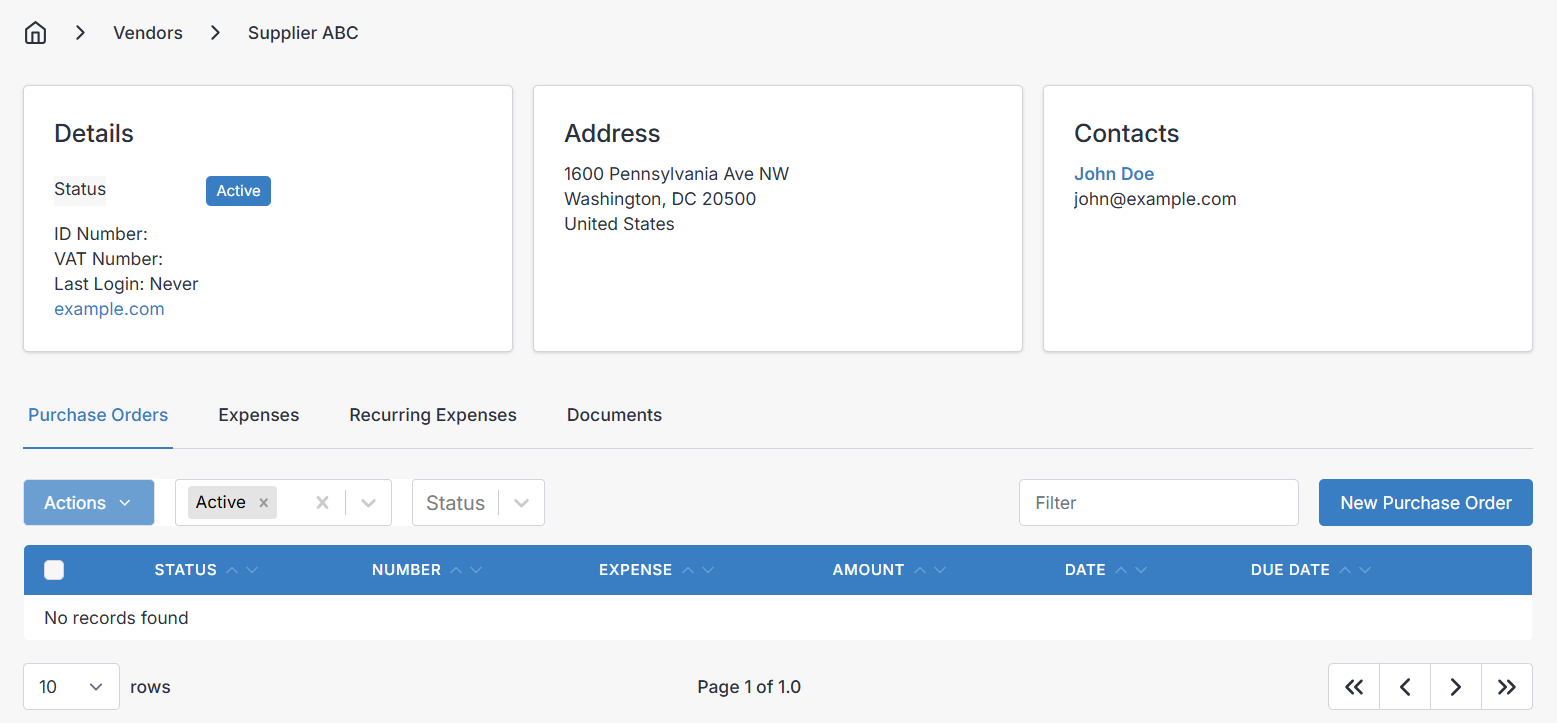
Purchase Orders
A list of every purchase order issued to this vendor. Purchase orders must always be tied to a vendor, so this panel is the definitive record of what you've formally ordered from them.
Expenses
A list of expenses linked to the vendor. Tagging an expense to a vendor is optional, but doing so is what makes spend-per-supplier reporting possible.
Recurring Expenses
A list of recurring expenses linked to the vendor — useful for predictable, repeating outgoings like monthly hosting, software subscriptions, or retainers you pay out.
Documents
Upload contracts, supplier agreements, W-9s, or any other files you want kept alongside the vendor record. These documents are visible only to admin portal users — vendors themselves cannot see them.
Creating and Editing a Vendor
On desktop, creating or editing a vendor opens a single screen with every field in view. On mobile the same fields are split across tabs. Most fields are optional — let your own bookkeeping needs decide how much you fill in.
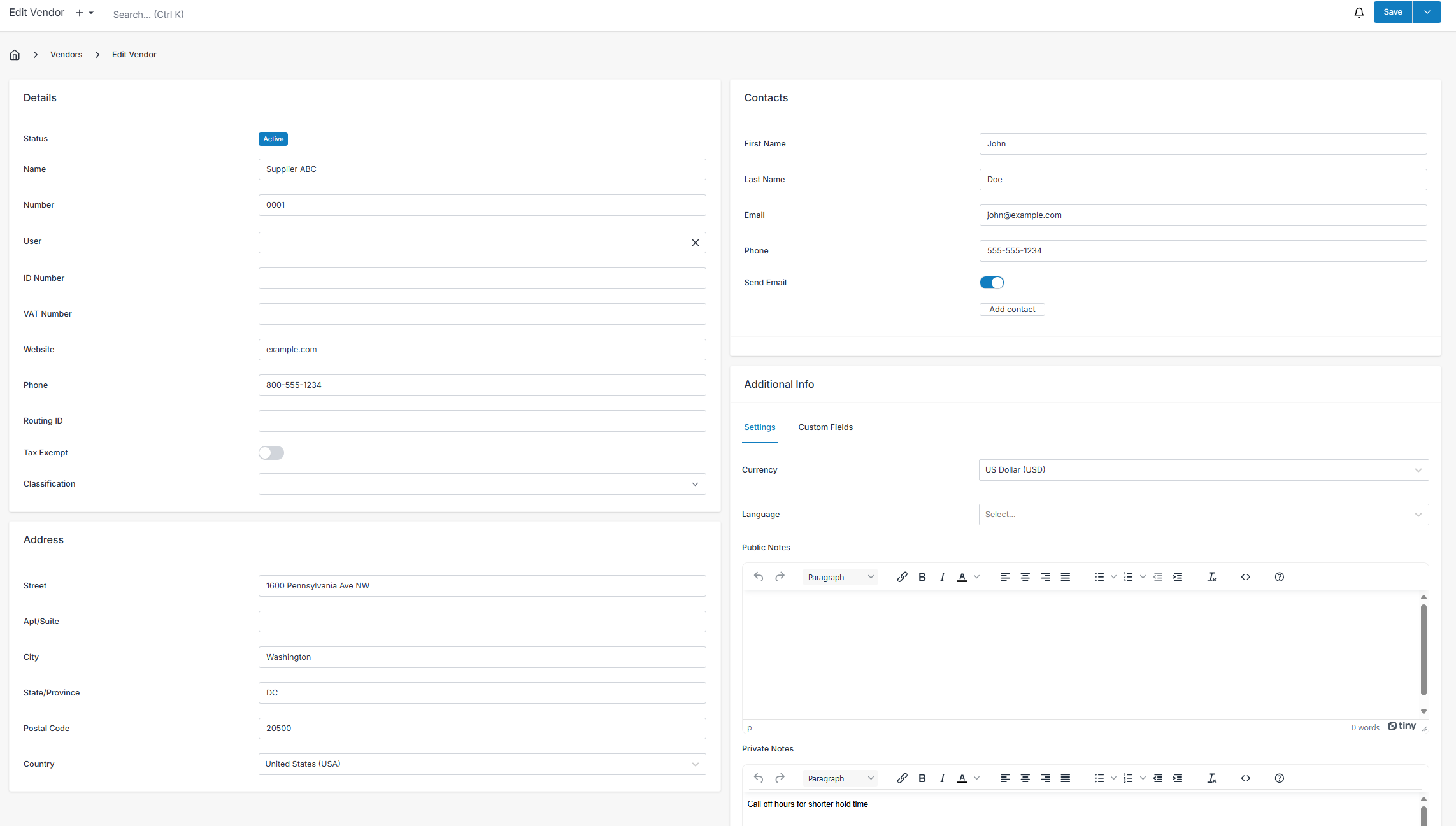
Details
- Name — The vendor's business or trading name.
- Number — Automatically generated to uniquely identify the vendor in the system. Number patterns can be customised under Settings > Generated Numbers.
- ID Number — An optional, free-form field for whatever business ID number applies in your jurisdiction.
- VAT Number — For recording a Value Added Tax number, commonly required within the European Union.
- Website — The vendor's website address.
- Phone — A primary phone number for the vendor.
- Routing ID — Optionally store the vendor's bank routing ID.
- Tax Exempt — Reserved for future E-Invoicing behaviour.
- Classification — An optional dropdown for categorising the vendor type.
Address
Standard fields for recording the vendor's billing address:
- Street — Street number and name.
- Apt/Suite — Apartment or suite number.
- City
- State/Province
- Postal Code
- Country
Contacts
You can attach as many contacts to a vendor as you like — one per person or department you deal with on their side. This matters most for purchase orders, where contacts with Send Email ticked are copied on the PO email by default.
- First Name & Last Name — An individual's name, or simply a department label in the first-name field.
- Email — The preferred email address for the contact.
- Phone — The preferred phone number for the contact.
- Send Email — Tick this to include the contact on Purchase Order emails by default.
Additional Info
Settings
- Currency — The currency the vendor bills you in. This becomes the default currency on purchase orders created for this vendor.
- Language — The vendor's preferred language.
Notes
- Public Notes — Appear by default on purchase orders for this vendor. A good place for standing instructions or descriptions you want repeated on every PO.
- Private Notes — Visible only to admin portal users. Use these for internal observations — reliability, pricing quirks, anything you want your team to know but the vendor shouldn't see.
Custom Fields
Any custom fields configured under Settings > Vendors > Custom Fields show up here for you to populate.