Quotes
A quote is a priced proposal you send to a client before any money changes hands. Where an invoice is a bill that affects a client's balance and expects payment, a quote is a "here's what this would cost" document — it has no effect on the client's balance or ledger until it's converted into an invoice. Reach for a quote whenever a client needs to see and agree to a scope and price before you start the work.
Creating, viewing, and editing a quote works almost identically to working with an invoice, so if you've sent an invoice before, none of this will feel new. Quotes can bill for Products, Tasks, or Expenses, accept attached documents or pictures that the client can view in the client portal, and keep a full history of who changed what and when — useful when a proposal goes through a few rounds before it's accepted.
Viewing a Quote
Select a quote number from the list to open it.
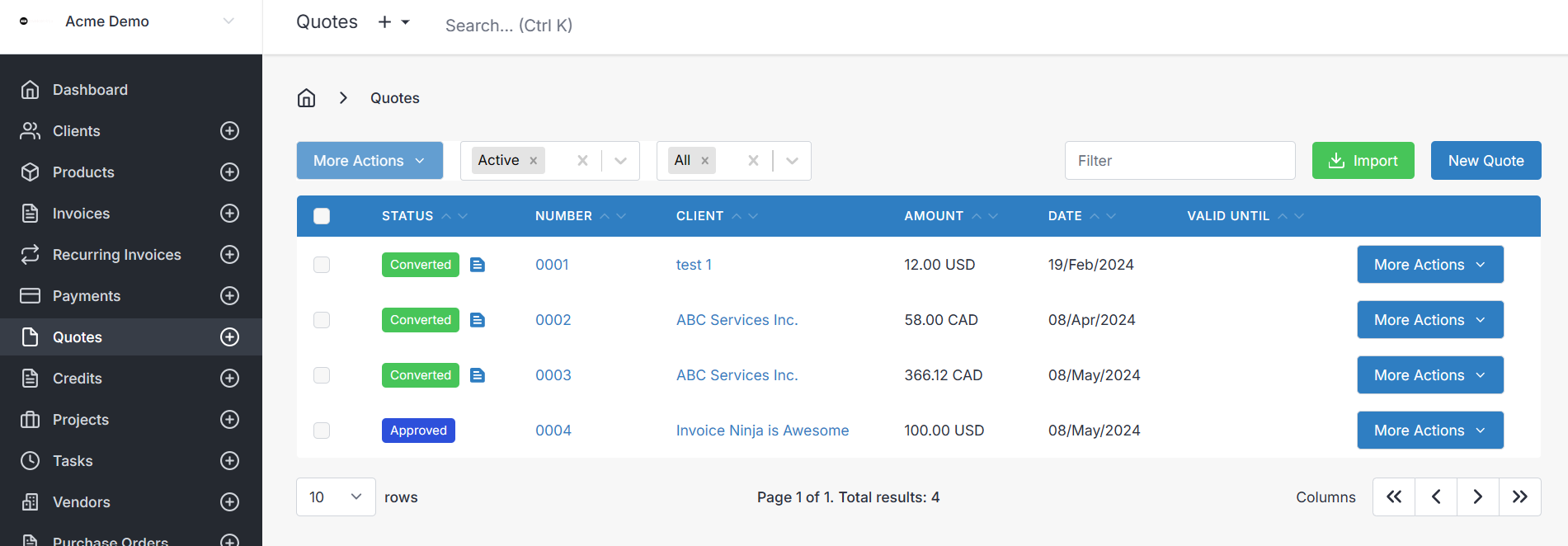
On desktop, clicking anywhere on a quote row (rather than the quote number itself) opens a pull-out panel on the right with quick access to the Overview, History, Activity, and Email History tabs.
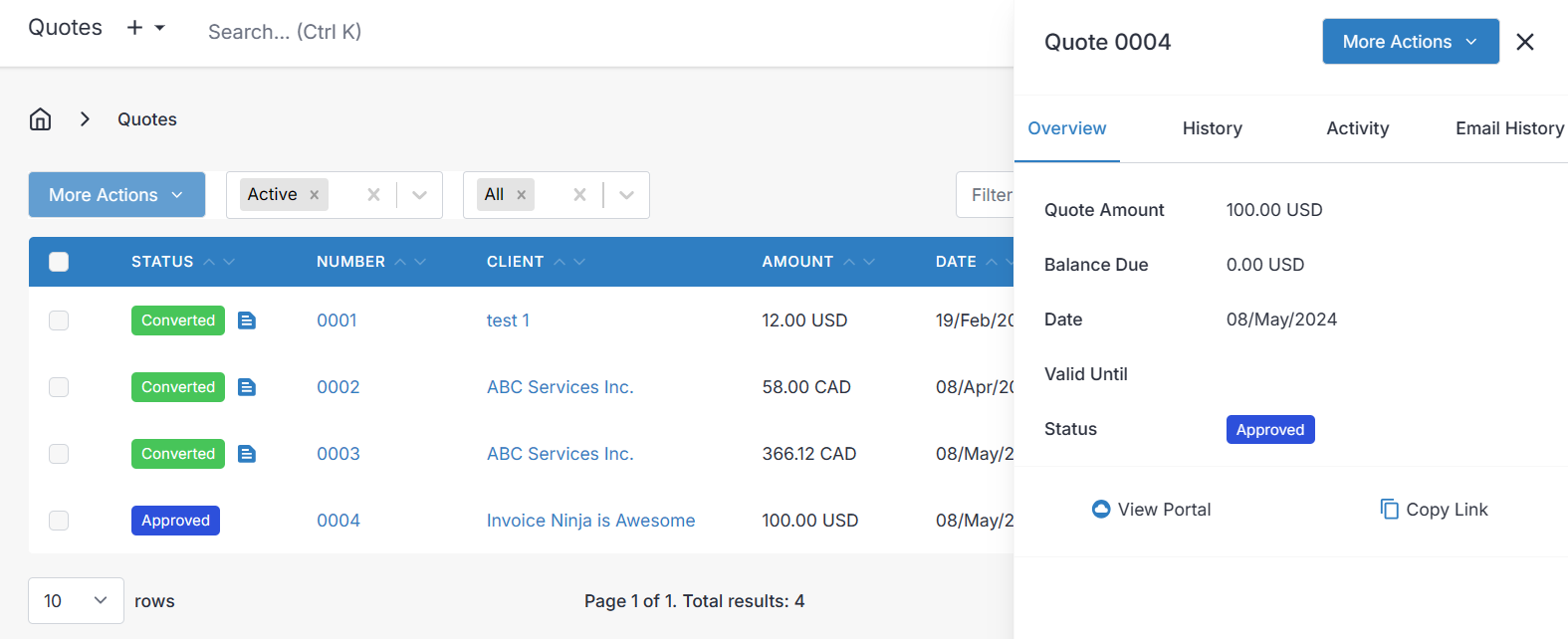
The Overview shows the essentials at a glance — total amount, balance, which client it's for, the quote date, and current status. The History tab records changes made to the quote total and the users who made them. Activity is broader: it chronologically lists every action against the quote — created, edited, approved, converted, and so on — along with who performed it. Email History logs every time the quote was emailed, which is invaluable when a client insists they never received it.
Creating or Editing a Quote
On desktop the whole edit view is presented as a single screen; on mobile it's split across tabs. Either way, the same fields are available:
- Client — the client the quote is for. Required.
- Quote Date — defaults to today.
- Valid Until — an optional expiry date after which you no longer honour the price. If a client sets a default quote validity period on their record (see Clients), it will be applied here automatically.
- Partial/Deposit — an optional deposit amount with its own due date, owed before the full quote amount.
- PO # — the client's own purchase-order number for their records.
- Quote # — auto-generated according to Settings > Advanced Settings > Generated Numbers.
- Discount — a flat amount or percentage off the total.
Quote Options Dropdown
Once you've saved the draft, a dropdown arrow appears next to the Save button in the top-right corner. This menu shifts depending on where the quote is in its lifecycle, and is how you drive the quote through its various states. The available actions include:
- View PDF, Print PDF, and Download PDF — work with the rendered quote document.
- Download E-Quote — download the electronic quote file, for jurisdictions that use e-invoicing.
- Schedule — queue the quote to be sent at a later date and time.
- Email Quote — send the quote to the selected contacts.
- Client Portal — view the quote exactly as the client sees it.
- Mark Sent — record the quote as sent when you've delivered it outside of the app (for example, handed over a printed copy).
- Approve — mark the quote as accepted yourself, without waiting for the client to click through the portal.
- Convert to Invoice — turn the quote into an invoice so the client can pay.
- Convert to Project — turn the quote into a project for task tracking.
- Run Template — render the quote through a custom design; see Templates.
- Clone to Quote and Clone to Other — copy the line items into a new quote, invoice, credit, recurring invoice, or purchase order.
- Archive and Delete — tidy up or remove the record (both are covered in the lifecycle section below).
Contacts
Every contact on the client that has Add to Invoices enabled is automatically ticked to receive the quote email. You can untick anyone you'd rather not include, or tick additional contacts for this specific quote. Each contact also has a link through to their view in the client portal, which is handy when you want to double-check what they'll see. How contacts are configured is covered under Clients.
Items
The items list is the substance of the quote. Each line has a Product (the product, task, or expense being quoted), a Description (which supports HTML and Markdown when enabled under Settings > Account Management), a Unit Cost, and a Quantity. Unit cost multiplied by quantity gives the line total, and the sum of the lines — with any discount and tax applied — gives the quote total.
Bottom Tabs

The tabs beneath the items list hold everything that isn't a line item. Terms is for the conditions attached to the quote, and can be saved as your default terms so you don't have to retype them. Footer is for less important disclaimers printed at the bottom of the PDF, and can also be saved as a default. Public Notes sit on the quote itself — a good place for a short summary of the work or any context the client should see. Private Notes are for your own team and never appear on the PDF or in the client portal.
The Documents tab lets you attach files to the quote — contracts, mock-ups, site photos — which the client can open from the portal. Settings gathers the less-used options: reassigning the User who owns the record, linking a Project or Vendor, setting an Exchange Rate when the client is billed in a different currency, choosing a Design template (customisable under Settings > Invoice Design), and toggling Inclusive Taxes.
Lifecycle of a Quote
A quote moves through a small set of statuses, and each one tells you — and the client — where things stand.
Draft
Draft is where every quote begins. While it's a draft you can freely edit it, and the client can't see it — it's entirely yours until you decide to share it. Draft quotes are inactive: they don't appear in the portal and no emails go out. Once you email the quote or mark it as sent, it leaves draft and cannot be sent back.
Once a draft quote has been emailed or marked as sent, its status cannot be changed back to draft.
Sent
A quote becomes Sent the moment it's emailed from Invoice Ninja or you manually mark it as sent (for example, because you handed the client a printed copy or shared it some other way). From this point the client can open it in their client portal and approve or reject it.
Approved
Approved means the client has agreed to the quote. This usually happens when the client clicks Approve in the client portal — the cleanest path, because it gives you a timestamped record of their agreement. You can also approve a quote yourself from the admin portal dropdown if the client agreed over the phone or in person.
If you need a countersigned document rather than a click-through approval, see E-Signatures.
Converted
Converting turns the approved quote into an invoice — the final step of a successful quotation. The line items, totals, and attached details are copied across to a new invoice that the client can then pay.
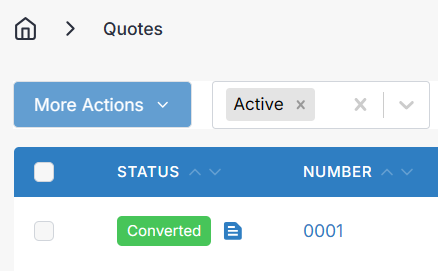
Once converted, a blue invoice icon appears next to the green Converted label and links straight through to the resulting invoice, so you can always trace a quote to the invoice it produced.
Deleted
A quote can be deleted while it is still in Sent or Draft status. Deleting sets the status to deleted and appends _deleted to the quote number, which frees that number up to be reused by a future quote. The record itself isn't gone for good — it can be restored.
Archived
Archiving simply hides a quote from the default list view to keep your active work tidy. All the data stays put.
When a quote is archived no further modifications can be made to the quote. To modify the quote you will need to Restore the quote first.
Restored
Restoring brings an archived or deleted quote back to whatever status it held before, so you can pick up exactly where you left off.