Invoices
An invoice is the bill you send a client — a dated, numbered record of what you delivered, what it costs, and how they can pay you. In Invoice Ninja an invoice is more than a PDF: it's a live document that tracks its own status, links to payments, feeds into the client's balance, and can trigger reminders, late fees, and online payment flows on your behalf.
Invoices can bill for Products, Tasks, or Expenses, include attachments the client can view from the Client Portal, and keep a full history of every change so you always know who did what and when.
Viewing an Invoice
There are two ways to look at an invoice, and which one you want depends on what you're trying to do. To see the PDF that your client will receive, choose More Actions > View PDF. To see every detail — line items, notes, settings, linked payments — open the edit screen by clicking the invoice number, or choose More Actions > Edit.
Click an invoice for overview
On desktop, clicking anywhere on an invoice row except the invoice number slides a panel out from the right with Overview, History, Activity, and Email History tabs. This is the fastest way to glance at the state of an invoice without leaving the list.
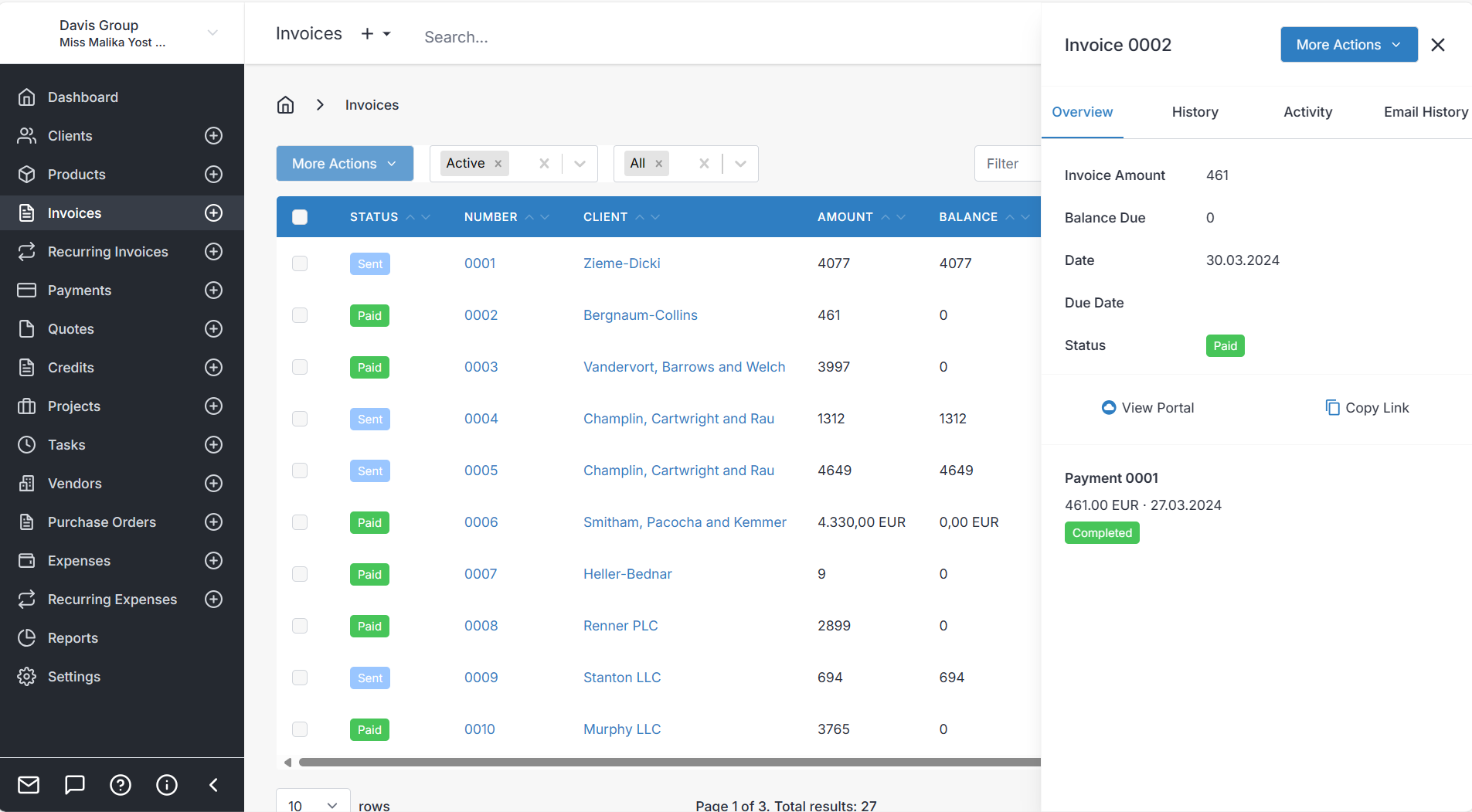
The Overview shows the invoice amount, balance owing, any amount paid, the client, the invoice date, and the current status — enough context to decide whether you need to take any action.
History
The History panel is a chronological record of changes to the invoice total and who made them. If a client ever queries why their balance differs from an earlier PDF, History is where you'll find the answer.
Activity
Activity shows every action performed against the invoice — created, edited, emailed, paid, refunded, cancelled — alongside the user responsible. It's the audit trail for the document.
Email History
A log of every time the invoice was emailed, to whom, and when. Useful when a client claims they never received an invoice.
Invoice More Actions Dropdown
The More Actions dropdown collects the things you'll reach for most often:
- Email Invoice — send (or resend) the invoice to the contacts checked to receive it
- View PDF / Print PDF / Download — see or save the rendered PDF
- Schedule — queue the invoice to send itself at a later date and time
- Delivery Note (PDF) — open the PDF view with the Delivery Note toggle enabled
- Download E-Invoice — download the structured electronic invoice file (for jurisdictions using E-Invoicing)
- Mark Sent — flip a draft to sent without emailing, for example when you delivered the PDF yourself
- Mark Paid — record full payment against the invoice in one click
- Client Portal — preview the invoice exactly as your client sees it
- Reverse — see Reversed
- Run Template — generate a document using an advanced Template
- Clone to Invoice — copy the line items into a brand-new invoice
- Clone to Other — copy the line items into a Recurring Invoice, Quote, Credit, or Purchase Order
- Archive / Delete — see the lifecycle section below before reaching for these
Invoice Edit or Create
The create and edit screens are the same screen with the same fields, so everything below applies whether you're starting fresh or revising an existing invoice.
Client
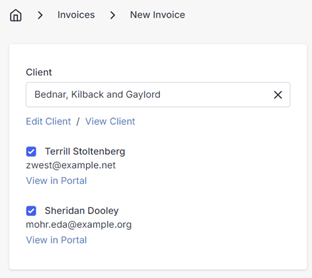
Every invoice belongs to exactly one Client. Pick them from the client selector — or, if they don't exist yet, create them on the fly. The client drives the currency, tax rules, language, payment terms, and email templates used on the invoice, which is why it's worth getting the client record right before you invoice someone the first time.
Contacts
A client can have several contacts (Accounts Payable, a project lead, a CC'd partner) and each one can be individually checked or unchecked for this specific invoice. Contacts with Add to Invoices enabled on the client record are pre-selected; you can override that per invoice without changing the client defaults. Each contact also has a direct link to their Client Portal view of the invoice, which is handy when you need to share a payment link in a chat or SMS.
Invoice Details
- Invoice Date — defaults to today. This is the document date shown on the PDF and used for reporting.
- Due Date — when full payment is due. Leave it blank and the invoice is due immediately; set it and the invoice won't be considered overdue (and won't trigger late fees or overdue reminders) until this date passes.
- Partial/Deposit — a smaller amount owed before the full balance, with its own due date. Use this for deposits, retainers, or milestone billing: the client sees a "pay this much now" prompt on the portal, while the remainder still tracks against the main due date. A partial payment puts the invoice into the Partial status (see below).
- Invoice # — auto-generated from the pattern you set under Settings > Generated Numbers. It's worth knowing Invoice Ninja tracks three different "numbers" that are easy to confuse. The Invoice Number (
$invoice.number) is what appears on the PDF. The client has their own Client Number ($client.number), also auto-generated, used internally. And each record has an ID ($client.id,$invoice.id) used by the API — these short alphanumeric strings aren't meant for humans. If you're importing from another system, use the client's ID Number field to store their old reference without disturbing the generated numbering. - PO Number — your client's purchase order reference, printed on the PDF so their accounts team can match the invoice to their own records.
- Discount — a reduction off the invoice total, entered as either a flat amount or a percentage.
Items
The items list is the body of the invoice: each row is something you're billing for. You can mix and match Products, Tasks, and Expenses — adding a product auto-fills the description, price, and tax from your product library, while tasks and expenses pull their rate and description from their source records.
Each line has the following fields:
- Product — the name of the product, task, or expense.
- Description — free text. HTML and Markdown are both supported when enabled under Settings > Account Management, which is useful for multi-line item notes or inline formatting.
- Unit Cost — the per-unit price, hourly rate for a task, or expense amount.
- Quantity — multiplied by unit cost to produce the line total. Quantity supports up to six decimal places, so 1.25 hours or 0.333 metres both work cleanly.
See Taxes for a full explanation of how per-line versus per-invoice tax is calculated, and why the two can differ by a cent or two on the same invoice.
Bottom Tabs

The tabs under the line items hold everything that isn't a billed item — notes, terms, attachments, and a handful of per-invoice overrides.
Public Notes
Visible to the client, printed on the PDF. A good place for a summary of the work, thank-yous, or contextual detail that doesn't belong in a line description.
Private Notes
Admin-only. Never printed, never emailed. Use these for internal reminders — "approved by Sam", "watch for late payment", "chase before month-end".
Terms
Your terms and conditions as they apply to this invoice. Click Save as default terms to reuse the same wording on every future invoice without retyping it.
Footer
Small print at the bottom of the PDF — bank details, disclaimers, legal notices. Also supports Save as default footer.
Documents
Attach files (contracts, photos, timesheets, delivery dockets) to the invoice. They're visible to the client through the Client Portal alongside the invoice PDF.
Settings
Per-invoice overrides that don't fit elsewhere:
- Project — link the invoice to a Project for reporting.
- User — change the user recorded as the invoice's creator. Beyond reporting, this can also be used to scope record visibility to a specific user.
- Exchange Rate — when billing a client in a currency other than your company's, manually lock the rate used to convert totals back to your base currency for reporting.
- Vendor — link a Vendor to the invoice where relevant.
- Auto Bill Enabled — when on, Invoice Ninja will automatically charge the client's saved payment method on the due date (or whenever you've configured under Settings > Payment Settings). Requires a connected Payment Gateway and a tokenised card or bank account on the client.
- Inclusive Taxes — when on, the tax is considered already included in the unit cost rather than added on top. Match this to how your prices are quoted.
- Design — pick one of the built-in designs or a custom one you've built under Settings > Invoice Design.
Charging Interest/Late Fees
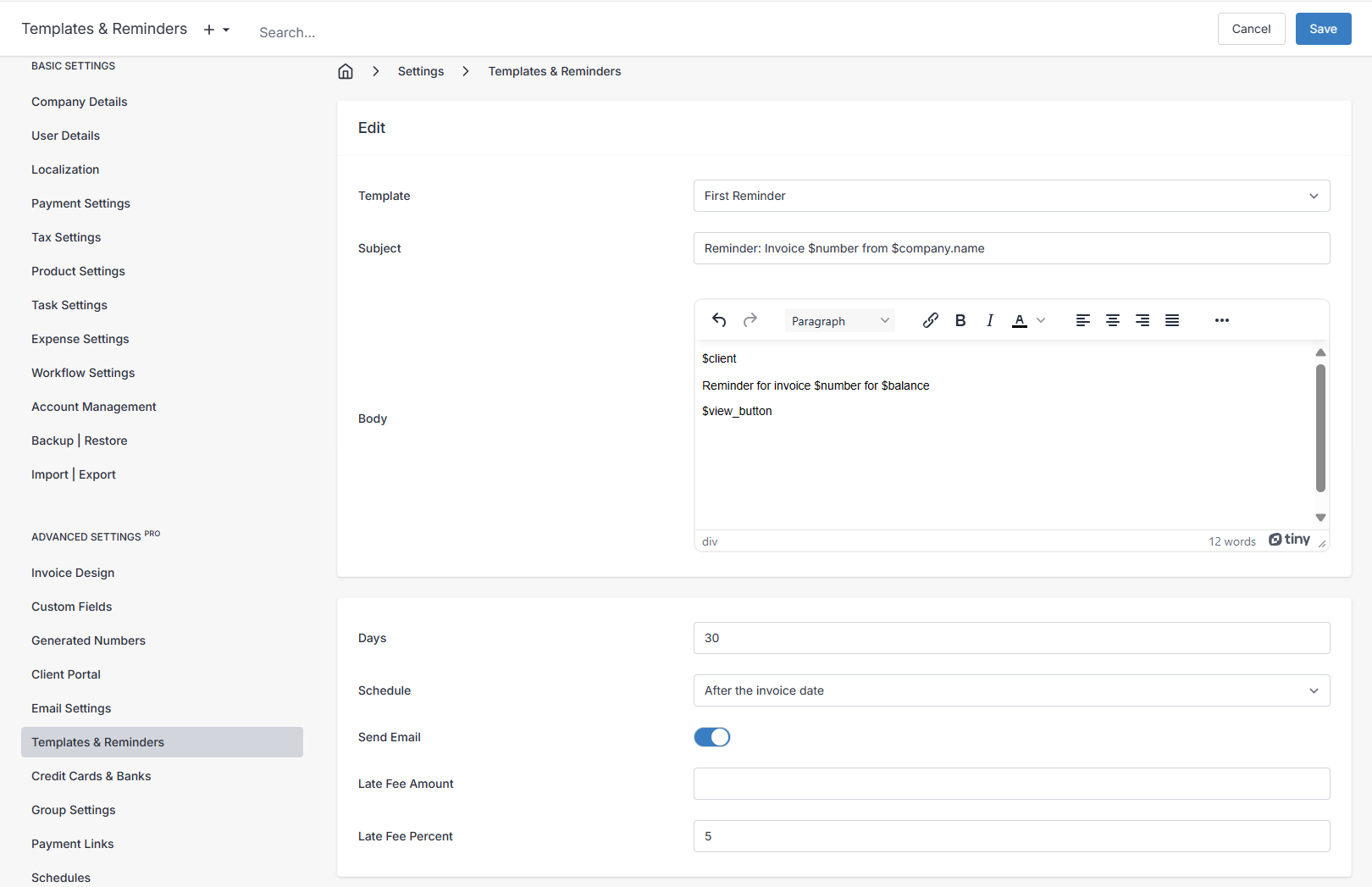
Late fees aren't configured on the invoice itself — they're rules applied globally under Settings > Templates & Reminders, so every overdue invoice is treated the same way. You define up to three reminders (for example, 3 days before due, 7 days overdue, 30 days overdue), and each reminder can optionally add a flat fee or a percentage of the outstanding balance as a new line on the invoice. Reminders only fire on invoices where Send Reminders is enabled on the client — which is why a client with a special arrangement won't trigger fees even if their invoice is overdue.
Lifecycle of an invoice
Every invoice moves through a small set of statuses. The status controls what the client sees, whether the invoice contributes to your reporting totals, and what actions you can take next. Understanding the transitions saves a lot of confusion later — particularly around why you can't edit something, or why a balance moved when you didn't expect it to.
Draft
Draft is where every invoice starts. In this state the invoice is invisible to the client, excluded from the ledger, and doesn't affect the client's balance — so you can build it up, tweak line items, and come back tomorrow without anyone seeing a half-finished document. Draft invoices become active the moment they're emailed, marked as sent, or marked as paid.
Once a draft invoice has been emailed or marked as sent, it cannot be moved back to draft. If you need to start over, clone the invoice and cancel or delete the original.
Sent
An invoice is marked Sent the moment you email it or choose Mark Sent from the actions menu. This is the status change that makes the invoice real: the client's balance increases by the invoice balance, reminders start counting down against the due date, and the invoice shows up in the client portal.
Partial
Partial means a payment has landed against the invoice but hasn't covered the full balance — either because the client paid the Partial/Deposit amount, or because a smaller Payment or Credit was applied. The invoice stays active, the client balance reflects only what's still owing, and subsequent payments move it along until it reaches Paid.
Paid
The full balance has been covered and the invoice is closed out. The invoice balance is zero, and any further actions (refunds, reversals) happen through the linked payment rather than the invoice itself.
Cancelled
Cancelling is the clean way to write off an invoice that was sent in error or for work that won't go ahead. You can cancel an invoice once it's Sent, Partial, or Paid. The invoice balance is zeroed, the client's balance drops accordingly, and the status becomes Cancelled. Any payments that were linked stay linked — cancelling doesn't erase history, it just settles the ledger.
Deleted
Delete is a stronger action than Cancel, meant for invoices you want fully removed from your reporting. Invoices in Sent, Draft, Paid, or Partial status can be deleted. If the invoice had a balance or payments applied, Invoice Ninja quietly performs a Cancellation first to keep the ledger balanced, then marks the invoice deleted. The invoice number is also appended with _deleted so you can reuse the original number on a fresh invoice.
If an invoice has a remaining balance or payments applied, it is cancelled first and then deleted — the two steps are automatic and inseparable.
Reversed
Reversing is the accountant-friendly way to undo an invoice that's already been paid. It's available once an invoice is Sent, Partial, or Paid. Where a Cancel simply adjusts the balances, a Reverse carefully re-routes any money that changed hands:
- The client's paid-to-date is reduced by the amount that had been paid against this invoice.
- Any payments that were applied are detached from the invoice and re-linked to a new credit, so the client's money isn't lost — it becomes a Credit you can apply to a future invoice or refund.
- Any existing credits that had been applied to the invoice are converted back into new credits.
- The client balance is reduced by the invoice balance, the invoice balance is set to zero, and the status becomes Reversed.
Once reversed, the original payment-to-invoice links are gone and cannot be restored — so reach for Reverse only when you actually want to unwind the transaction, not as a shortcut for correcting a typo.
Archived
Archiving hides an invoice from your default list views but leaves everything else untouched — the ledger, the client balance, the payments, the reports. Think of it as tidying, not deleting.
Archived invoices are read-only. If you need to change something, restore the invoice first.
Restored
Restoring reverses an archive or delete and puts the invoice back into its previous status exactly as it was. No data is lost in either direction, which is why archive and delete are safe to use liberally.
Related
- Clients — the other half of every invoice
- Payments — record, refund, and reconcile money received
- Credits — apply balances back toward future invoices
- Recurring Invoices — turn a one-off invoice into a subscription
- Quotes — price the work first, then convert to an invoice
- Taxes — configure how tax is calculated and displayed
- Payment Gateways — get paid online
- Client Portal — what your client sees when the invoice lands