QuickBooks
Invoice Ninja's QuickBooks Online connection can import data from QuickBooks into Invoice Ninja and push Invoice Ninja activity back to QuickBooks.
This allows you to create invoices and get paid in Invoice Ninja, while also keeping QuickBooks connected if you want an ongoing accounting integration.
Quick Start
Connect QuickBooks to Invoice Ninja
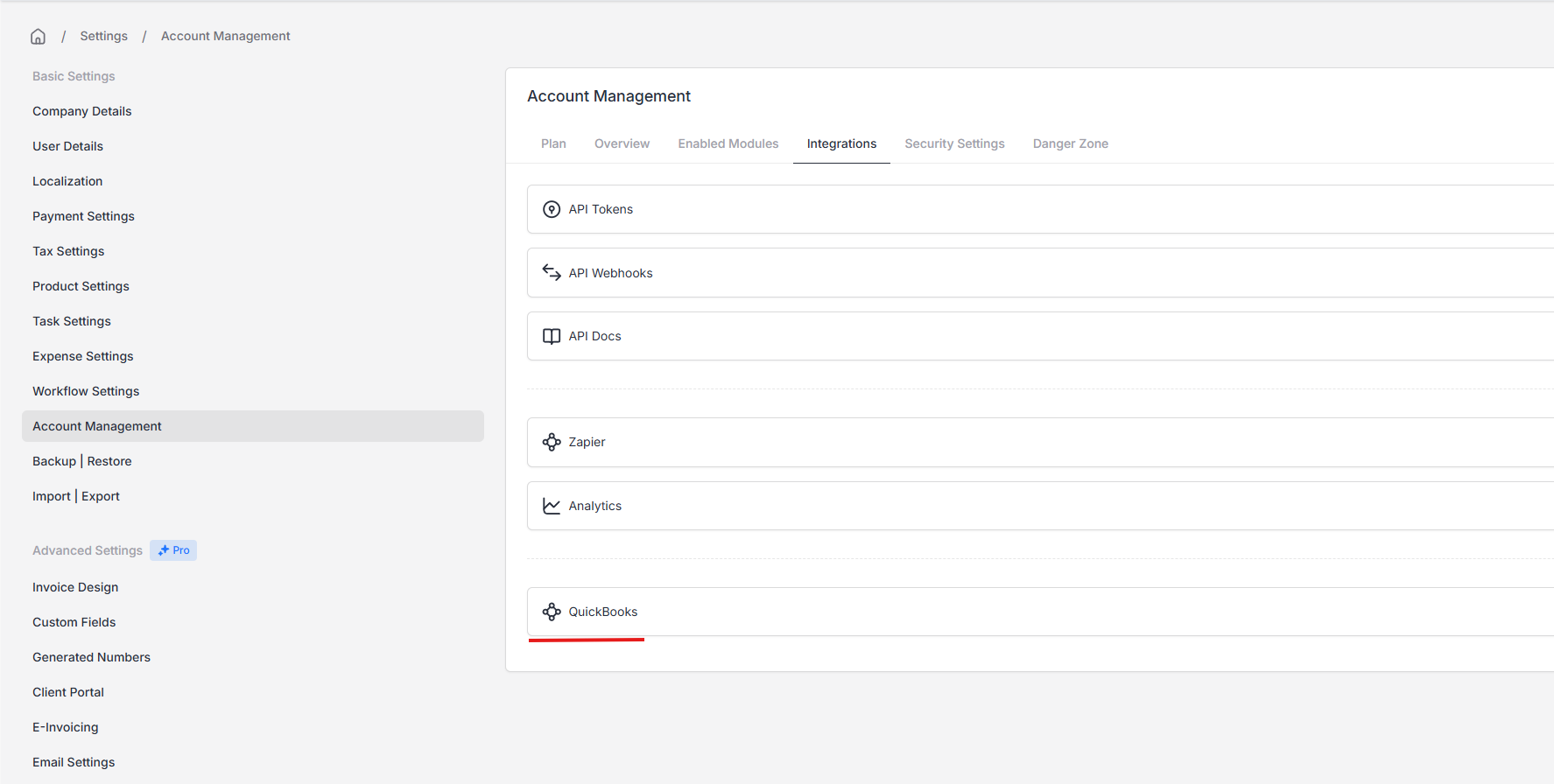
To link a QuickBooks company, go to Settings > Account Management > Integrations and click the QuickBooks button to start the OAuth flow.
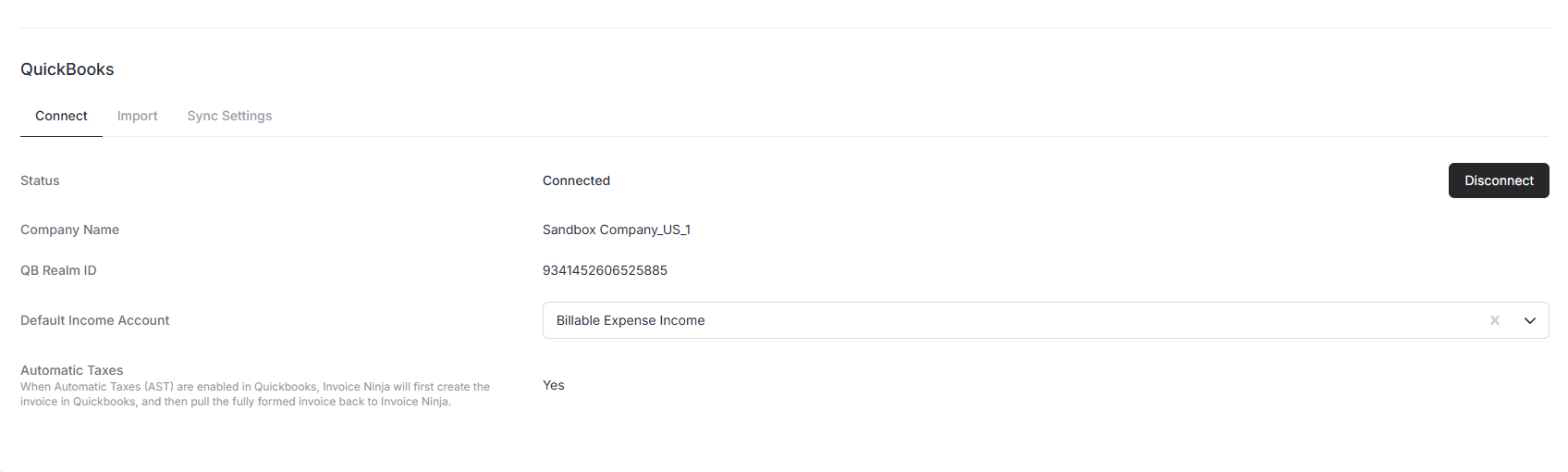
Once you've authenticated and chosen the company you want to link, you'll be redirected back to Invoice Ninja. The QuickBooks page now shows the extra options below.
Start The Import
Now, you are ready to import your QuickBooks data into Invoice Ninja.
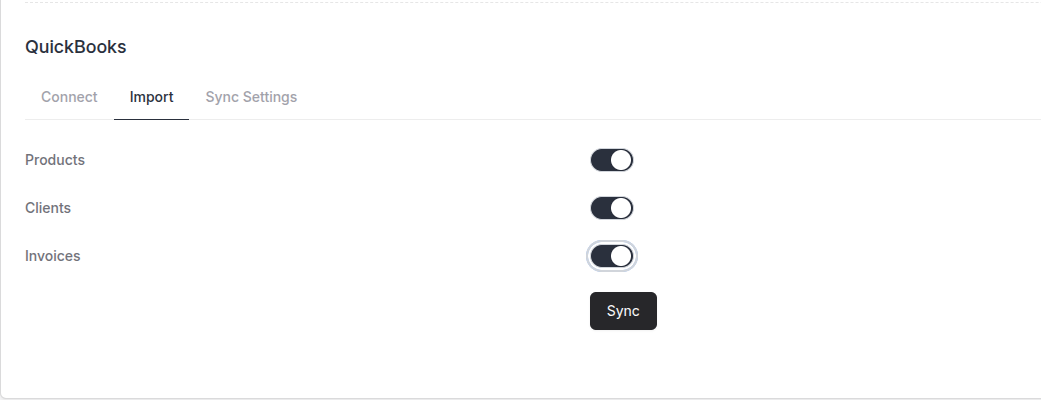
From the import menu, you can toggle on the record types you wish to import into Invoice Ninja and then click the Sync button.
For large accounts, this can take up to several hours to complete.
Choose Sync Options
After completing the data import, you can enable sync options that allow Invoice Ninja to push records that have been created or updated to QuickBooks.
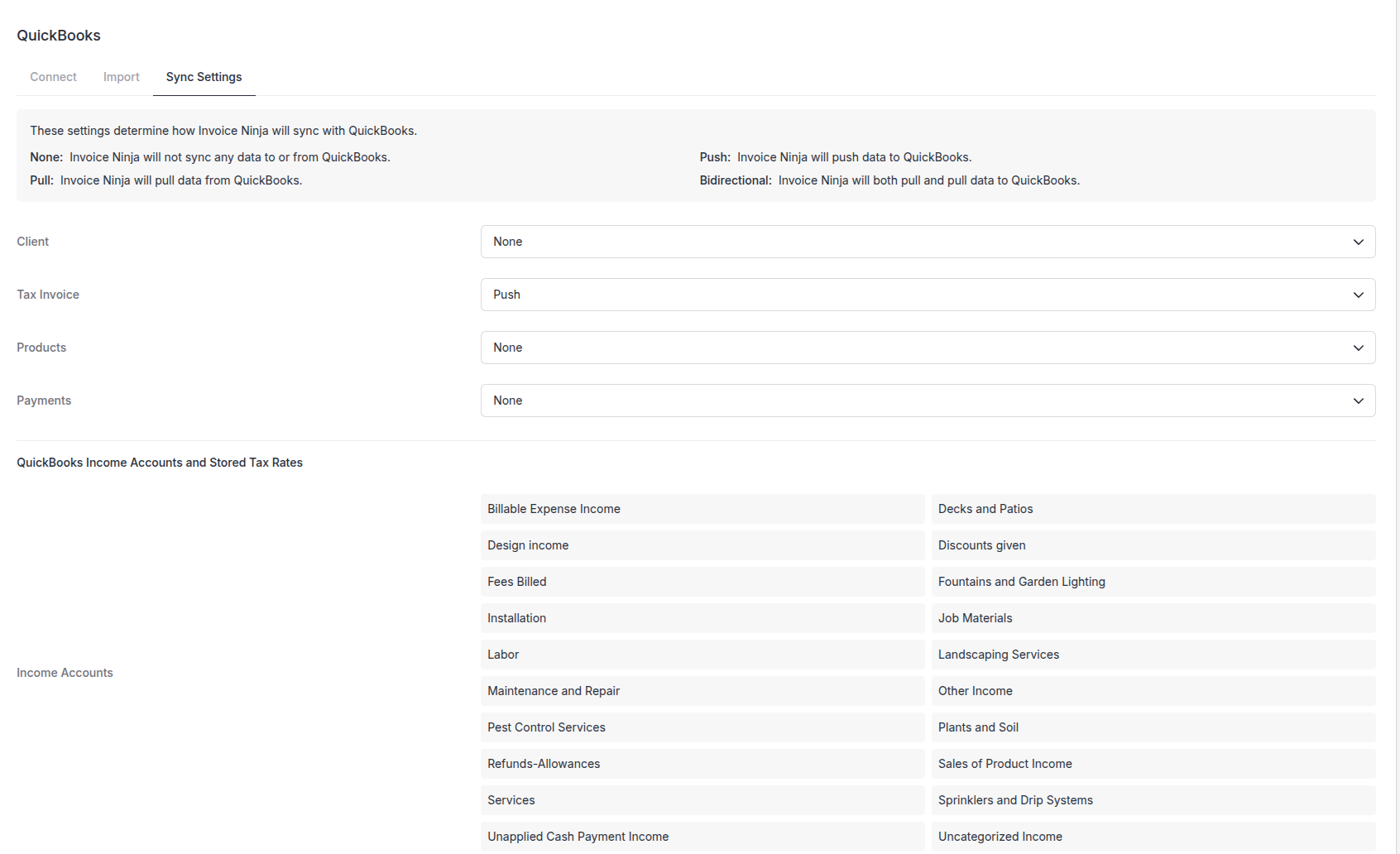
In this example, we have selected the Push option for Invoices. This will push from Invoice Ninja to QuickBooks when a new invoice is created, or when an existing invoice is updated.
Only Push is supported for ongoing synchronisation. Pull and Bidirectional synchronisation are not supported. The initial import is a separate, one-time step that brings your selected QuickBooks records into Invoice Ninja.
How Does Sync Work?
A couple of things worth knowing. When you push an invoice, its client has to exist in QuickBooks first - if it doesn't, Invoice Ninja will create it on the fly as part of the invoice push, regardless of whether client Push is enabled. Any line-item products that don't exist in QuickBooks yet are also created automatically during the invoice push.
Not every field change triggers a push. Client balance updates (for example, when a payment is applied) are ignored; only meaningful edits like name, address, or contact info sync across. Product updates - price changes, description edits - are not currently pushed either; only newly created products are.
The first time you push a record, the integration checks QuickBooks for a matching record before creating a duplicate. Clients are matched by display name, products by item name (skipping Category and Group types). If a match exists, Invoice Ninja links to it rather than creating a second copy.
Check an Invoice in QuickBooks
After connecting QuickBooks, individual invoices include a QuickBooks tab. Use it when you want to confirm that an invoice was pushed successfully or investigate a mismatch.
- Open the invoice in Invoice Ninja.
- Select the QuickBooks tab.
- Review the QuickBooks ID, Status, and Message.
- Select Check Record.
- Review the connection status, QuickBooks balance and last-updated time, and the comparison of the invoice number and total.
- Follow the recommended action shown on the page, if one is needed.
The available actions depend on what Invoice Ninja finds:
- Force Link links the Invoice Ninja invoice to a matching invoice already found in QuickBooks.
- Force Push sends the current Invoice Ninja invoice to QuickBooks again.
- Change Invoice Number returns you to the invoice so you can resolve a duplicate or mismatched number.
- Verify QuickBooks Invoice asks you to inspect the matching invoice in QuickBooks before running Check Record again.
Use Force Link and Force Push only after comparing the invoice number and total in both systems. Linking the wrong invoices or pushing the wrong version can leave your accounting records inconsistent.
Connection and Authentication
The integration uses OAuth 2.0 and refreshes tokens automatically. If both your access and refresh tokens expire - which typically happens after 100 days of inactivity - you'll get an email prompting you to reconnect. Reconnecting from the QuickBooks settings page preserves your sync configuration and all existing record links, so you won't lose the mapping you've already built up.
QuickBooks Terms in Invoice Ninja
| QuickBooks | Invoice Ninja | Where to learn more |
|---|---|---|
| Customer | Client | Clients |
| Customer contact | Contact | Clients: Contacts |
| Estimate | Quote | Quotes |
| Invoice | Invoice | Invoices |
| Receive Payment | Payment | Payments |
| Credit Memo | Credit | Credits |
| Product or Service | Product | Products |
| Recurring Transaction / Template | Recurring Invoice | Recurring Invoices |
| Vendor | Vendor | Vendors |
| Purchase Order | Purchase Order | Purchase Orders |
| Bank Transaction | Transaction | Transactions |
| Sales Tax | Taxes | Taxes |
| Reports | Reports | Reports |
Migration Checklist
Use this checklist to keep the move controlled and easy to verify.
- Confirm which QuickBooks Online company you will connect.
- Save QuickBooks reports or exports needed for backup and reconciliation.
- Decide whether to import only active records or include historical invoices.
- Review duplicate customer names, product names, and invoice numbers before import.
- Review active recurring templates so you know which ones need to be recreated.
- Save copies of important attachments.
- Confirm payment gateway access.
- Confirm invoice number sequence and next invoice number.
- Confirm tax settings with your accountant or bookkeeper.
After You Connect QuickBooks
Once the migration data is in place, do a short end-to-end setup pass before inviting clients.
- Set your company name, logo, address, and contact details in Company Details.
- Check invoice numbering in Generated Numbers.
- Configure taxes in Taxes.
- Connect a payment gateway in Payment Gateways.
- Create or open a migrated test client.
- Create and email a test invoice.
- Pay the invoice using a test or low-value transaction if appropriate.
- Open the client portal as the client contact and review invoices, payments, statements, and payment methods.
- Run your first report to check the migrated billing data.
Client Portal
QuickBooks users often move to Invoice Ninja because the client-facing experience is more direct. Your clients can use the branded portal to view invoices, pay online, download statements, approve quotes, manage saved payment methods, and access shared documents.
The portal is connected to client contacts. When you email an invoice or quote, the link opens that contact's portal view, so the portal becomes part of the normal billing flow instead of a separate tool clients need to learn. See Client Portal for the full walkthrough.
Automatic Sales Tax (US)
If your QuickBooks account uses Automated Sales Tax (AST), Invoice Ninja defers to QuickBooks for tax calculations. When an invoice is pushed, QuickBooks works out the applicable tax based on the customer's location, returns the details, and Invoice Ninja applies them per line item. Matching tax rates are created in Invoice Ninja on the fly, totals are reconciled between the two systems, and tax-exempt products stay tax-free - only taxable lines receive tax assignments.
Because the response has to come back before the invoice can be finalised, invoice pushes are processed synchronously rather than queued when AST is on. See Taxes for how Invoice Ninja handles tax outside of this integration.
When Automatic Taxes are enabled, Invoice Ninja creates the invoice in QuickBooks first (in real time) and uses QuickBooks' response as the source of truth for taxes. You cannot adjust tax calculations on the Invoice Ninja side while AST is enabled.
If a product should be tax-exempt, set the product's tax category to Tax Exempt. QuickBooks will then evaluate the line item as non-taxable.
Troubleshooting
Taxes are not being carried over from Invoice Ninja to QBO.
In this scenario, Automatic Sales Taxes (AST) would be enabled in QBO, as QBO is in charge of calculating the tax nexus and applicable rates, the most common cause of taxes being removed would be the Clients record being set to tax exempt - OR - QBO not being able to determine the correct tax rates due invalid/incomplete customer address.