Banking
Invoice Ninjas banking integration pulls your bank transactions into Invoice Ninja so you can match money coming in to invoices and categorise money going out as expenses — without retyping each line. You connect an account once (or upload a CSV), your transactions appear in the Transactions list, and rules can do most of the matching work for you.
This page covers how banking works, how to connect an account, how to work with the resulting transactions, and how to build rules that automate matching.
How It Works
Every bank transaction in Invoice Ninja goes through the same three-step lifecycle.
- Imported — a transaction arrives in Invoice Ninja, either through an automatic bank sync (Yodlee or GoCardless) or from a CSV file you upload. It starts with a status of Unmatched.
- Matched — the transaction is linked to something in your account. For incoming money, that's an invoice or an existing payment. For outgoing money, that's a vendor and expense category. You can match manually, one transaction at a time, or let a bank rule do it automatically.
- Converted — a real financial record is created from the transaction. For incoming money that's a Payment applied to the invoice; for outgoing money that's an Expense entry. Conversion can happen manually from the Transactions screen, or automatically if the matching rule has auto-convert enabled.
Transaction Statuses
| Status | What it means |
|---|---|
| Unmatched | No rule or manual action has linked this transaction yet. |
| Matched | An invoice, payment, or vendor/category has been linked, but no payment or expense record has been created yet. |
| Converted | A payment or expense record has been created from this transaction. |
You don't have to use rules. Rules are just a way to skip the manual step when the same pattern comes up repeatedly (e.g. "every Stripe deposit should mark the matching invoice as paid").
Connecting a Bank Account
There are three ways to get your transactions into Invoice Ninja. Pick whichever matches your bank and region.
Yodlee (primarily US banks)
For Enterprise users on our hosted platform, we've integrated with Yodlee, a leading data aggregation platform. Yodlee connects to most major US banks and pulls transactions automatically on a schedule.
GoCardless (primarily EU banks)
We've also integrated with GoCardless, which connects to most major banks across the EU and UK and imports their transactions into Invoice Ninja for matching.
Connecting an Account
Both integrations use the same flow from inside Invoice Ninja.
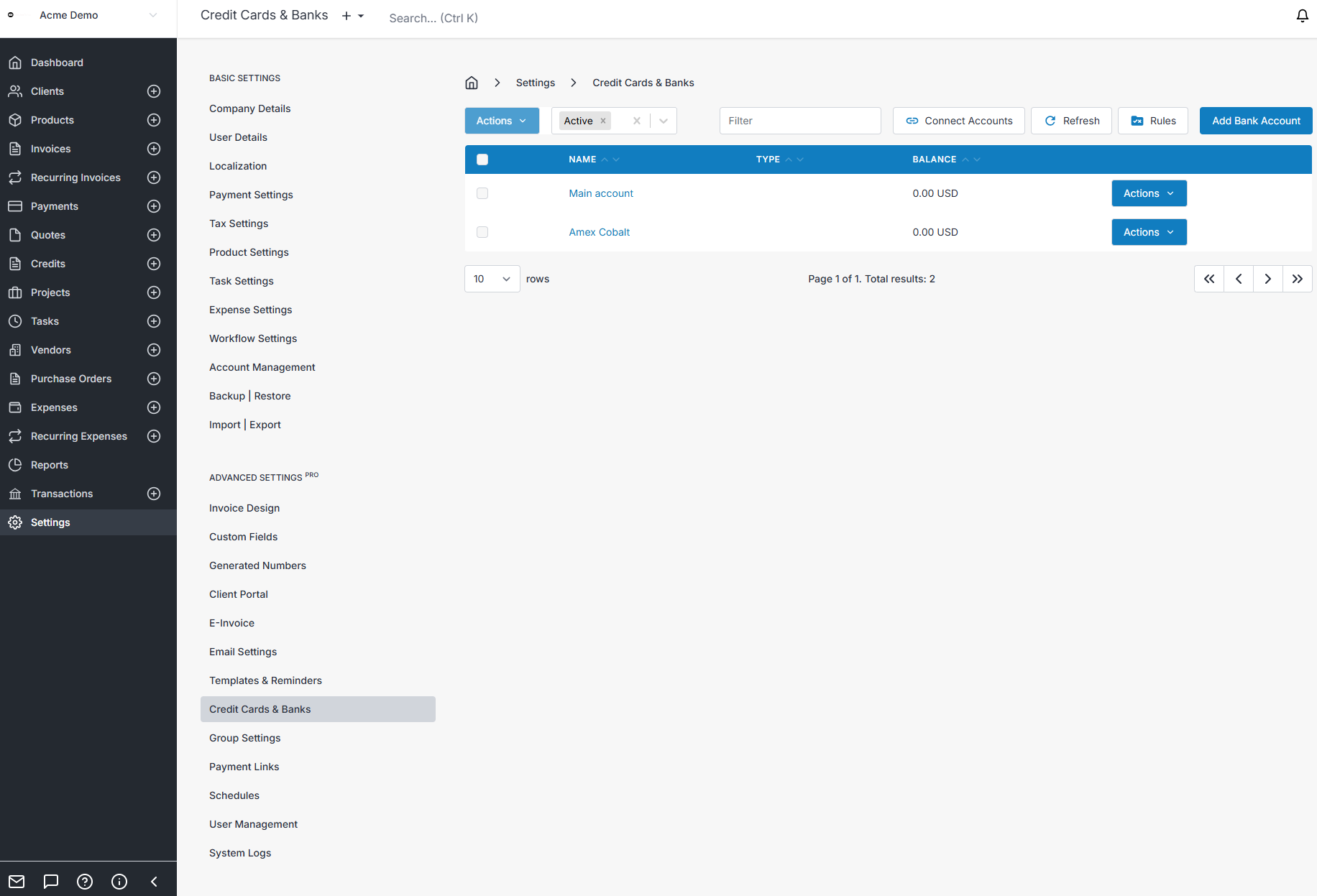
Settings > Credit Cards & Banks > Connect
Clicking Connect opens a new browser window where you search for your bank and sign in to your bank account.
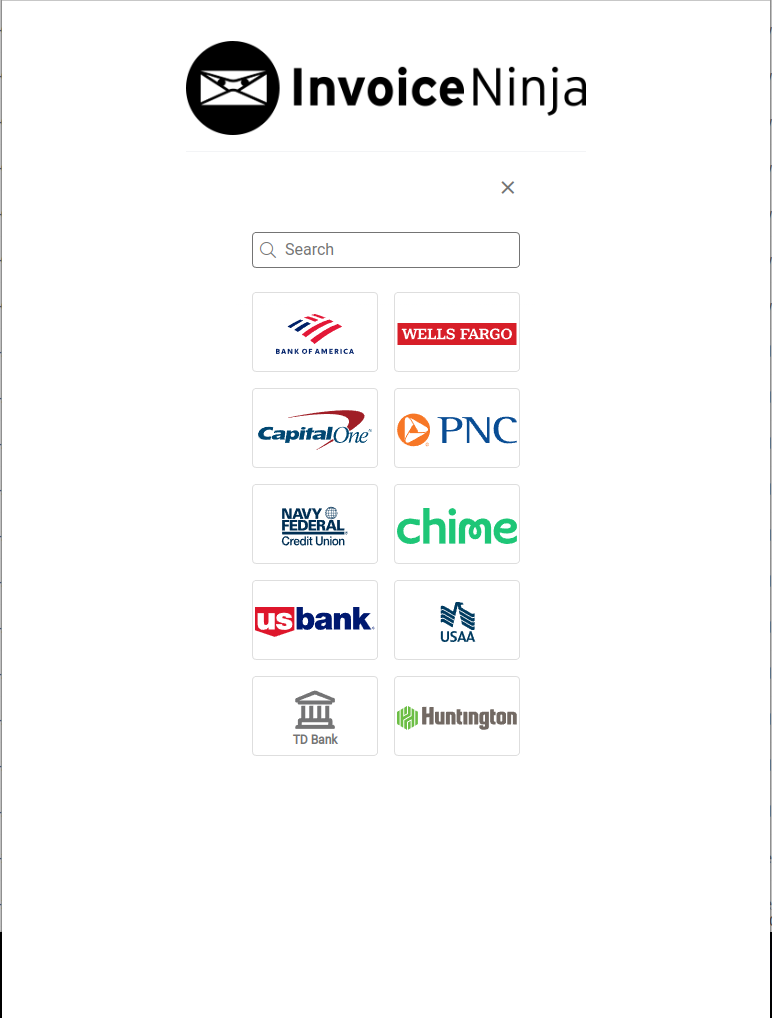
Once you've authenticated, you can select the accounts you'd like to link. Click Save & Finish when you're done. You'll also get the opportunity to add more accounts from different banks before you exit.
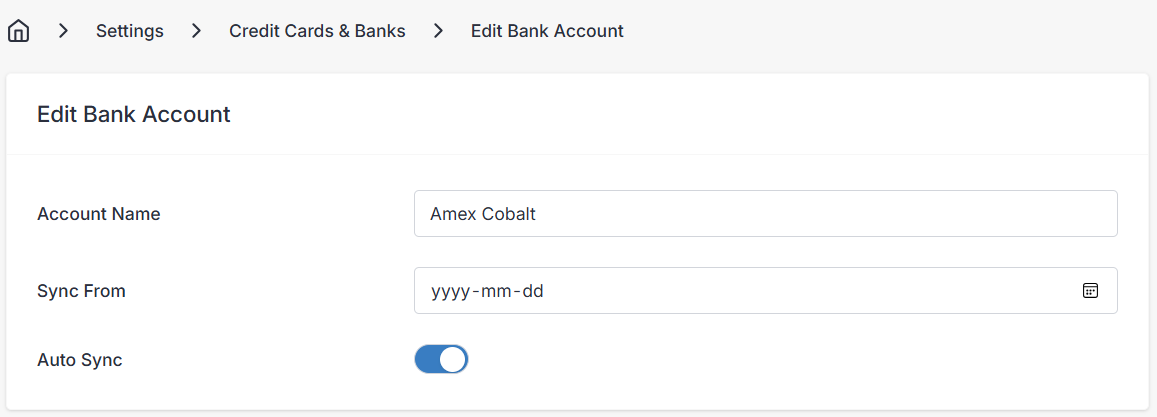
Auto Sync controls whether Invoice Ninja pulls fresh transactions from your bank on a recurring schedule. You can toggle this on or off for each individual bank account — handy if you want one account synced daily but another only refreshed on demand.
CSV Import (works with any bank)
If your bank isn't supported, or you prefer not to link a live account, you can import transactions from a CSV file exported by your bank.
Transactions > Import

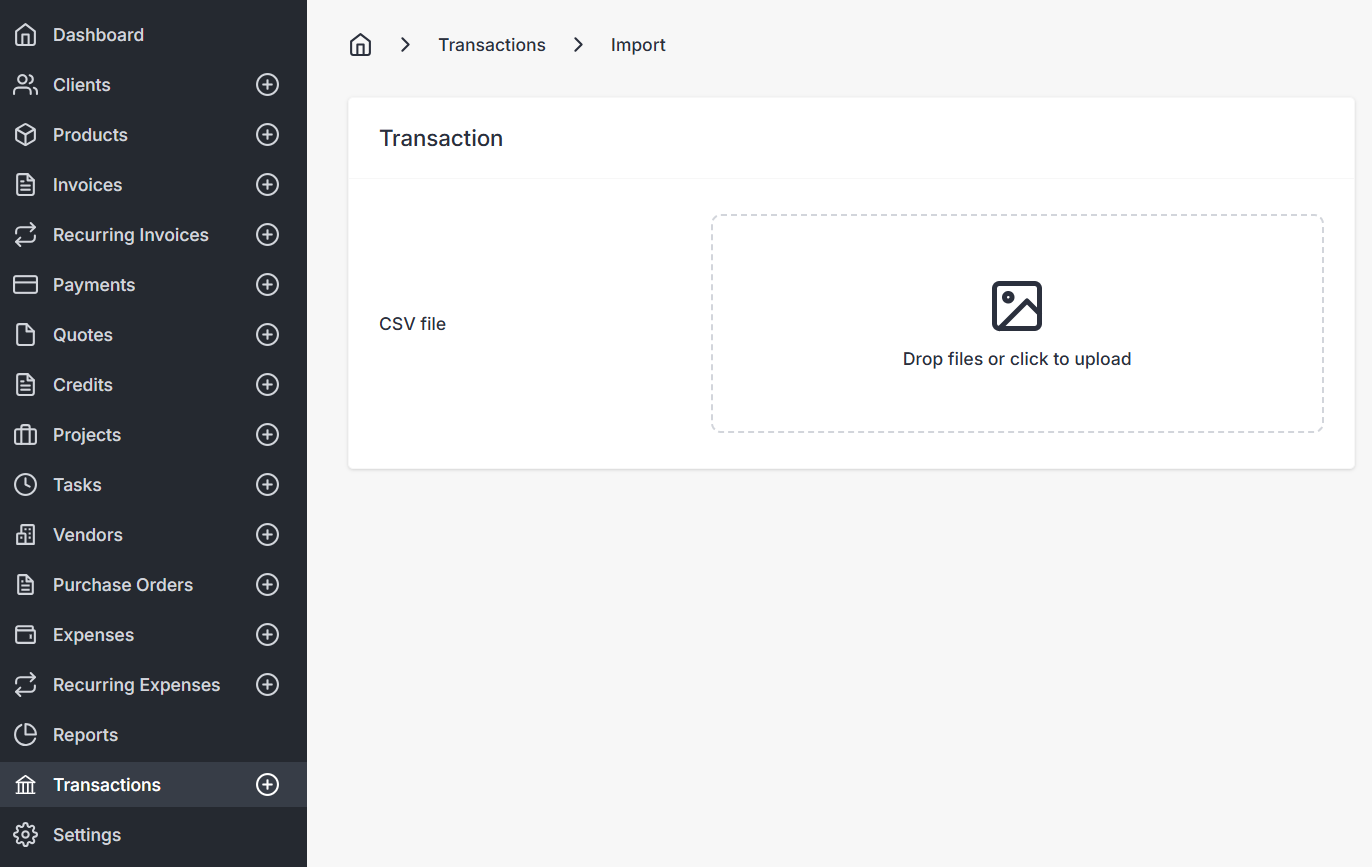
Before importing, create a bank account in Settings > Credit Cards & Banks so the transactions have somewhere to land. During import, you'll be asked to map the CSV columns (date, description, amount) to Invoice Ninja's transaction fields.
Working With Transactions
Once transactions are in the system, they appear under the Transactions tab in the sidebar.
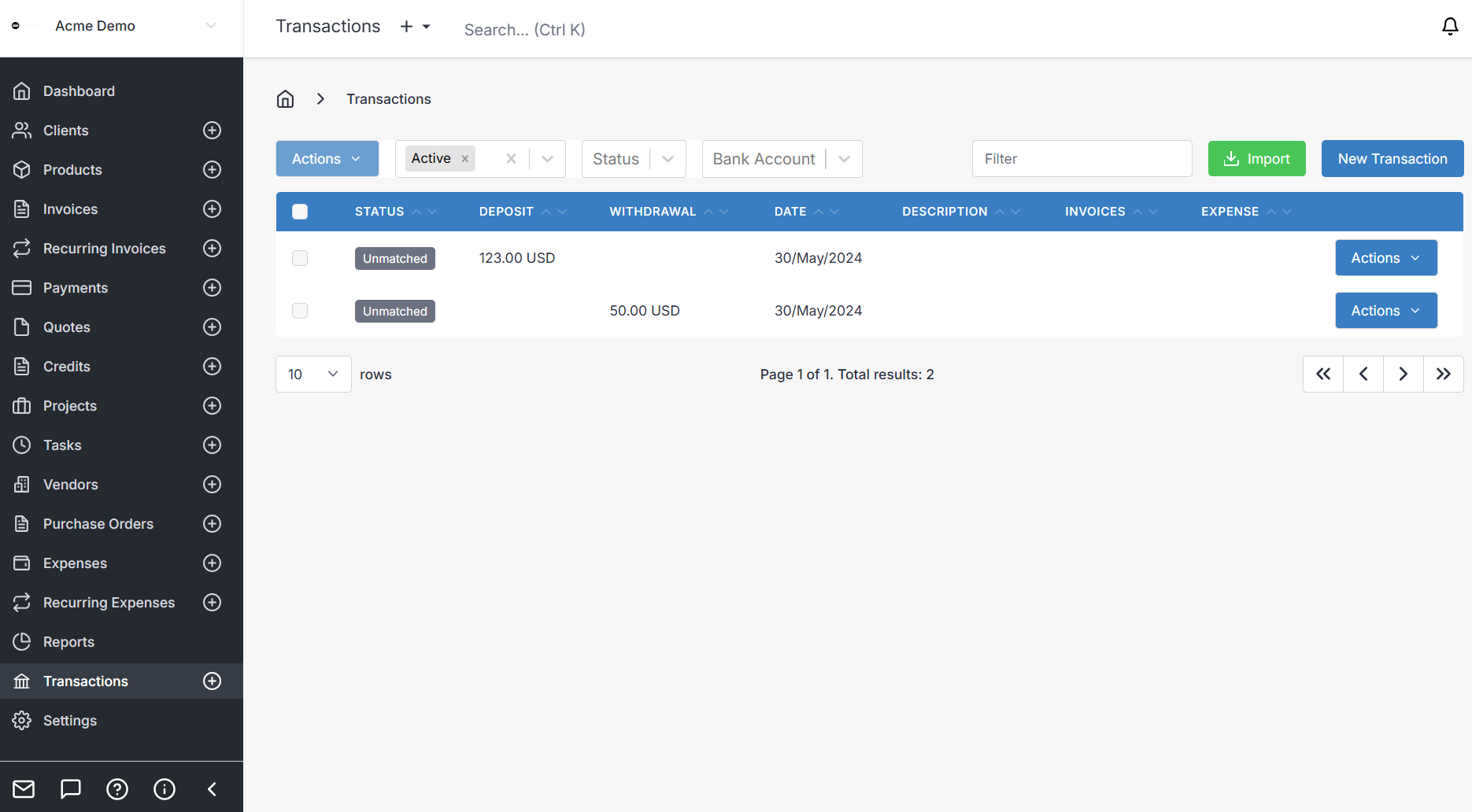
From here you can:
- Filter by status (Unmatched, Matched, Converted) to quickly find transactions that need your attention.
- Manually match a transaction to an invoice, payment, or expense — useful for one-off transactions that don't justify a rule.
- Convert a matched transaction into a payment or expense record.
- Delete a transaction if it was imported in error (the underlying payment/expense is not deleted).
For the full reference on the Transactions module, see Transactions.
Bank Rules
Bank rules automate the matching step so you don't have to process each transaction manually. There are two kinds:
| Money-in rules (Credit) | Money-out rules (Debit) | |
|---|---|---|
| Direction | Money in | Money out |
| Purpose | Match transactions to invoices or payments | Categorise transactions as expenses |
| Searches on | Invoice, payment, and client fields (18 total) | Transaction description and amount only |
| Auto-convert creates | A payment record | An expense record |
| Assignment | Invoice and/or client (automatically resolved) | Vendor and expense category (you set these) |
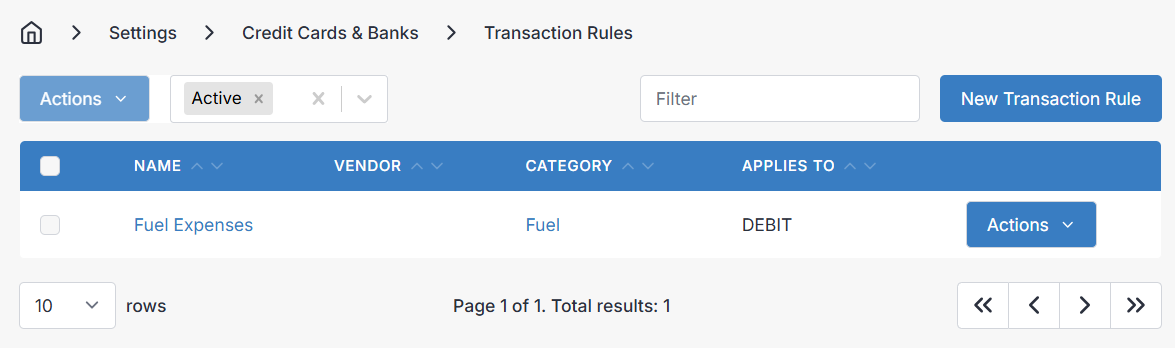
Your First Rule
A good first rule to build is an automatic match for your payment processor's deposits. For example, if Stripe deposits show up in your bank with the invoice number in the description:
- Go to Settings > Credit Cards & Banks > Rules and click New Rule.
- Set Applies to →
CREDIT, and give it a name like "Stripe deposits". - Add a single condition: Field
$invoice.number, matching the transaction description. - Leave Auto-convert off for now, save the rule, and let it run against incoming transactions.
- Review the matches. Once you're happy they're correct, edit the rule and enable Auto-convert. From then on, matched deposits are applied to the right invoice automatically.
Creating a Rule
Settings > Credit Cards & Banks > Rules
You can edit and create rules from this page — click a rule to edit it, or click the create button to add a new one.
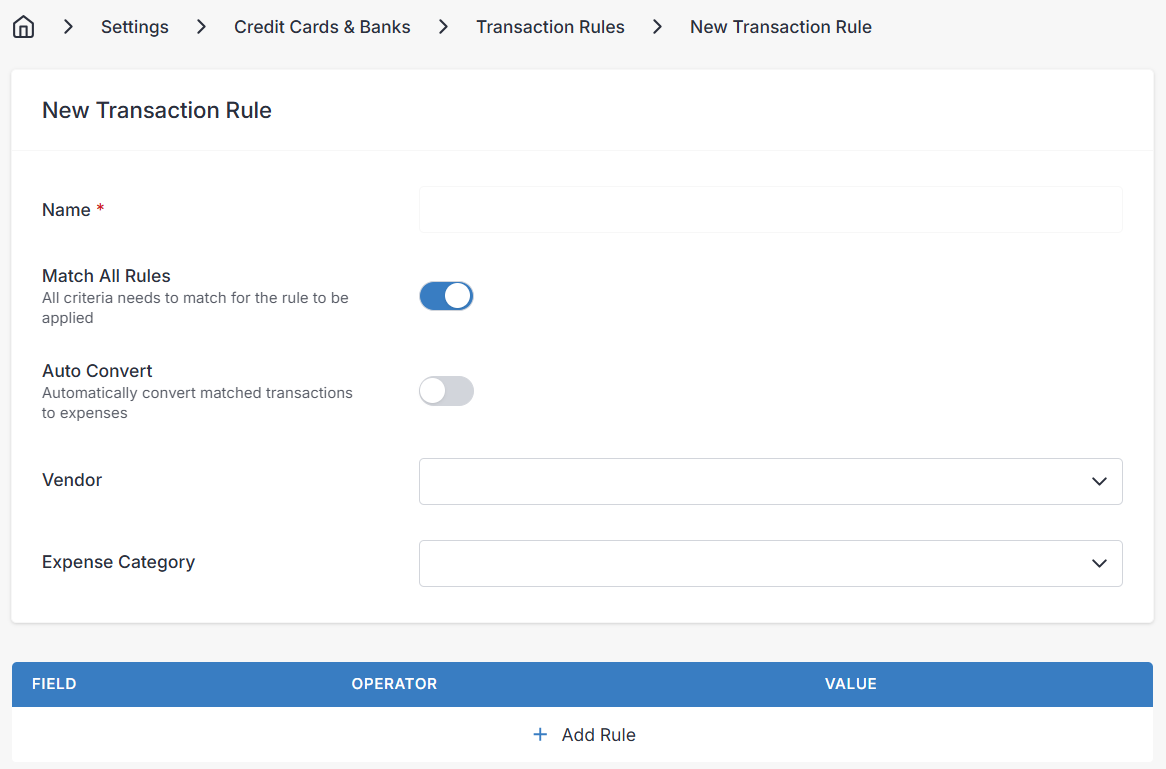
Every rule has these core settings:
| Setting | Description |
|---|---|
| Name | A label for your own reference (e.g. "Stripe deposits", "Office rent"). |
| Applies to | CREDIT (money in) or DEBIT (money out) — determines which transactions this rule evaluates. |
| Match all / Match any | Whether all conditions must be true, or any one is sufficient. |
| Auto-convert | When enabled, automatically creates a payment or expense record on match. |
| Conditions | One or more conditions that define what the rule looks for. |
Debit rules have two extra settings:
| Setting | Description |
|---|---|
| Vendor | The vendor assigned to matched transactions. |
| Expense category | The expense category assigned to matched transactions. |
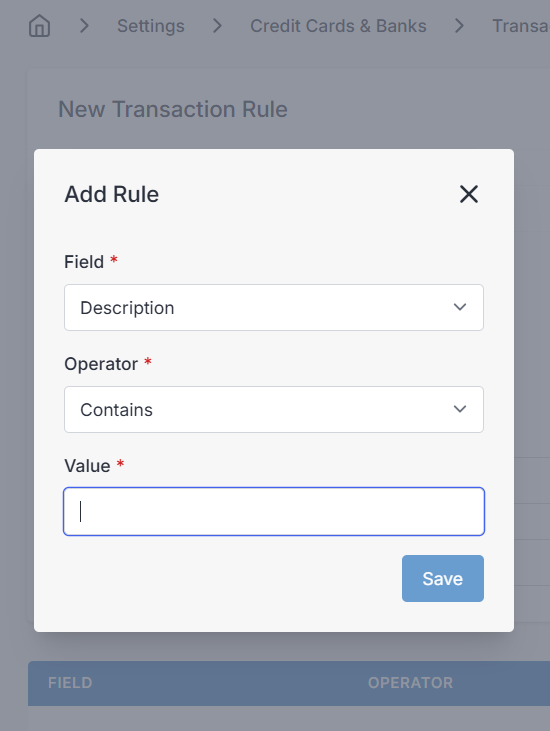
Conditions
Every rule has one or more conditions, and every condition has three parts:
| Part | Description |
|---|---|
| Field | What the rule looks at (the fields available differ between money-in and money-out rules). |
| Operator | How it compares (equals, contains, greater than, etc). |
| Value | What it compares against. |
String operators — for text fields like description, invoice number, and email:
| Operator | Behaviour |
|---|---|
is | Exact match (case-insensitive, ignores spaces). |
contains | The transaction description includes the value anywhere. |
starts_with | The transaction description begins with the value. |
is_empty | The field has no value. |
String matching is case-insensitive and strips spaces before comparing. A rule value of "acme corp" will match a description containing "AcmeCorp".
Numeric operators — for amount fields:
| Operator | Behaviour |
|---|---|
= | Amount equals the value. |
> | Amount is greater than the value. |
>= | Amount is greater than or equal to the value. |
< | Amount is less than the value. |
<= | Amount is less than or equal to the value. |
Match All vs Match Any
This setting controls how multiple conditions within a single rule are evaluated.
- Match all — Every condition must be true. Use this for precise matching when you want to combine criteria (e.g. amount equals $500 AND description contains "Acme").
- Match any — At least one condition must be true. Use this for broader matching when any single signal is enough.
Match all example — find transactions where an open invoice's amount matches AND the client's email appears in the description (a strong, specific match):
| Condition | Field | Operator | Value |
|---|---|---|---|
| 1 | $invoice.amount | = | (transaction amount compared to invoice amount) |
| 2 | $client.email | contains | (client email found in description) |
Match any example — catch transactions that reference an invoice number OR a payment reference:
| Condition | Field | Operator | Value |
|---|---|---|---|
| 1 | $invoice.number | — | (invoice number found in description) |
| 2 | $payment.transaction_reference | contains | (payment reference found in description) |
Money-In Rules (Credit) — Matching Incoming Payments
Money-in rules look at each bank transaction's description and search it against your existing invoices, payments, and clients to find the best match.
Available Fields
Money-in rules can match against a rich set of fields across three entity types.
Invoice fields:
| Field | Description | Matching method |
|---|---|---|
$invoice.number | Invoice number (e.g. INV-0001) | Searches for the invoice number as a whole word in the transaction description. |
$invoice.po_number | Purchase order number | String operator against transaction description. |
$invoice.amount | Invoice balance | Numeric operator comparing transaction amount to invoice amount. |
$invoice.custom1 – $invoice.custom4 | Invoice custom fields | String operator against transaction description. |
Payment fields:
| Field | Description | Matching method |
|---|---|---|
$payment.amount | Payment amount | Numeric operator comparing transaction amount to payment amount. |
$payment.transaction_reference | Payment reference / check number | String operator against transaction description. |
$payment.custom1 – $payment.custom4 | Payment custom fields | String operator against transaction description. |
Client fields:
| Field | Description | Matching method |
|---|---|---|
$client.id_number | Client ID number | String operator against transaction description. |
$client.email | Client contact email address | String operator against transaction description. |
$client.custom1 – $client.custom4 | Client custom fields | String operator against transaction description. |
Client fields work best as secondary conditions combined with invoice or payment fields. When both are present, Invoice Ninja cross-references them to find the invoice or payment that belongs to that specific client — dramatically improving accuracy when multiple invoices share similar amounts.
How the Match Is Resolved
When a credit transaction is evaluated and its conditions are met, Invoice Ninja resolves the best result using this priority order:
- Invoice number — a direct invoice number match in the description is the strongest signal. If found, the transaction is linked to that invoice immediately.
- Invoice PO number — considered next. If a client condition also matched, cross-referencing finds the invoice belonging to that client.
- Invoice amount — invoices whose amount matches the transaction amount. Client conditions narrow the results.
- Invoice custom fields — custom field matches on invoices, narrowed by client when available.
- Payment amount — existing unlinked payments whose amount matches the transaction.
- Payment reference — payments whose transaction reference appears in the description.
- Payment custom fields — custom field matches on existing payments.
At each priority level, if a client condition also matched, Invoice Ninja first tries to find a result that belongs to that client before falling back to the first available match.
Only the first matching rule is applied to each transaction. Rules are evaluated in order, and processing stops after the first successful match — so place your most specific rules first, and any broader catch-all rules last.
What Gets Considered
- Invoices with status Draft, Sent, or Partial — excluding deleted invoices.
- Payments with status Pending or Completed — excluding deleted payments and payments already linked to a bank transaction.
What Happens on Match
- The transaction status changes from Unmatched to Matched.
- The matched invoice or payment is linked to the transaction.
- If auto-convert is enabled, a payment record is created automatically and the transaction status becomes Converted.
Money-Out Rules (Debit) — Categorising Outgoing Payments
Money-out rules are simpler. They look at the transaction's own fields and assign a vendor and expense category.
Available Fields
| Field | Operator type | Description |
|---|---|---|
description | String | The bank transaction description text. |
amount | Numeric | The bank transaction amount. |
Examples
Match a specific vendor by description:
Field:
description, Operator:contains, Value:"Amazon Web Services"Vendor: AWS, Category: Hosting
Match rent payments by amount and description:
Field:
amount, Operator:=, Value:2500.00Field:description, Operator:contains, Value:"Property Management"Match: All conditions Vendor: ABC Property, Category: Rent
Match any purchase from a specific supplier:
Field:
description, Operator:starts_with, Value:"OFFICEWORKS"Vendor: Officeworks, Category: Office Supplies
What Happens on Match
- The transaction status changes to Matched.
- The vendor and expense category from the rule are assigned.
- If auto-convert is enabled, an expense record is created automatically with:
- The rule's vendor and category
- The transaction amount and currency
- The transaction date as both the expense date and payment date
- The transaction description as the expense reference
- The transaction status becomes Converted.
If no expense category is set on the rule, Invoice Ninja tries to resolve one from the bank's own category mapping. For predictable results, always set an explicit category on the rule.
Auto-Convert
When auto-convert is enabled, matched transactions are immediately processed without manual intervention:
| Rule type | Auto-convert action |
|---|---|
| Credit (money in) | Creates a payment record against the matched invoice, marking the invoice as paid. |
| Debit (money out) | Creates an expense record with the vendor, category, amount, and date from the transaction. |
After auto-conversion the transaction moves directly from Unmatched to Converted, skipping the intermediate Matched state.
Auto-convert creates real financial records (payments and expenses) automatically. Test your rules with auto-convert disabled first to verify they match the correct transactions, then enable it once you're confident.
Common Questions
I already use Stripe (or another gateway) — do I still need to connect my bank?
Not for getting paid. When a client pays an invoice through a connected gateway, Invoice Ninja records the payment and marks the invoice as paid directly — the gateway handles everything.
Connecting your bank is about reconciliation: matching the deposit that hits your actual bank account a few days later to the payment already recorded in Invoice Ninja, so your bookkeeping lines up. This is also where bank rules become useful, since a single Stripe payout often bundles many client payments into one bank deposit.
Can I connect more than one account from the same bank?
Yes. When you link a bank through Yodlee or GoCardless, you can select multiple accounts from that bank during the connection flow, and connect additional banks afterward.
Can I manually match a transaction without creating a rule?
Yes. From the Transactions list, open any transaction and link it directly to an invoice, payment, or expense. Rules are an optimisation, not a requirement.
I imported transactions by mistake — how do I remove them?
Delete them from the Transactions list. Deleting a transaction does not delete any linked payment or expense record — those need to be removed separately if they were already created.
Do I have to use Auto Sync?
No. With Auto Sync off, transactions stay at whatever was last pulled until you refresh manually. Some users prefer this for accounts they only review periodically.
Tips for Reliable Rules
- Start without auto-convert. Create rules with auto-convert off first, let them run, review the matches, then enable auto-convert once you're confident.
- Be specific with money-in rules. Combining an invoice field with a client field dramatically improves accuracy when multiple invoices share the same amount.
- Prefer invoice numbers when you can. If your payment processor includes the invoice number in the bank description,
$invoice.numberis the most reliable match — it looks for the number as a distinct word. - Order matters. The first matching rule wins. Place your most specific rules first and broader catch-all rules last.
- Keep money-out rules simple. They only see description and amount, so look at your actual bank statements and use the most distinctive text you see repeatedly.
- Leverage custom fields. If you store reference codes, project IDs, or account numbers in custom fields on invoices, payments, or clients, you can use them as matching criteria for money-in rules.