Products
A product in Invoice Ninja is a reusable line-item template — a name, description, price, and optional tax that you can drop into any document instead of retyping the same details every time. If you bill for the same thing more than once (a service call, a consulting hour, a t-shirt, a software licence), it's worth turning it into a product.
When to Use a Product vs. Free-Typing a Line
You can always free-type a line item directly onto an invoice or quote — nothing forces you to save it first. Free-typing is fine for one-off work you'll never invoice again. Products earn their keep the second time around: consistent wording on every document, consistent pricing, consistent tax treatment, and a single place to update the price when it changes. Agencies with a standard service menu, freelancers with fixed hourly rates, and retailers with a fixed catalogue all benefit from building out their product list up front.
Products aren't limited to physical goods. A "Consulting — Senior" product with a price set to your hourly rate works perfectly well; the quantity field on the invoice then represents billable hours (to six decimal places, so 1.25 hours is no problem).
Creating Products
There are a few ways to add products, and you can mix and match as suits you:
- From the admin portal, open the Products module and click + New Product.
- Bulk-load an existing catalogue via Settings > Import | Export using a CSV.
- Type a new item directly onto an invoice or quote line. The first time you use it, Invoice Ninja saves it as a product for next time, and whatever quantity you entered becomes its default quantity.
- Create products programmatically through the Invoice Ninja API.
Viewing and Editing Products
The Products module in the left navigation lists everything you've saved. Click a product to open it, or use More Actions > Edit from the list.
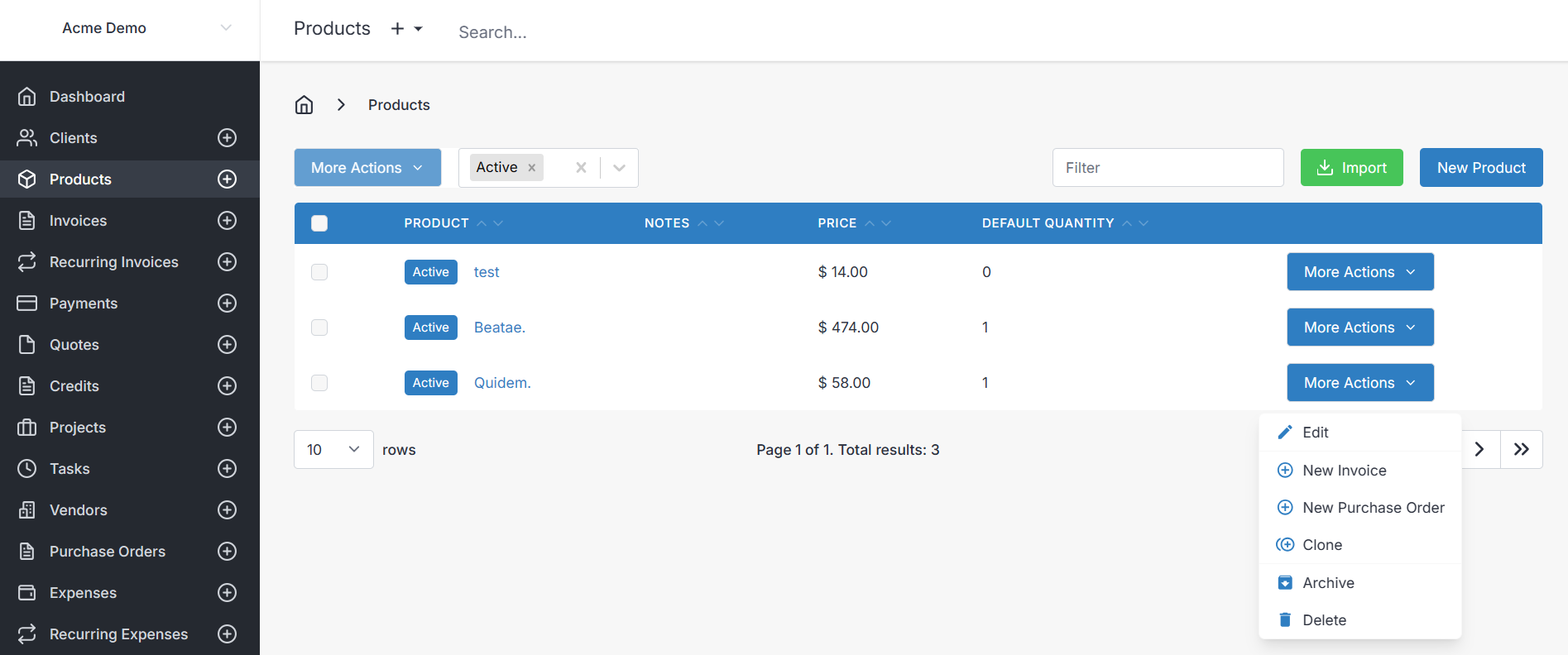
From the More Actions dropdown on a product you can Edit it, jump straight to a New Invoice or New Purchase Order prefilled with the item at its default quantity, or Clone it — handy when you have several near-identical products (think small/medium/large variants of the same shirt).
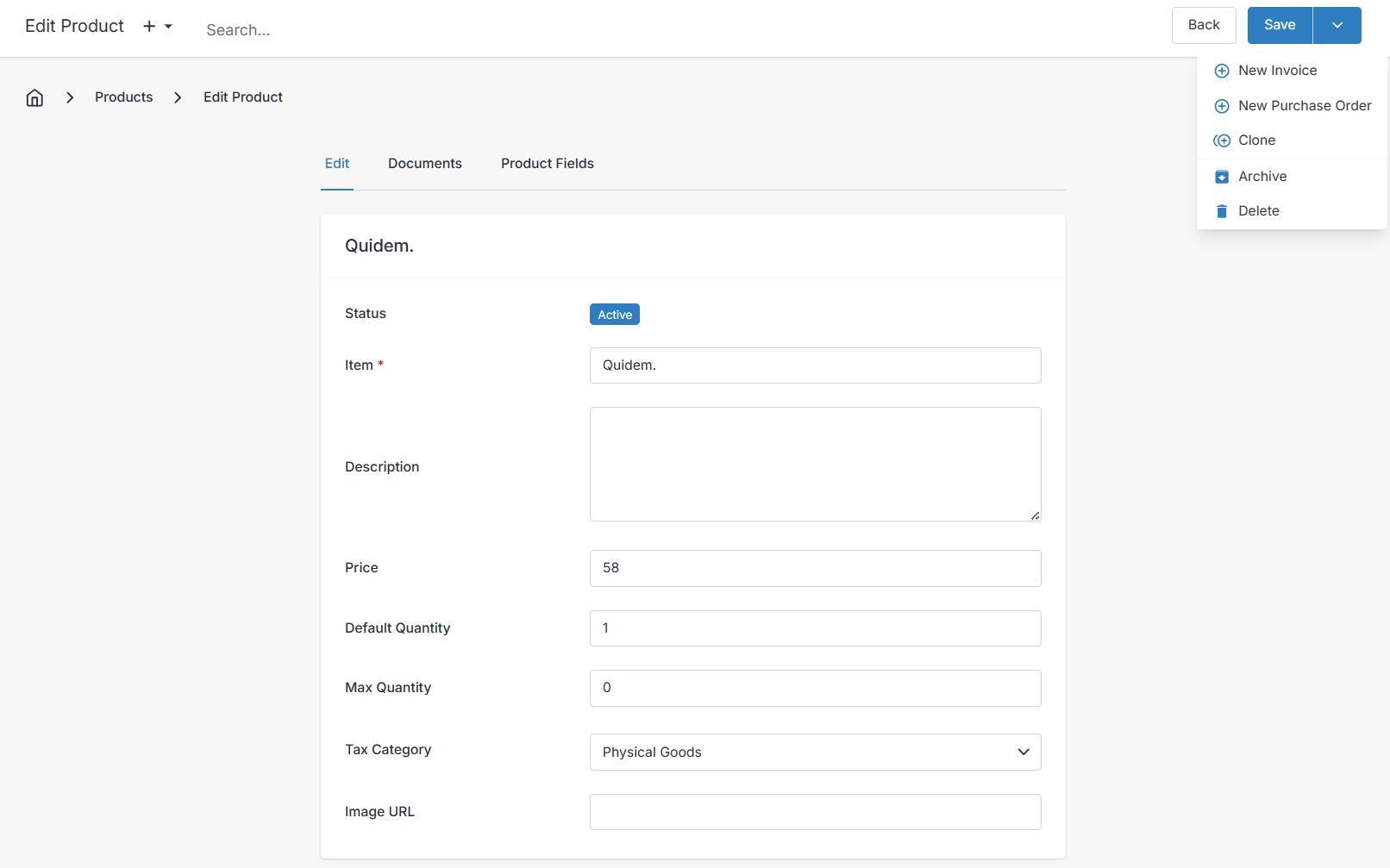
The product fields themselves are deliberately few. Item is the short name that appears on the invoice line. Description is the longer text beneath it; this field accepts HTML, and if you turn on Enable Markdown under Settings > Account Management > Overview, you can write Markdown here too and it will render on the PDF. Price is the standard unit price. Default Quantity is what gets filled in automatically when you add the product to a document, and Max Quantity caps how many can be sold in one go — useful for limited stock or tiered offers.
Tax Per Product
Each product can carry up to three of its own tax rates, which are applied automatically whenever the product is added to a line. This is the right place to set tax when different items in your catalogue are taxed differently — for example, zero-rated groceries alongside standard-rated merchandise. Product taxes interact with whatever you've configured in Taxes; a client marked tax-exempt, or one whose location sits in a different tax jurisdiction, will still override the product-level rate as you'd expect.
Documents
The Documents pane lets you attach files — product sheets, technical drawings, warranty terms — to a product. These are visible from the admin portal (and the client portal if client documents are enabled), which makes it a tidy place to keep supporting material for items you sell.
Self-hosted users should note that uploaded documents live in the public/storage directory under hashed folder names, so include that directory in your backups alongside the database.
Custom Fields
If the four built-in fields don't cover what you need to track — SKU, supplier code, shelf location, whatever it is — you can add up to four Custom Fields to products.
Inventory Tracking
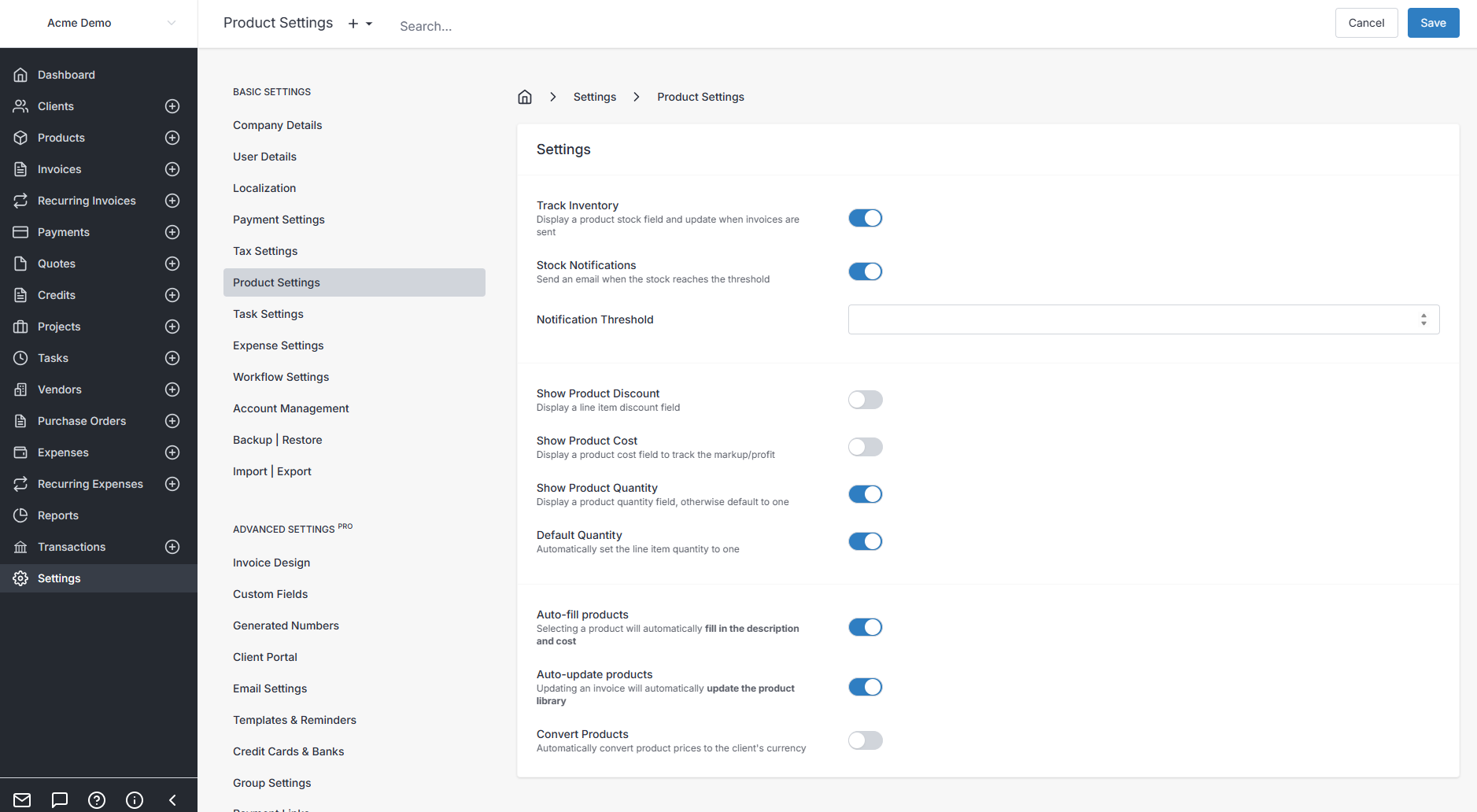
If you stock physical goods, Invoice Ninja can keep count for you. Flip on Track Inventory in the Product Settings panel and the app will start decrementing stock as invoices go out and, optionally, email you when a product dips below a threshold you set. Thresholds can be set globally for all products or fine-tuned per product.
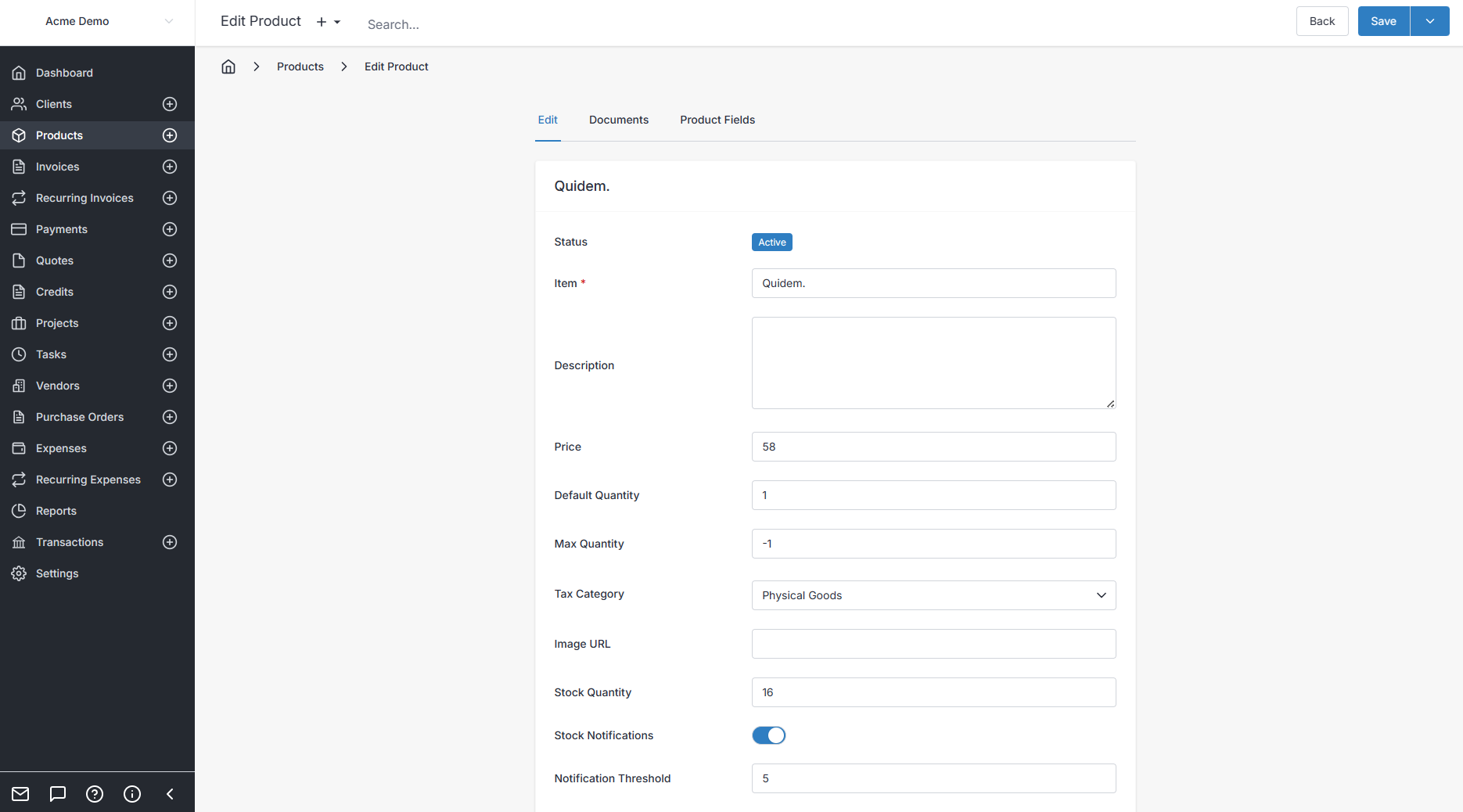
Current stock level is shown whenever you view a product. For a snapshot of the whole catalogue, head to Reports, choose the Product report, and export a CSV of every product with its stock on hand.
Stock doesn't only go down. If you also use Purchase Orders, receiving a purchase order automatically tops up the inventory level for each product on it, so your counts stay accurate without manual bookkeeping.