Purchase Orders
A purchase order is the mirror image of an invoice — where an invoice is something you send to a client, a purchase order is something you send to a vendor to request goods or services at an agreed price. It's a clear, written record of what you're ordering, how much you expect to pay, and on what terms. Once your vendor accepts it, the PO becomes a binding agreement between the two of you, which saves a lot of back-and-forth later if an invoice arrives with surprises on it.
Freelancers, small businesses, and agencies typically reach for a PO when buying stock, commissioning a subcontractor, ordering equipment, or locking in a larger spend that needs sign-off before the money goes out. If you're new to the buy-side of the app, it's worth reading Vendors first — a vendor has to exist before you can raise a PO against them — and Expenses, since an accepted PO usually ends its life as an expense on your books.
Creating a Purchase Order
Creating a purchase order follows much the same flow as creating an invoice. Before you start, you'll need a vendor to raise the PO against — you can either add one ahead of time from the Vendors tab, or create one on the fly from the purchase order screen.
Details
The Details panel holds the basics of the order:
- Vendor — who you're buying from. Select one of your existing vendors.
- Purchase Order Date — defaults to today, and is the date the PO is issued.
- Due Date — an optional cut-off showing how long your offer stands.
- Partial/Deposit — an optional amount owed up front, with its own due date ahead of the PO's full due date. Handy for deposits on larger orders.
- Discount — a flat amount or percentage taken off the total.
Items
The items list is where you spell out what you're actually ordering. Each line can pull from your Products catalogue or be typed in fresh:
- Product — the name of the product or service.
- Description — supporting detail for the line. HTML and Markdown are supported when formatting is enabled under Settings > Account Management.
- Unit Cost — the agreed price for a single unit.
- Quantity — how many you're ordering; multiplied by unit cost to give the line total.
Bottom Tabs
The lower section of the PO is where you add the softer context — terms, notes, and settings that shape how the document looks and behaves.

Terms
Any conditions attached to the order — delivery windows, return policy, and so on. Tick Save as default terms if you want the same wording on every future PO.
Footer
A small block printed at the bottom of the PDF. Good for disclaimers or standing references. Also savable as a default.
Public Notes
Notes visible to the vendor, printed on the PDF. Use these for anything that adds helpful context to the order.
Private Notes
Internal notes, not printed and not visible in the Vendor Portal. Only admin portal users can see them.
Settings
- User — who's recorded as having created the PO.
- Project — optionally link the PO to a project so its spend rolls up there.
- Client — optionally tie the PO to a client, which is useful when the purchase is being made on a client's behalf and will eventually be billed back to them.
- Exchange Rate — if the vendor invoices in a currency other than your own, set the rate here so the conversion is captured on the PO.
- Design — pick any of the built-in templates, or a custom design from Settings > Invoice Design.
Documents
Attach pictures, quotes, specs, or contracts to the PO so everything related to the order lives in one place.
Lifecycle of a Purchase Order
A PO moves through a handful of states from the moment you draft it to the moment it becomes an expense. Understanding the flow helps you see at a glance where each order sits.
Draft
Every PO starts as a draft. At this stage it's yours alone — the vendor can't see it, and you can edit freely. Drafts stay inactive until you either email them or mark them as sent.
Once a draft has been emailed or marked as sent, it can't be moved back to draft.
Sent
The PO becomes Sent the moment it leaves your hands, whether that's by email from Invoice Ninja or by marking it sent manually (for example, if you handed over a PDF in person or forwarded it from another tool).
Accepted
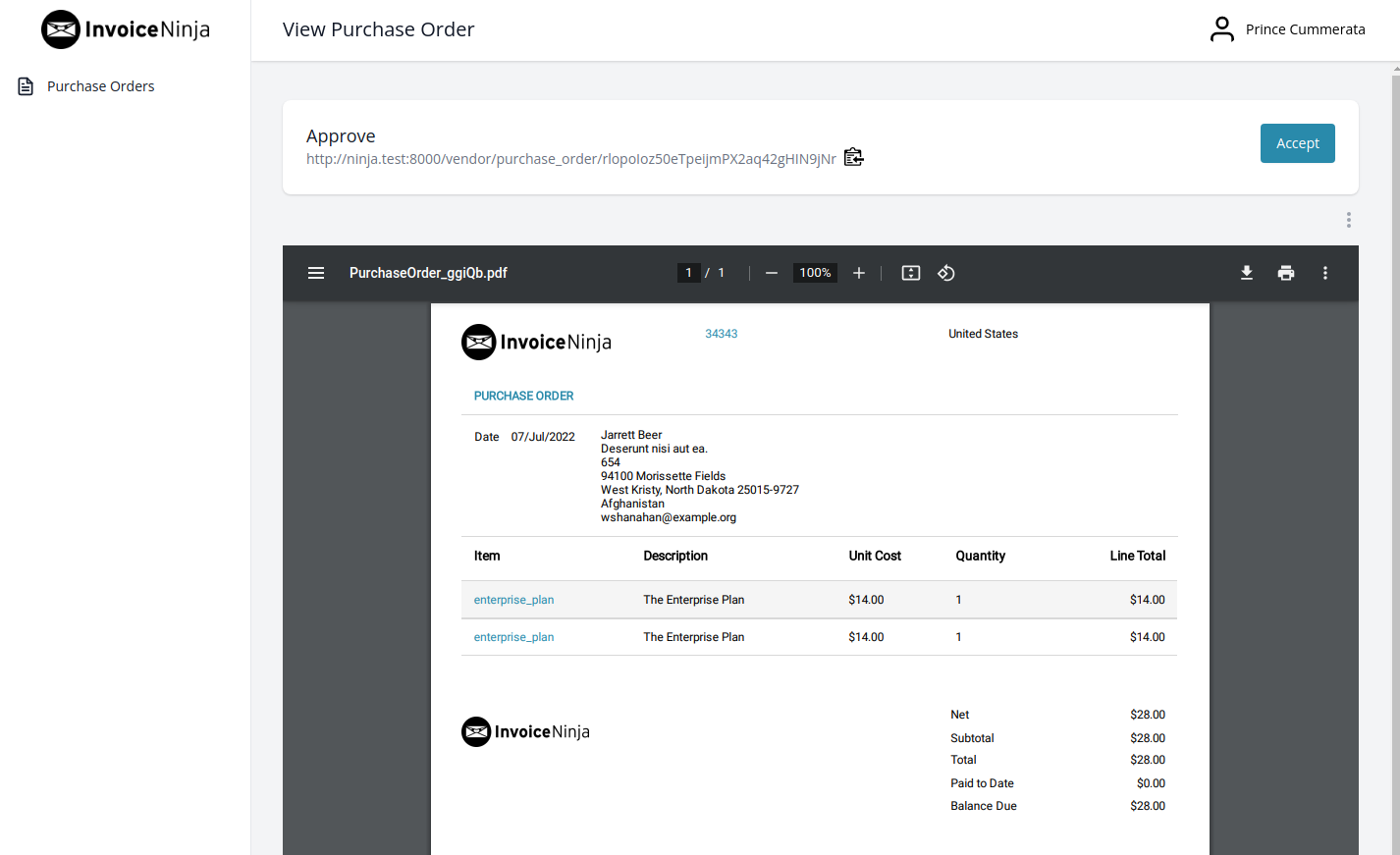
When your vendor agrees to the order, the PO moves to Accepted. Vendors do this themselves through the Vendor Portal — the portal-facing side of Invoice Ninja where they can review the PO, optionally agree to extra terms, and leave a signature on file. At that point you have a binding record that both sides agreed to the same numbers.
Received
Once the goods or services turn up, you can mark the PO as Received. If Inventory Tracking is enabled, stock levels for the matching products are incremented automatically, so the count on your shelves stays in step with the paperwork.
Converting a Purchase Order to an Expense
A received PO doesn't just sit there — you can convert it into an expense in one step, which is usually how the order ends its life in your books. The expense inherits the vendor, amount, and line detail from the PO, so you don't re-key anything, and if the PO was linked to a client or project the expense keeps that link too (handy for billing the cost back on). From there the expense behaves like any other — you can mark it paid, attach a receipt, or flag it as billable.
Cancelled
If the order falls through before it's received, mark it Cancelled to preserve the record without treating it as live.
Deleted
A PO can be deleted while it's still in Sent or Draft status. When you delete one:
- Its status is set to deleted.
- The PO number is suffixed with _deleted so the original number can be reused.
Archived
Archiving removes a PO from the default list view without changing any of its data. It's purely cosmetic housekeeping.
An archived PO can't be modified until it's restored.
Restored
Restoring a PO from archived or deleted puts it back into whichever state it was in beforehand, with all its data intact.