Payments
A payment is a record of money you've received from a client against one or more of their invoices. Every payment in Invoice Ninja is tied to a client, and most are tied to at least one invoice — that link is what moves an invoice from "Sent" to "Paid" and keeps your balances and reports accurate.
Payments are created in one of two ways. When a client pays online through the Client Portal using a connected payment gateway, the payment record is generated automatically and matched to the invoice they paid. When money arrives some other way — a bank transfer, a cheque, cash, or a deposit you reconcile from Banking and Transactions — you enter the payment yourself, or mark the invoice as paid and Invoice Ninja creates a payment labelled "Manual Entry" for the full amount.
It's worth understanding that payment records aren't sent to the client in the way invoices and receipts are. The payment is an internal accounting record; what the client sees is their invoice flipping to "Paid".
Payment Statuses
A payment moves through a small set of statuses that describe how much of it has been applied to invoices:
- Unapplied — the payment is recorded against a client but hasn't been linked to an invoice yet. This is common when a client pays a retainer, sends money on account, or overpays; the funds sit on their record until you decide which invoice to apply them to.
- Partially Unapplied — some of the payment has been applied to an invoice and some is still sitting as a balance you can use later.
- Paid — the payment has been fully applied and has no remaining value.
- Refunded — all or part of the payment has been returned to the client. Only amounts that were applied to an invoice can be refunded.
Viewing a Payment
Open a payment from the Payments list, or from the Payments tab on the client overview. The view panel shows the payment's status, the invoice (or invoices) it was applied to, the amount applied, the payment date, the transaction reference, and any private notes. The Edit button in the top-right lets you change the record; the kebab menu archives or deletes it. At the bottom of the panel you'll find the controls to apply more of the payment to another invoice, or to refund it.
Editing a Payment
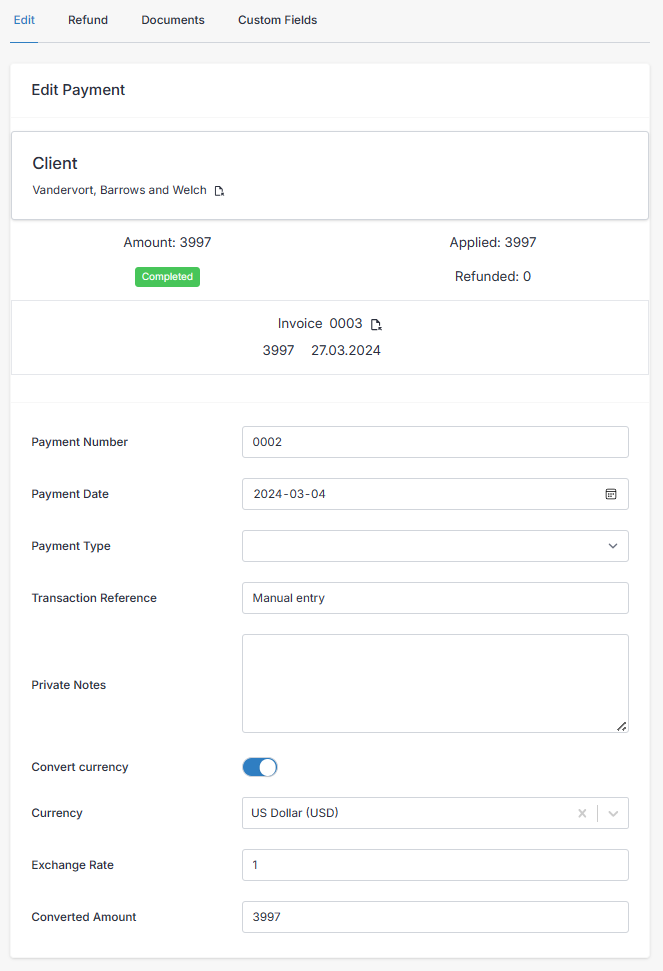
These fields are available when editing a payment:
- Payment Number — generated automatically. If you want to change the format, adjust it under Settings > Generated Numbers.
- Payment Date — defaults to today, but change it if the money actually arrived on a different day — your reports use this date.
- Payment Type — a searchable dropdown of payment methods (cash, cheque, credit card, bank transfer, and so on). Useful for filtering reports later.
- Transaction Reference — a bank reference, cheque number, or short note explaining where the money came from.
- Private Notes — internal notes only visible inside the admin portal, for bookkeeping or audit trails.
- Convert Currency — if the client paid in a currency other than your own, enable this and enter the exchange rate. Invoice Ninja calculates the converted amount for you.
Entering a Payment Manually
When you record a payment by hand, the fields above apply, plus a few more that tell Invoice Ninja who paid and what to apply the money to:
- Client — select the client first. Every payment must belong to one.
- Amount Received — leave this blank for a straightforward payment matching the invoice total. Fill it in when the client paid more than the invoice balance (see overpayments below), or when you're recording money with no invoice attached yet.
- Invoices — pick one or more of the client's outstanding invoices. For each, the amount owing is pre-filled, and you can lower it if the client only paid part of the invoice.
- Credits — optionally apply any credits the client has on their account as part of this payment.
- Send Email — on by default. Turn it off if you don't want the client to receive a payment confirmation.
Applying One Payment Across Multiple Invoices
It's common for a client to send a single lump sum covering several invoices at once. When you're entering the payment, just add each invoice in the Invoices section and either accept the pre-filled balances or split the total however you need. The payment record keeps track of which invoice got which share.
Partial Payments
If a client only pays part of an invoice, enter the amount they actually sent against that invoice. The invoice will show a reduced balance owing and stay in a partial state until the rest comes in — which you'll record as a second payment later.
Overpayments and Credits on Account
If you enter an Amount Received that's larger than the invoices you're applying it to, the leftover sits on the payment as an unapplied balance. The payment's status becomes Partially Unapplied, and you can apply the remainder to a future invoice whenever one is raised — no need to refund and re-bill. This is also how retainers and "money on account" work: record the payment with no invoice, and draw it down as invoices come in.
Using Credits as Part of a Payment
If the client has credits available, you can include them alongside the cash payment when entering a new payment. The credit and the payment combined cover the invoice, which is handy when you're settling a balance that's part cash, part store credit.
Refunds
To refund a payment, open it and use the kebab menu in the top-right of the view panel. You can refund the full amount or just part of it, and you can choose which invoice the refund comes off. Only amounts that have already been applied to an invoice are eligible — an unapplied balance isn't a refund, it's just a deletion or reassignment. Once refunded, the relevant portion of the payment is unlinked from the invoice and the invoice balance goes back up.
Archiving, Deleting, and Restoring
Archiving hides a payment from the default list view without touching any numbers. It's purely cosmetic — use it to keep your list tidy.
A payment can't be modified while archived. Restore it first if you need to make changes.
Deleting is heavier. When you delete a payment:
- Its status becomes Deleted.
- Its payment number is suffixed with
_deletedso the original number can be reused. - If it was Partially Unapplied or Paid, the remaining balance is no longer available to the client and the payment is unlinked from any invoices it was applied to — those invoices will show a balance owing again.
Restore from the archived or deleted state returns the payment to exactly where it was before, links and all.