Advanced Settings
Advanced Settings is where Invoice Ninja becomes yours. Once Basic Settings has your company, localization, and defaults in place, this is the area you open when you want documents that look the part, numbering that matches your accountant's expectations, emails that read in your voice, and a client portal that feels like your own.
You don't need to touch every cluster below — most freelancers set up Invoice Design and Email Settings once and leave the rest at their defaults. Small businesses tend to reach for Generated Numbers, Templates & Reminders, and User Management as they grow. Agencies with many clients often lean on Group Settings and Payment Links to scale without duplicating work.
Invoice Design
Invoice Design controls how your invoices, quotes, and credits look on the page — the template, the fonts, the colours, and which fields appear in each section. This is usually the first Advanced Settings cluster anyone opens, because getting your brand right on the first document sent to a client matters. For deeper PDF work (custom HTML/CSS templates, variable placeholders) see Custom Fields & PDF Customization.
General Settings
Customize & Preview
This button opens an advanced template code editor with a live preview. Full instructions live under PDF Customizations. Use the preview to try designs before committing to one.
Template Settings
| Field | What it does |
|---|---|
| Invoice Design | Default design template for invoices. |
| Quote Design | Default design template for quotes. |
| Credit Design | Default design template for credits. |
| Page Layout | Portrait or landscape. |
| Page Size | Preformats the PDF for common printer sizes. A4 is the default; pick another only if you have specific in-house print requirements. |
| Font Size | Default 7. Adjust to taste. |
| Primary Font | Default Roboto. Used as the primary document font. |
| Secondary Font | Default Roboto. Used for secondary text. |
| Primary Color | Default #0c45a3. Main accent colour used by templates. |
| Secondary Color | Default #7081e0. Secondary accent colour. |
| Empty Columns | Default Show. Hide item-list columns that have no values. |
Client Details, Company Details, Invoice Details, etc.
Each tab along the top of Invoice Design corresponds to a section of the generated document. Add or remove fields here to decide exactly what appears in that section — useful when your region requires specific data on an invoice (for example a VAT number or tax registration) or when you'd rather hide fields that aren't relevant to your business.
- Add Field — pick from available record values to add to that section.
- Reset — restore the default field list for the section.
The tabs available are:
- Client Details — fields printed in the client-details block.
- Company Details — fields printed in the company-details block.
- Company Address — usually rendered separately from company details, so it gets its own tab.
- Invoice Details — fields sourced from the invoice record (number, date, due date, and so on).
- Quote Details — same idea, populated from the quote record.
- Credit Details — same idea, populated from the credit record.
- Product Columns — columns shown for product line items.
- Task Columns — columns shown for task line items.
- Total Fields — the accounting totals block at the foot of the document.
Custom Fields
Custom Fields let you add up to four extra fields to each record type (clients, invoices, products, and so on), so Invoice Ninja fits the details your business actually tracks. A freelancer might add a certification expiry to their company record; a small business might record a licence number against each client; an agency might tag products with a SKU or warranty period. Fields can be shown on PDFs via placeholders (see Clients) or kept internal.
To activate a field, give it a name. Leave the name empty and the field disappears from forms and records.
Each of the four slots accepts one of five types:
- Single-line Text — a short free-text field.
- Multi-line Text — for longer notes.
- Switch — a true/false toggle. Good for membership status, opt-ins, or flags.
- Dropdown — a select menu populated from a comma-separated list you provide.
- Date — a date picker. Good for expiry dates or manufacture dates.
Tabs at the top of the page scope those four slots per entity:
- Company — fields against your own company record.
- Clients — applies to clients and their nested contacts.
- Products — describe items in your inventory.
- Invoices — four custom fields plus a Surcharge field (a named, taxable-or-not flat fee that appears above the tax dropdowns on every invoice).
- Payments — extra fields on payment records.
- Vendors — describe suppliers — for example, your credit terms with them.
- Expenses — handy for a tax-category field at year end.
- Users — employee-level fields, useful if you run a team through Tasks.
Generated Numbers
Generated Numbers controls the format and sequencing of invoice numbers, quote numbers, client numbers, and every other auto-incrementing identifier in Invoice Ninja. Accountants often have strict expectations here — continuous sequences, yearly resets, specific prefixes for tax compliance — and this is where you meet those requirements. If you're just starting out, the defaults (a zero-padded counter) work for almost everyone.
Available Variables
| Variable | Description |
|---|---|
| $counter | The current count of the entity |
| $client_counter | The current count of the client entity |
| $group_counter | The current count of the group entity |
| $date:Y-m-d | The current date in the defined format ie Y-m-d |
| $year | The current year |
| $user_id | The user id of the creator of the entity |
| $client_custom1 | The value of the first custom field of the client entity |
| $client_custom2 | The value of the second custom field of the client entity |
| $client_custom3 | The value of the third custom field of the client entity |
| $client_custom4 | The value of the fourth custom field of the client entity |
| $client_id_number | The Client ID number |
| $client_number | The Client number |
| $vendor_custom1 | The value of the first custom field of the vendor entity |
| $vendor_custom2 | The value of the second custom field of the vendor entity |
| $vendor_custom3 | The value of the third custom field of the vendor entity |
| $vendor_custom4 | The value of the fourth custom field of the vendor entity |
| $vendor_id_number | The Vendor ID number |
| $vendor_number | The Vendor number |
| $expense_id_number | The matching Client or Vendor ID number |
| $user_custom1 | The value of the first custom field of the user entity |
| $user_custom2 | The value of the second custom field of the user entity |
| $user_custom3 | The value of the third custom field of the user entity |
| $user_custom4 | The value of the fourth custom field of the user entity |
Combine these inside a number pattern:
{$date:y}-{$counter}-{$user_custom1}
Note: The patterns must resolve to a UNIQUE number, duplicates are not allowed and the generated number will not be applied - or - will be modified to be unique.
Settings
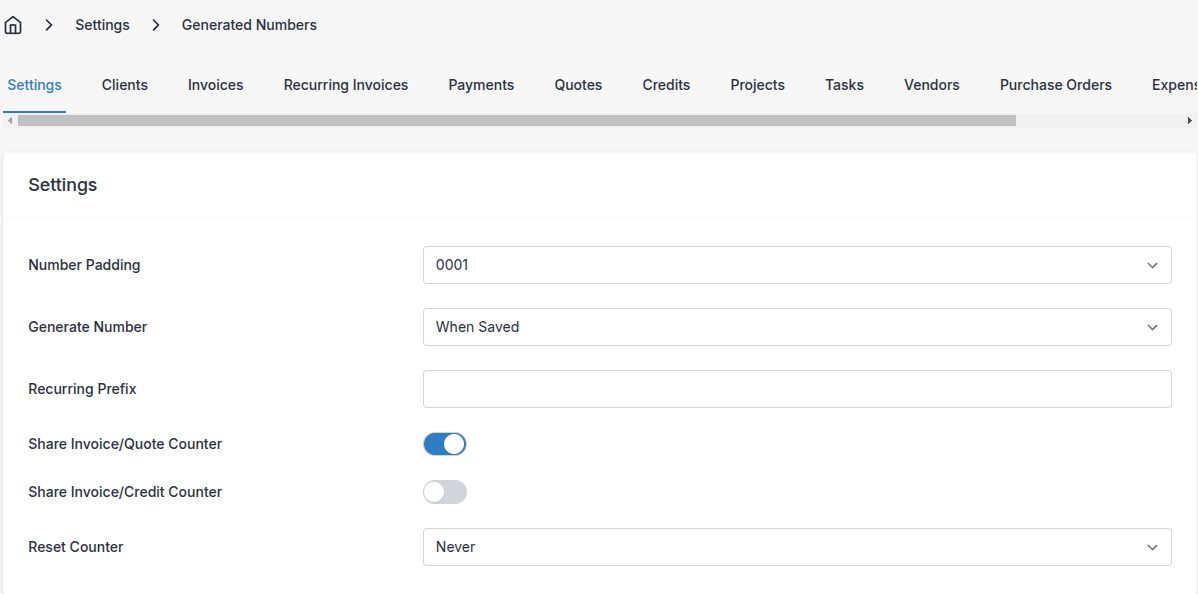
The Settings tab holds the rules that apply to every entity. Other tabs then fine-tune each entity individually.
- Number Padding — leading zeros. Default 3, producing
0001,0002,0003. - Generate Number — choose when the number is stamped: When Saved (immediately) or When Sent (only once the entity is sent or marked as sent).
- Recurring Prefix — prefix applied to invoices spawned from a recurring invoice, so they're easy to spot in a list.
- Shared Invoice/Quote Counter — quotes draw from the same counter as invoices.
- Shared Invoice/Credit Counter — credits draw from the same counter as invoices. Enable both shared-counter switches to put invoices, quotes, and credits on one sequence.
- Reset Counter — reset at a chosen frequency (yearly, monthly, and so on). Pair this with something unique in your pattern (for example
$year) or you'll collide.
Clients, Invoices, Recurring Invoices, Payments, etc.
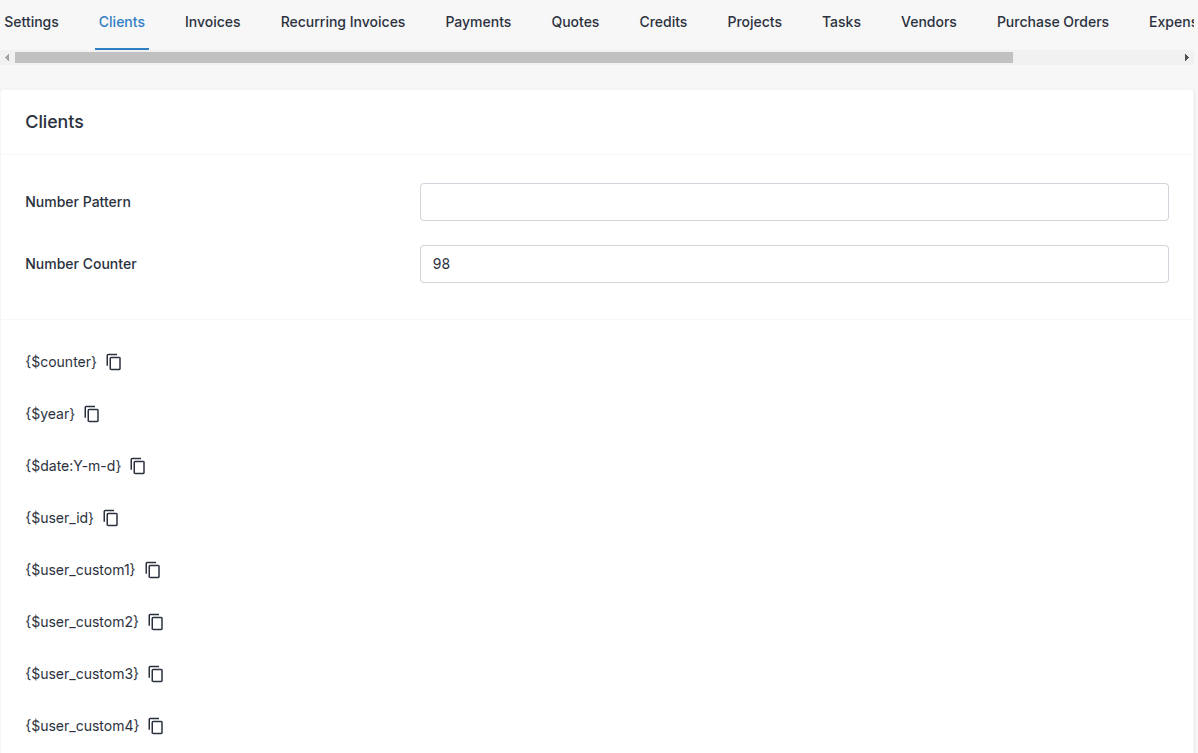
Each entity has its own tab, letting you customize its pattern and counter independently.
- Number Pattern — the rule used to build new numbers. For example:
{$date:y}-{$counter}
…produces 2021-0009 for the 9th count in 2021. If you use Reset Counter, bake enough uniqueness (like $year) into the pattern to stop collisions.
- Number Counter — directly editable, handy if you're migrating from another system and want to continue a sequence. Edit carefully — collisions block new numbers from saving.
At the foot of the tab, View Date Formats links to a PHP date-format reference, and the per-entity variable list sits just below that.
Email Settings
Email Settings shapes how every automated message leaves your system — the reply-to address, signature, attachments, and send timing. It's worth a visit early on: a tidy reply-to and signature make client conversations much smoother, and decisions about PDF and UBL attachments can matter for compliance. For sending e-invoices in the correct format per jurisdiction, see E-Invoicing.
| Field | What it does |
|---|---|
| Email Provider | The service used to send your mail. Picking a provider reveals its credential fields (below). The available options differ between the hosted platform and self-hosted installs. |
| Reply-To Name | Name shown in the reply-to header — for example, the contact for support questions. |
| Reply-To Email | Address replies get routed to. |
| From Name | Sender name shown on outgoing mail. |
| BCC Email | Comma-separated list of addresses blind-copied on outgoing emails. Recipients can't see these. |
| Email Design | Visual template used for emails. |
| Email Signature | Appended to every company email. Multi-line; HTML is respected. |
| Send Time | Hour of day (in the client's timezone) at which scheduled emails send. For example, 9 sends at 9am local to each client. |
| Attach PDF | Attach the PDF to the email. Off by default — emails include a portal link instead. |
| Attach Documents | Attach any files uploaded under the record's Documents tab. |
| Attach UBL | Attach a standalone UBL XML alongside the PDF. Useful if a recipient's system reads XML but not the XML embedded inside PDFs. |
| Enable E-invoice | Turn on regional e-invoice generation, then pick the standard your jurisdiction requires. |
Email Provider
The Email Provider dropdown controls where your mail is sent from, and each choice exposes its own credential fields:
| Provider | Fields you supply | Notes |
|---|---|---|
| Default | None | Hosted: the built-in Invoice Ninja mail service. Self-hosted: the server's .env MAIL_* configuration. |
| Gmail / Microsoft (OAuth) | Sending user | Hosted only, Pro/Enterprise — send from your own connected Google or Microsoft account. See Hosted Mail. |
| SMTP | Host, Port, Encryption, Username, Password, Local Domain, Verify Peer | Includes a Send Test Email button to validate the configuration. |
| Postmark | Secret (server API token) | — |
| Mailgun | Secret, Domain, Endpoint (US / EU) | — |
| Brevo | Secret (API key) | — |
| Amazon SES | Access Key, Secret Key, Region, From Address, Topic ARN | Self-hosted. |
| From Email | The custom sending address used by Postmark, Mailgun, Brevo and SMTP. | Must be an address your provider is authorized to send from. |
To track delivery, bounces and spam complaints from Postmark, Mailgun or SES, see Webhook configuration (hosted) or the Mail Webhooks guide (self-hosted).
NOTE If you are selecting Hour 24, 12:00am is technically the next day, in order to prevent emails from being dispatched technically a day later, this system will adjust the send time slightly so that it is scheduled to send just before midnight.
Client Portal
Client Portal settings govern the self-service site your contacts log into to view invoices, pay, download receipts, and approve quotes. Everything here is optional but high-impact — enabling online signatures, a Terms of Service link, or a custom header can visibly raise the polish of your client experience. For the full tour of the portal itself, see Client Portal.
Settings
Basic behaviour and visibility.
- Client Portal — master switch. When off, portal links show a blocked page. Usually on.
- Tasks — off by default. Turn on to let clients view their assigned tasks (description, project, status, duration), whether invoiced or not.
- Client Registration — allow visitors to self-register and create their own client record. Useful if you want a sign-up link on your site.
- Document Upload — let clients upload files (signed contracts, PO paperwork) straight into their client record.
- Storefront — generates an API key so another app or your own website can create invoices automatically on your behalf.
- Terms of Service — multi-line text shown as a linked footer on every portal page.
- Privacy Policy — same idea, sitting beside Terms of Service.
Authorization
Features that add accountability around payments and approvals.
- Password Protect Invoices — off by default. When on, clients set a password on first view and re-enter it afterwards.
- Invoice Terms Checkbox — client must tick an acceptance box before paying.
- Quote Terms Checkbox — same, before approving a quote.
- Invoice Signature — require a drawn signature before paying an invoice.
- Quote Signature — require a drawn signature before approving a quote.
- Show on PDF — show the captured signature on the PDF once signed.
Messages
Greetings and notices shown at key pages in the portal.
- Dashboard — first message the client sees on logging in.
- Unpaid Invoice — shown above an unpaid invoice.
- Paid Invoice — shown above a paid invoice.
- Unapproved Quote — shown above a quote awaiting approval.
Customize
Appearance tweaks beyond the template.
- Header — text shown in a bar at the top of every portal page.
- Footer — text shown in a bar at the foot of every portal page.
- Custom CSS — CSS overrides for portal colors and styles, available on self-hosted installations.
- Custom JavaScript — any JS you want embedded on portal pages.
For setup instructions, supported CSS variables and selectors, and examples, see Client Portal → Customization.
Templates & Reminders
Templates & Reminders is where you fine-tune the subject line and body of every system-sent email — invoices, quotes, payments, and the three reminder tiers for overdue work. This is the cluster that lets you sound like a human rather than a robot, and is the main tool small businesses and agencies use to stay on top of late payers without chasing invoices manually.
-
Template — dropdown to pick which email to edit: Invoice, Quote, Payment, Reminder 1, 2, 3, and so on. Selecting a reminder template reveals extra options (see below).
-
Subject — email subject line. Default for invoices:
New invoice $number from $company.name. Merge tags from the tabs below pull in live data. -
Body — HTML body of the email. The default invoice body is:
"<p>To view your invoice for $amount, click the link below.</p><div class="center">$view_link</div>".Basic HTML is supported, and the merge-tag tabs below add fields from the document, client, contact, your company, or the sending user. The Invoice and Quote templates expose slightly different fields — they pull from the document they're tied to. Check the Preview tab to see the rendered result.
Reminder Templates
Selecting Reminder 1, 2, or 3 exposes scheduling and late-fee options. This is how automatic follow-up on overdue invoices is configured.
-
First, Second, and Third Reminders
- Days — integer number of days offset from the invoice date or due date.
- Schedule — when the offset is measured from: After the invoice date — days after the invoice was issued. Before the due date — days before it falls due. After the due date — days after it fell due.
- Send Email — toggle automatic sending on or off.
- Late Fee Amount — flat dollar amount added to the balance.
- Late Fee Percent — percentage of the remaining balance added.
-
Endless Reminders
- Send Email — toggle the unlimited-repeat reminder that kicks in after Reminder 3.
- Frequency — how often the endless reminder fires.
Group Settings
Group Settings lets you bundle clients together and override company defaults for just that bundle. It shines when an agency has VIP clients on a different invoice design, when a small business serves clients across two countries who each need local currency and language, or when a subset of clients have custom payment terms. Groups sit between company-wide defaults and per-client overrides — a client's own settings always win, a group's settings fill in the gaps, and company defaults apply last.
Create a group with the + icon in the Group Settings panel. Name it, save it, then open it. You'll see an Overview tab (with Clients and Configure Settings buttons) and a Documents tab (admin-only file uploads).
To move a client out of a group, edit the client and change or clear the group field.
Configure Settings
Every field in Configure Settings can be left blank to inherit the company default, or set to override it for group members.
- Company Details — group-specific invoice terms, footers, and autobill rules.
- Localization — currency, timezone, and language for group members.
- Payment Settings — autobill and over/under-payment rules, plus group-specific gateways (see Payment Gateways).
- Task Settings — task rate and portal presentation for the group.
- Invoice Design — different template for the group.
- Generated Numbers — separate counter and numbering rules for the group.
- Email Settings — override the outbound email defaults.
- Client Portal — custom portal experience for group members.
- Templates & Reminders — tighter or looser reminder behaviour, custom messaging.
- Payment links — view and edit group-specific payment link settings.
- Workflow Settings — UI-workflow tweaks for invoices and quotes from group members.
Payment links
Payment Links are shareable checkout URLs — a single link that lets a client sign up for a subscription, pay a one-off setup fee, start a free trial, or buy a product from your storefront. They're how small businesses sell recurring services (retainers, memberships, SaaS plans) without hand-crafting a new invoice every month. For setting up the gateways that actually take the money, see Payment Gateways.
The Payment Links panel has three views: the list, the detail view (where you grab the shareable URL and see related invoices), and the edit view. Create new links with the + icon.
When editing, you'll see three tabs.
Overview
- Name — shown to clients on the checkout page.
- Group — assign the link to a group to make it visible only to that group's members (great for VIP-only plans). Unassigned links are visible to clients with no group.
- Products — one-time purchases bundled with the sign-up — for example, a setup fee.
- Recurring Products — products that bill on the recurring schedule — for example, the monthly plan fee.
Settings
- Frequency — how often clients are charged.
- Auto bill
- Enabled — payment is attempted automatically if a method is on file.
- Enabled by default — client sees the "store my card" option pre-selected.
- Disabled by default — client sees the option unselected.
- Disabled — no stored-payment option at all.
- Promo Code — optional code for a discount at checkout.
- Promo Discount — either a flat amount or a percentage off the period.
- Return URL — where the client is sent once sign-up is complete.
- Allow Query Overrides — let API callers append parameters to the checkout URL, useful when wiring the link into your own storefront.
- Allow Plan Changes — let subscribed clients switch between plans. Targets must share the same group. You can allow switching out of plan A into B while blocking switching out of B, by leaving this off on B.
- Allow Cancellation — let clients cancel from the portal, optionally with a refund window.
- Trial Enabled — turn "Pay Now" into "Start Free Trial" (no payment details required up front). Pair with a Trial Duration to avoid indefinite trials.
- Per Seat Enabled — cap sign-ups to a maximum seat count.
Webhook
Webhooks fire outbound when a client signs up to the link, so your own systems can react.
- Webhook URL — destination service.
- REST Method — pick one:
- POST — creating a new remote record.
- PUT — replacing an existing remote record.
Below, add as many HTTP header key/value pairs as you need (JSON payload):
- Header Key — header name, matching what Invoice Ninja's JSON API expects.
- Header Value — value for that header.
Workflow Settings
Workflow Settings cuts repetitive clicks by automating what happens when an invoice or quote changes state. Most teams enable locking and auto-archive once they've settled into a routine — it keeps the admin list clean and prevents accidental edits to sent or paid documents.
Invoices
- Auto Email — on by default. Email clients automatically when a recurring invoice spawns a new invoice.
- Auto Archive — off by default. Archive invoices once fully paid.
- Lock Invoices — prevent edits to invoices after a trigger:
- Off — no locking.
- When Sent — lock once sent.
- When Paid — lock once fully paid.
Quotes
- Automatically Convert — on by default. Convert a quote into an invoice automatically on client approval.
- Auto Archive — off by default. Archive quotes once they've been converted.
User Management
User Management is where you add teammates, decide what they can see, and control the notifications they receive. Solo freelancers rarely open it; small businesses use it when the first employee or bookkeeper joins; agencies live in it. Users each have their own login and permission set, so you can give, say, a bookkeeper access to payments and reports without letting them edit clients.
The panel has three views: the user list, a detail view of one user (with buttons filtering by records they own or created), and the edit view with three tabs.
Details
- First Name — the user's first name.
- Last Name — the user's last name.
- Email — login address. The user receives a verification email when first invited.
- Phone — optional reference field.
Notifications
Every system event (invoice created, quote viewed, payment received, payment failed, and so on) can trigger an email to this user. Pick one of:
- None — no email.
- Owned by User — email only when the event happens on a record the user owns.
- All Records — email on every occurrence, regardless of owner.
Permissions
- Administrator — on/off switch for full admin rights.
- When off, a grid of per-category permissions appears: grant View, Create, or Edit across clients, invoices, quotes, tasks, vendors, products, and so on.
Archive/Delete User
- The user's account becomes inactive but all their data is preserved
- The user can no longer log in
- Their historical data remains linked to records they created
- Can be restored later if needed
Remove User
- Permanently removes the users access to the company.
- All their data remains and is still assigned to them, but they no longer can access the company they have been removed from.
Archive/Delete/Remove actions effectively disable the users access to the company. The user can later be reattached to any company within the account.