Projects
A project is a container that groups everything you do for a client under one roof — the billable hours, the costs you incurred on their behalf, and the invoice that eventually goes out. The project record itself is deliberately simple; its value comes from what you hang off it. Once a few tasks and expenses are linked, you have a single place to see how much work has gone in, how much you've spent, and how close you are to the budget you agreed.
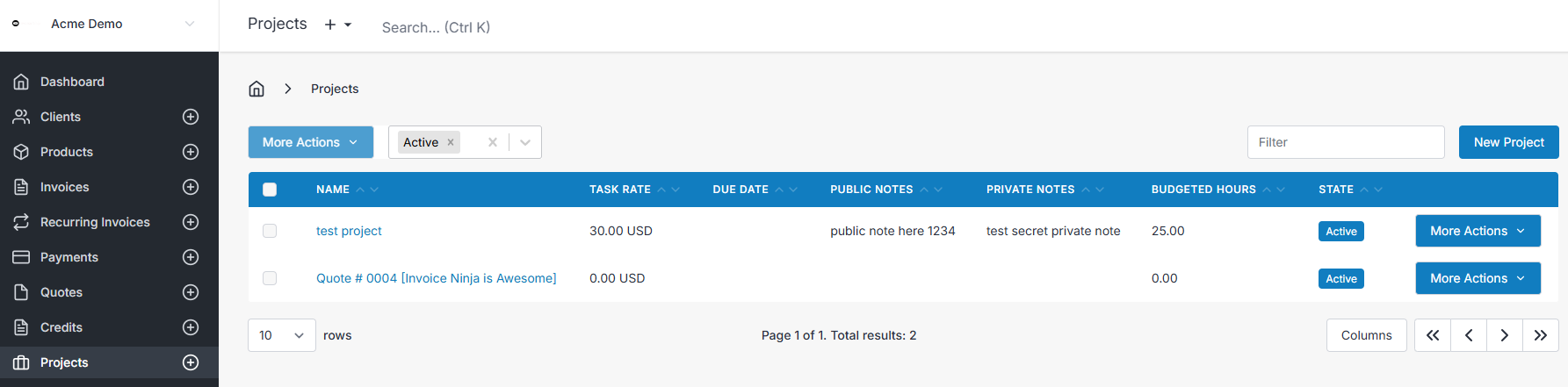
When to Use a Project
Not every piece of work needs a project. If you're sending a one-off invoice for a fixed amount — a product sale, a flat-fee service, a quick job — invoicing the client directly is faster and keeps your records uncluttered.
Projects start to earn their keep when:
- Work is tracked by the hour. A project gives your tasks a default Task Rate, so every new task for that engagement inherits the right hourly rate without you having to remember it.
- You need to watch a budget. Set Budgeted Hours up front and the project overview shows total logged hours against budget at a glance — useful for fixed-scope retainers, capped engagements, and internal accountability.
- Costs accumulate over time. Agency and freelance work often involves out-of-pocket expenses — stock photography, contractor invoices, travel. Linking expenses to a project keeps them bundled with the work they belong to, so nothing is forgotten at billing time.
- You want one user accountable. Assigning a User to the project makes it clear who owns delivery, which matters as soon as a team gets past one or two people.
- You'll invoice in stages or at the end. When several tasks and several weeks sit between "start" and "send invoice", the project is what ties it all together.
Viewing a Project
Select a project from the Projects list to open it. The tabs on the project page bring its details, tasks, finances, time, expenses, and progress together in one place.
Overview
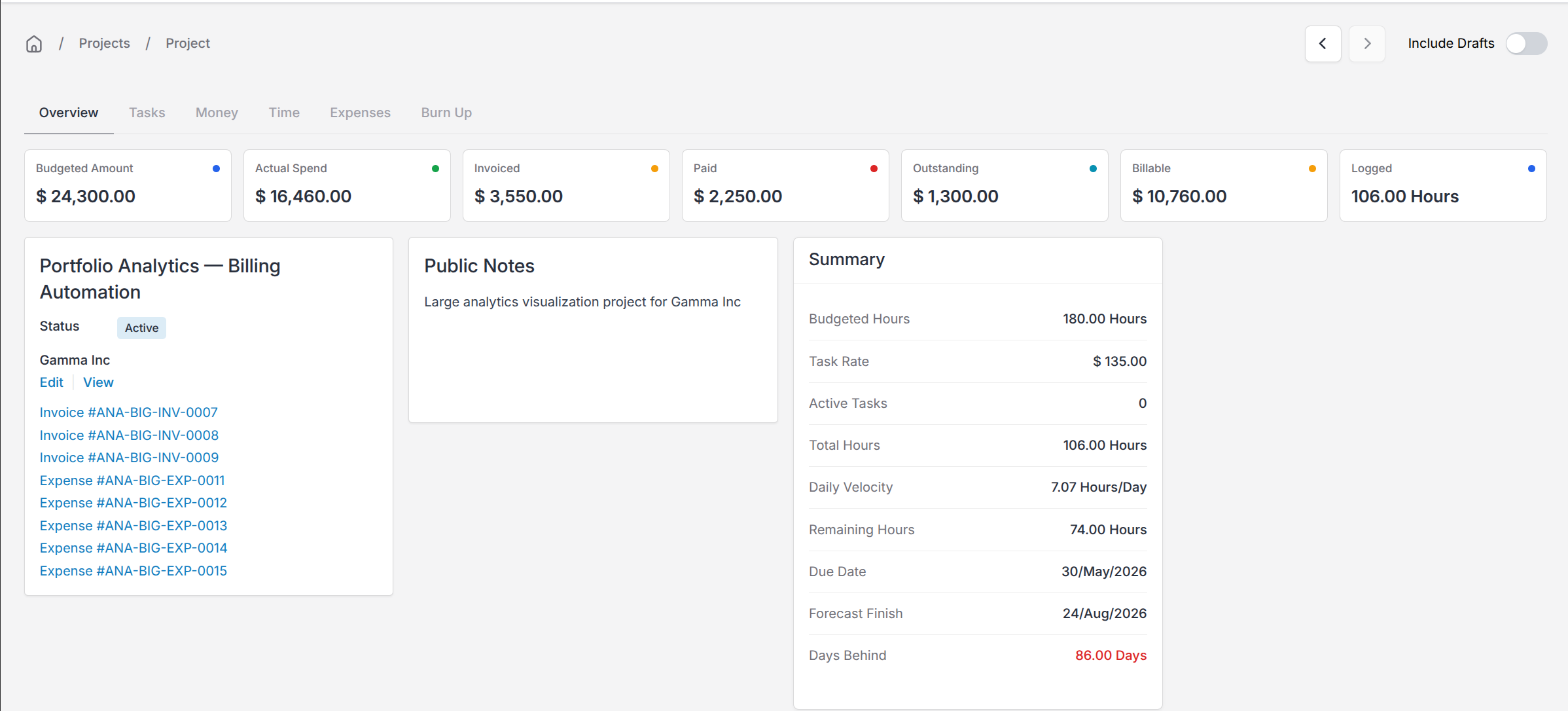
The Overview tab shows the project's most useful totals at a glance:
| Total | What it means |
|---|---|
| Budgeted Amount | The planned value of the project. For projects created in the app, this is normally calculated from Budgeted Hours × Task Rate. |
| Actual Spend | The value of work logged against the project, together with its linked expenses. |
| Invoiced | The value already invoiced for the project. |
| Paid | The amount received against those invoices. |
| Outstanding | The invoiced amount that has not yet been paid. |
| Billable | Work recorded against the project that has not yet been invoiced. |
| Logged | The total time recorded against the project. |
The Summary card compares budgeted and logged hours and shows the project's due date. When there is enough recorded activity, it also estimates a finish date and shows whether the project is likely to finish early or late.
The project details appear alongside the summary. From here you can open its client, linked quotes, invoices and expenses, and review its public and private notes.
Include Drafts
Turn on Include Drafts to include draft invoices in invoice-based totals and charts. Leave it off when you only want sent, partially paid, and paid invoices included.
This option is only shown to users who can view the project's financial information.
Tasks
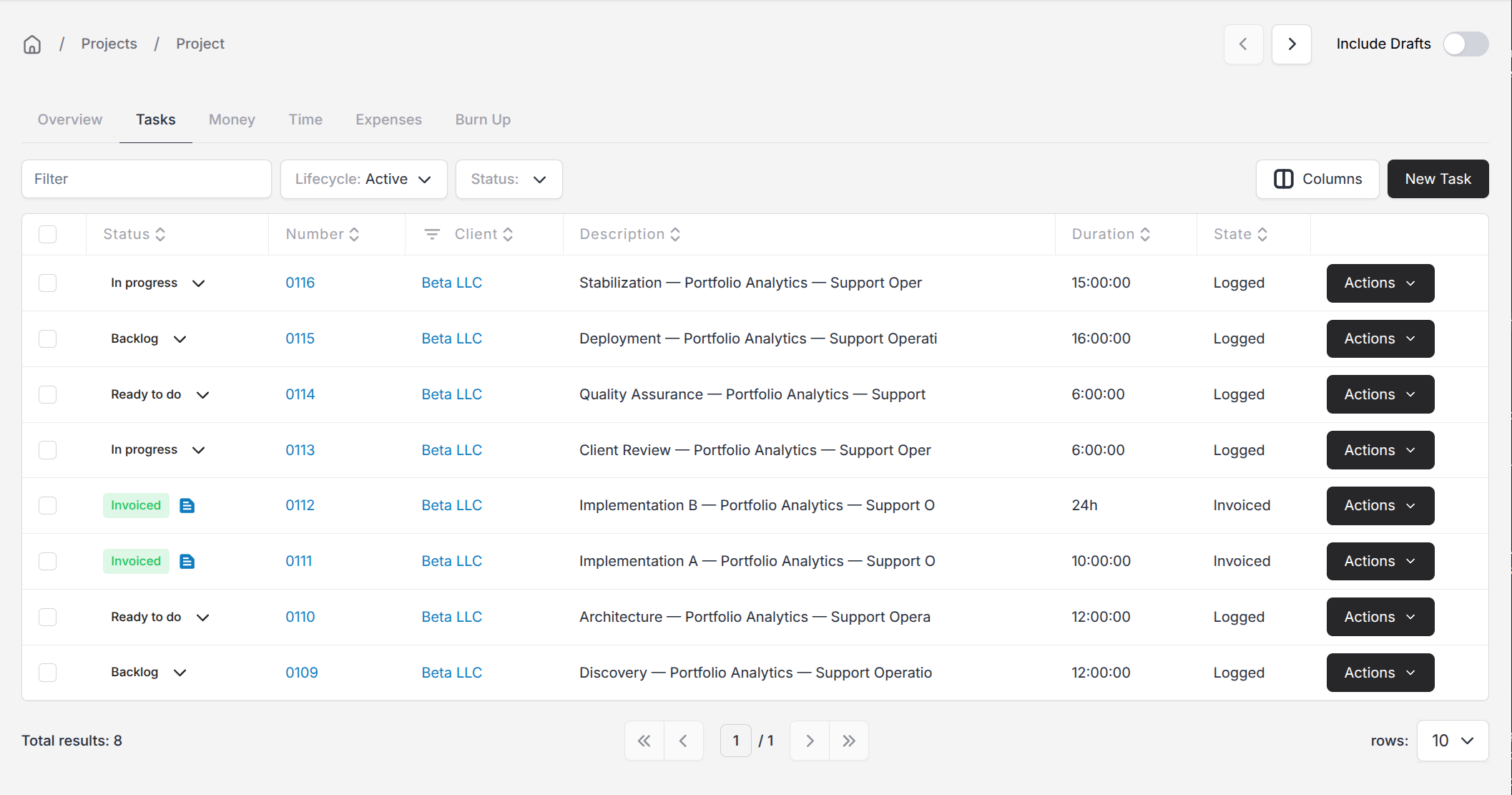
The Tasks tab lists the work recorded against the project. Select New Task to create a task with this project already selected. You can start or stop work, change a task's status, and open a task to review its time entries.
Each row has a More Actions menu for task-level controls:
For time tracking and task statuses, see Tasks.
Money
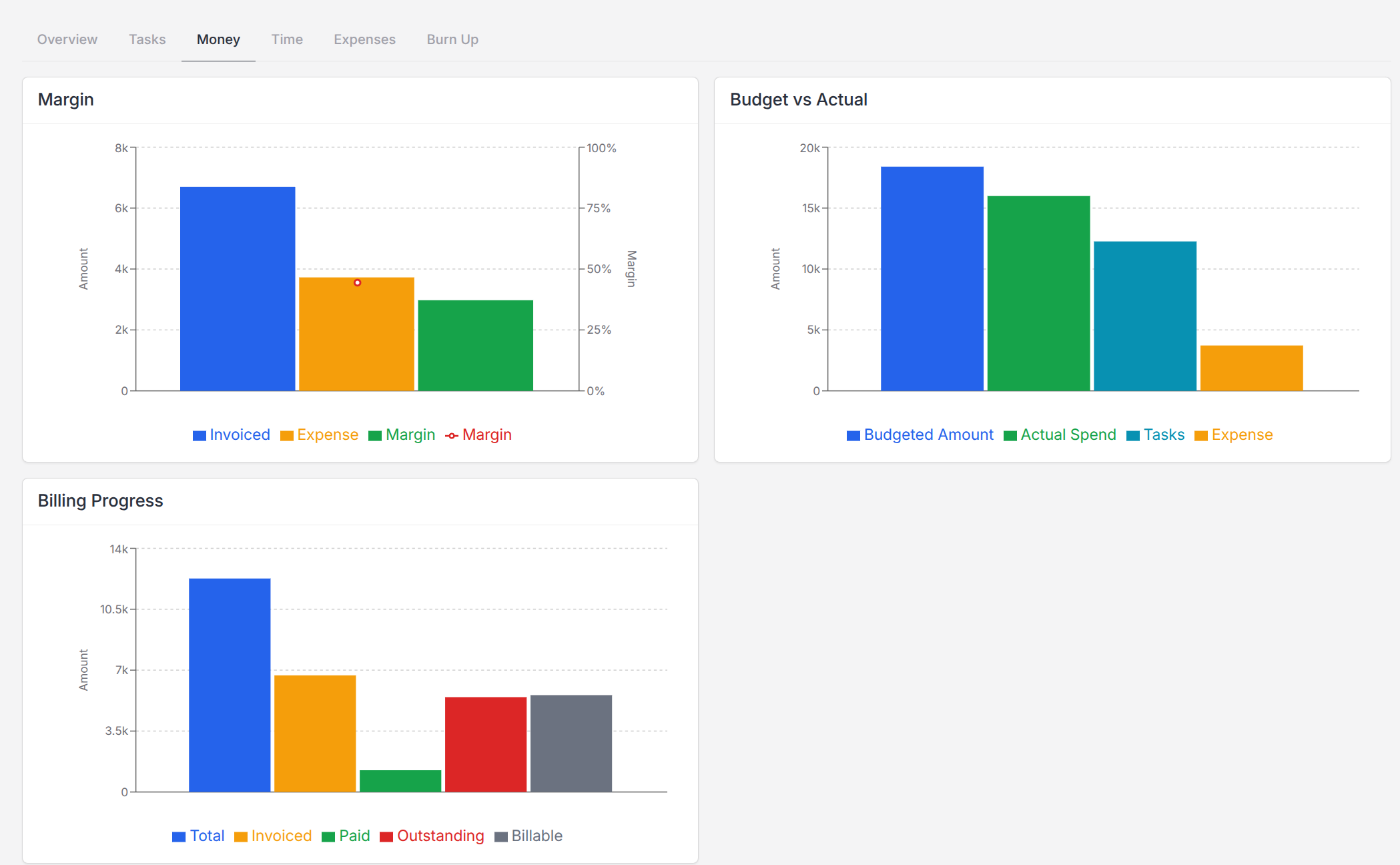
The Money tab helps you understand the financial position of the project:
- Margin compares invoiced income, expenses, and the remaining margin.
- Budget vs Actual compares the planned project amount with the current value of its work and expenses.
- Billing Progress compares the value of the work with how much has been invoiced, paid, remains outstanding, or has not yet been billed.
Hover over a bar or line to see its exact amount.
Time
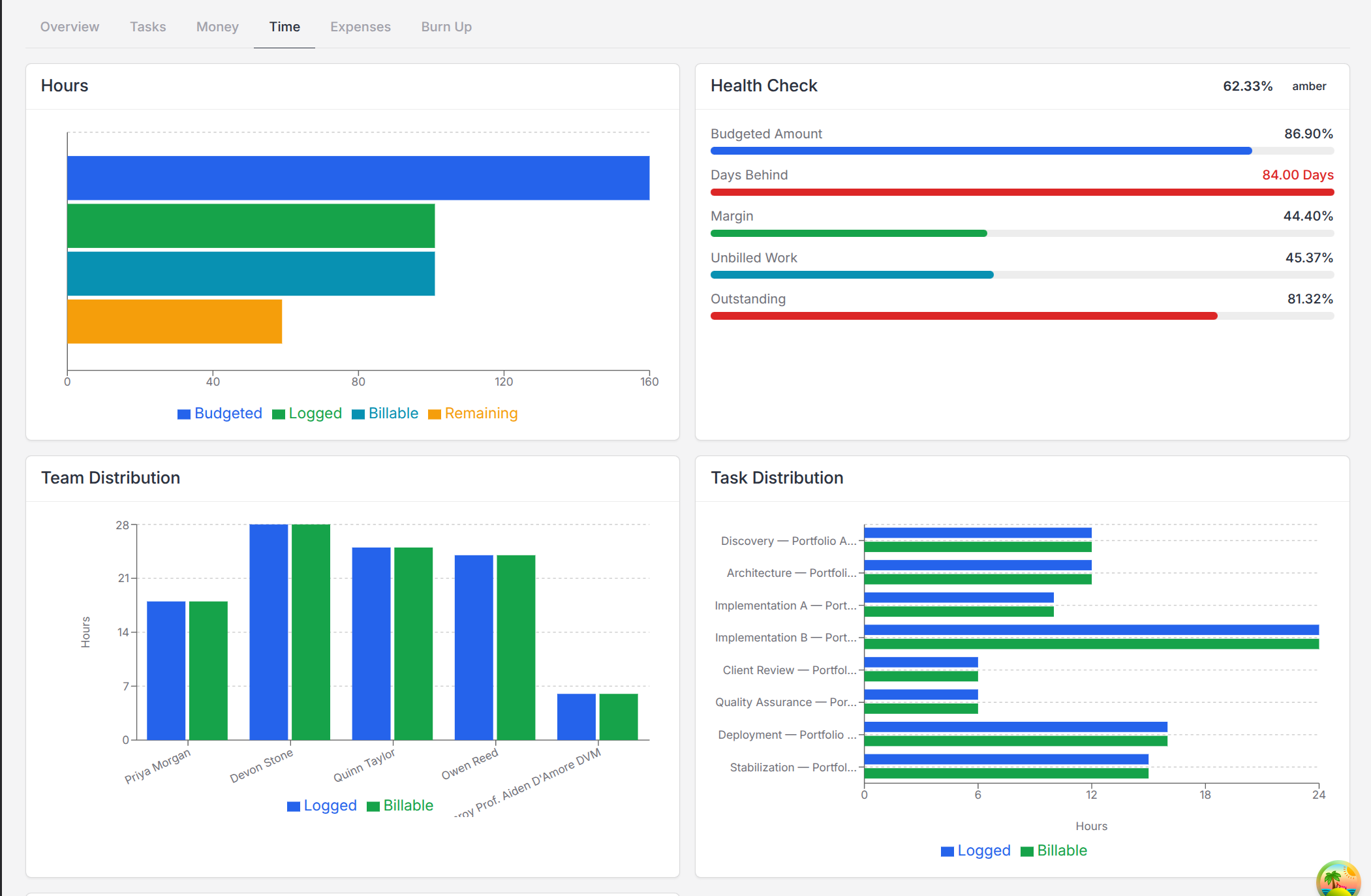
The Time tab shows how the work is progressing:
- Hours compares estimated, logged, billable, and remaining hours.
- Health Check summarises budget use, schedule progress, margin, unbilled work, and outstanding amounts.
- Team Distribution shows how recorded hours are divided between team members.
- Task Distribution shows which tasks account for the recorded time.
- Task Velocity shows how quickly work has been recorded over time.
Use these charts to spot a project that is using its hours too quickly, falling behind its due date, or carrying work that has not yet been invoiced.
Expenses
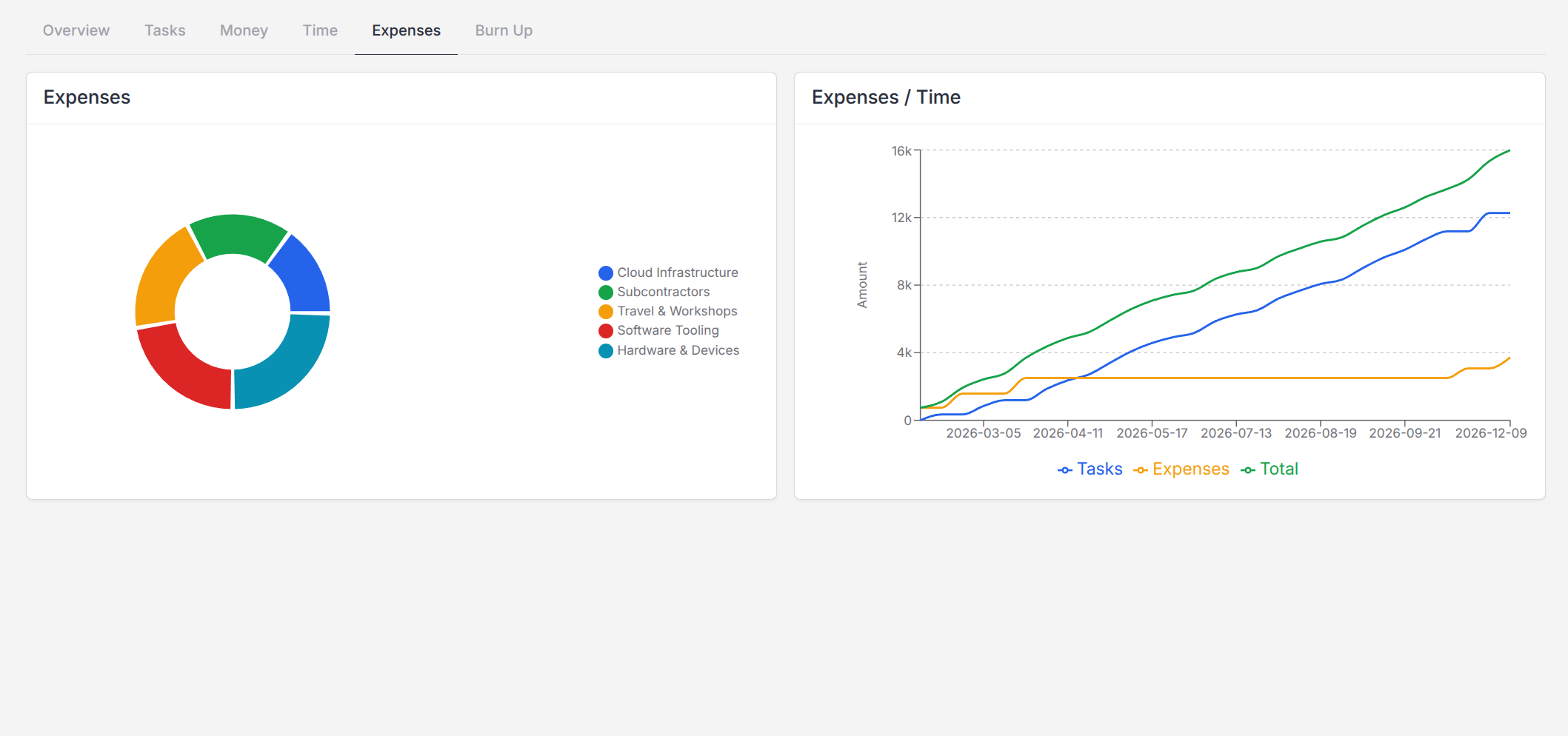
The Expenses tab groups project expenses by category. It also shows how the value of logged work and expenses has accumulated over time. Hover over a chart to see the amount for a category or period.
Burn Up
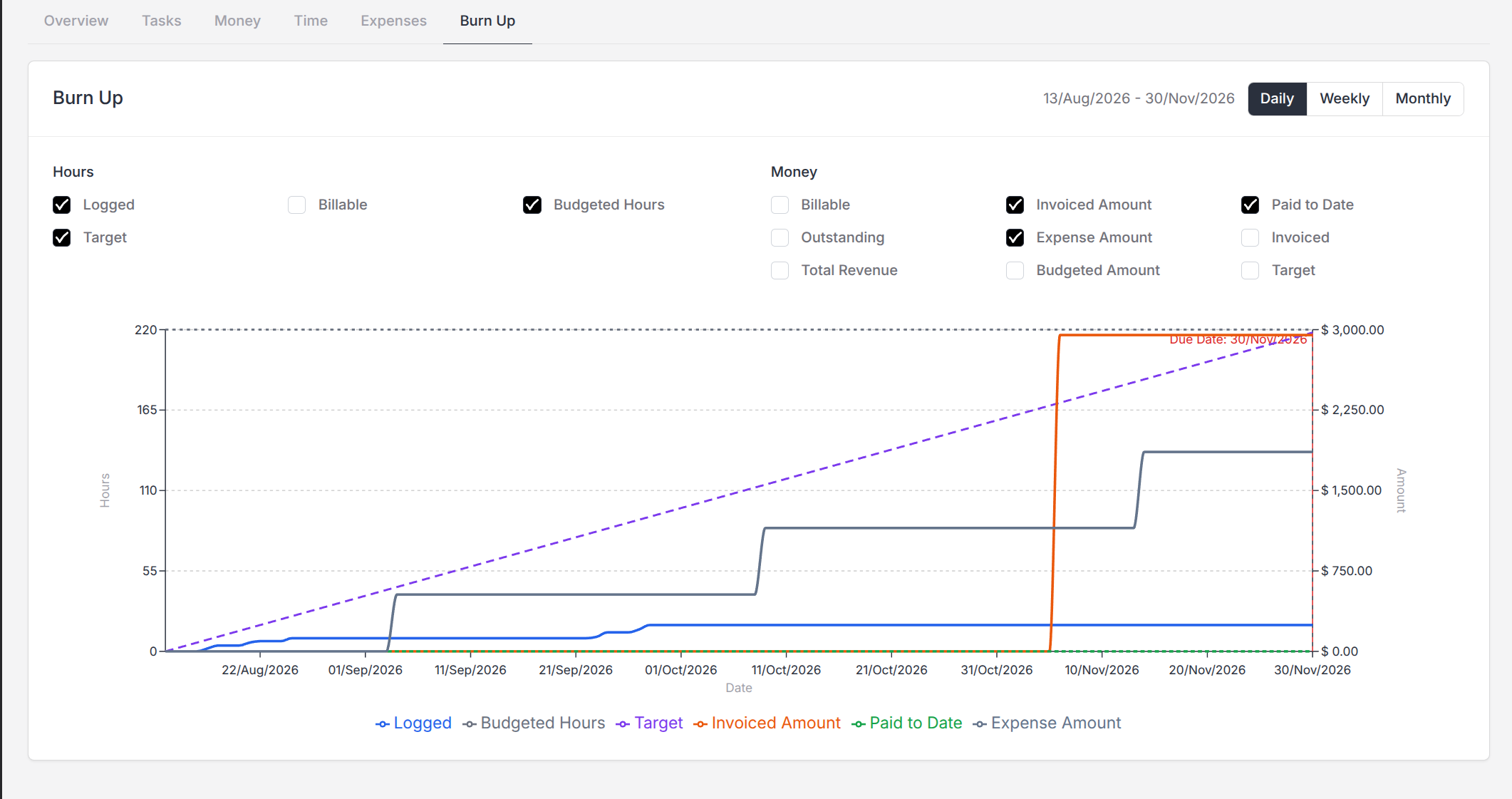
A burn-up chart shows how completed work grows over the life of the project and compares it with the project's plan. It can help you see whether the project is progressing at the expected rate.
On the Burn Up tab you can:
- Switch between Daily, Weekly, and Monthly views.
- Choose which hour measurements appear, including logged, billable, budgeted, and target hours.
- If you can view financial information, choose which money measurements appear, including invoiced, paid, outstanding, expenses, and budgeted amount.
- Hover over the chart to see the values for a particular date or period.
- Use the due-date marker to compare current progress with the planned finish date.
The Burn Up tab uses the same Include Drafts choice as the rest of the project page.
If Information Is Missing
The project page adjusts to the features and permissions available to you:
- Tasks is shown when the Tasks module is enabled.
- Money and Expenses are only shown to users who can view financial information.
- Time requires access to both the project's financial information and its tasks.
- Financial totals and money choices are hidden from the Overview and Burn Up tabs when you do not have financial access.
- A chart may show no data until tasks, time entries, expenses, or invoices have been linked to the project.
If a tab you need is missing, ask your account administrator to check your enabled modules and permissions.
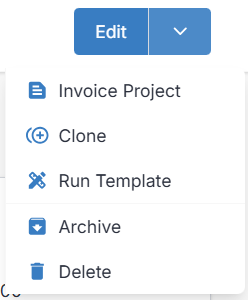
The actions at the top-right of the project page let you edit or invoice the project, clone it, run a template, archive it, or delete it. The actions you see depend on your permissions and the project's current state.
Creating and Editing a Project
Creating a project is quick — most of the value comes later, from what you attach to it. The fields are:
- Project Name — The name of the engagement. It appears in the line-item description of the first task when you invoice the project, so pick something the client will recognise.
- Project Number — Generated automatically for your own record-keeping.
- Client — The client this work is for. A project can only belong to one client.
- User — The team member accountable for the project.
- Due Date — The target finish date. Helpful for keeping an eye on what's coming up.
- Budgeted Hours — Your estimate or agreed cap on billable hours. Shown next to total logged hours on the overview.
- Task Rate — The default hourly rate for new tasks on this project. Individual tasks can override it if the rate varies by role or phase.
- Public Notes — Visible to the client on relevant documents; good for scope summaries.
- Private Notes — Internal only; good for reminders and context for colleagues.
Documents
Use the project's Documents tab for files such as briefs, signed scopes, and design references. Only documents marked Public are available to the client in the client portal under Documents > Projects. Private documents remain available only to your team.
Use Set Public or Set Private from a document's actions to change its visibility. Check the visibility before sharing sensitive or internal files.
Invoicing a Project
When the work is done (or you've hit a milestone worth billing), use Invoice Project from the project's Edit or More Actions menu.
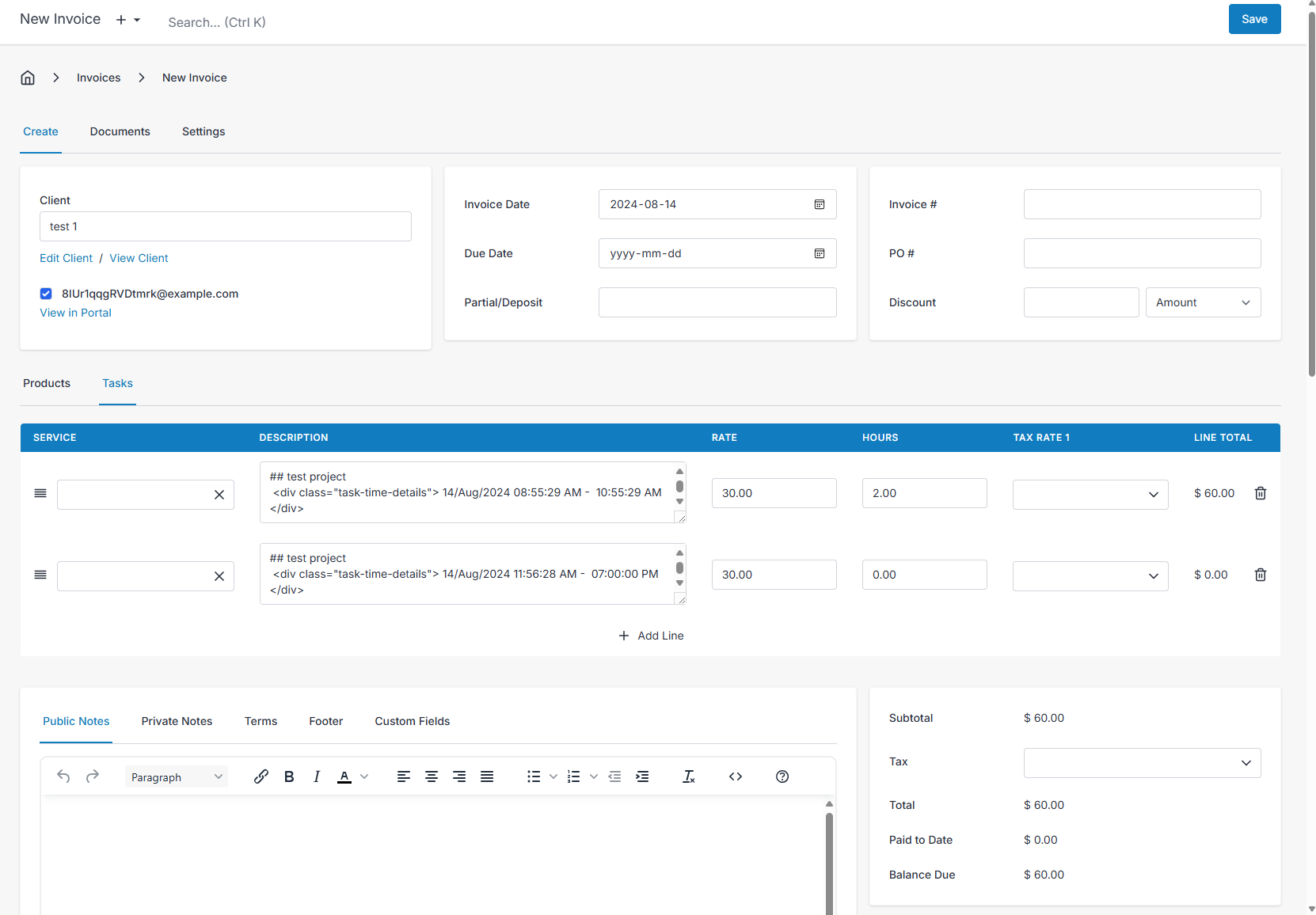
The new invoice is pre-filled with the project's client, and every unbilled task rolls onto the invoice as a line item. Review, adjust the wording if needed, and send.
The ## and <div> that appear in task descriptions are intentional — they carry CSS formatting through to the PDF.
One thing to watch: expenses linked to a project are not automatically added to the generated invoice. If you're billing the client for project expenses, mark those expenses as billable on the expense record and add them to the invoice manually, or include them as line items before sending.