Taxes
Tax is one of those parts of running a business that looks simple until you have a client in another state, a product category that's partly exempt, or a VAT number that needs validating. Invoice Ninja tries to keep the easy cases easy — one rate, applied to every invoice — while still handling the harder cases when you grow into them. This page explains how the moving parts fit together so you can pick the setup that matches how you actually bill.
The Shape of Tax in Invoice Ninja
Before configuring anything, it helps to know the three decisions that drive every tax calculation in the app: where the tax is applied on the document, how the rate relates to the price, and who decides the rate.
Invoice-Level vs Line-Level Tax
Tax can be applied to a whole invoice at once, or to each line item individually. Invoice-level tax is the simpler of the two — one rate sits at the bottom of the invoice and multiplies the subtotal. Line-level tax is more flexible because each item can carry its own rate, which is what you need when you sell a mix of taxable and exempt products, or goods at different rates (for example, standard-rated services alongside zero-rated books).
You can enable both at the same time, and you can switch between one and three taxes per line or per invoice. The trade-off is a small rounding difference between the two approaches, covered in Get Started's Line-Level vs Invoice-Level Tax note. Both are valid — pick whichever your accountant or tax authority expects.
Inclusive vs Exclusive
Exclusive tax is added on top of the price. A $100 item at 19% becomes $119. This is the default almost everywhere and is how US sales tax and most EU VAT invoicing works.
Inclusive tax is already baked into the price you display. That same $100 item, tax-inclusive at 19%, is still $100 to the buyer — but the invoice shows roughly $84.03 of product and $15.97 of tax. Inclusive pricing is common in retail, hospitality, and consumer-facing quotes where the headline number needs to be the number the customer actually pays. You can choose the mode under Settings > Tax Settings.
Manual Rates vs Calculated Taxes
There are two ways Invoice Ninja arrives at a tax figure. The first is manual — you define the tax names and rates yourself, and apply them wherever you want. The second is calculated — Invoice Ninja determines the rate automatically based on the client's location, the seller's jurisdiction, and the product category.
Manual is right for most freelancers and small businesses with a single tax rate, or when your accountant has already given you the rates to use. Calculated taxes are useful once you sell across state or country borders and need the app to keep up with jurisdiction-specific rules. The rest of this page walks through both.
Manual Taxes
Taxes can be configured manually by following the steps here, where you define the tax names, rates, and how they're applied. Once set up, manual rates are available in the tax selector on every invoice, quote, credit, and product.
Learn how to configure taxes in Invoice Ninja:
A useful workflow is to assign a default tax rate at the product level. When you drop a product into an invoice, its tax comes with it, so you're not picking a rate by hand for every line. You can also set tax defaults per client from the client's settings (see Clients), which is handy when one client is tax-exempt or sits in a jurisdiction with a different rate.
US Sales Tax
From v5.6 onwards Invoice Ninja can calculate US sales tax for you. A short primer first, because US sales tax is unlike VAT or GST in a way that shapes how the rest of this section is configured.
Sales tax in the United States is a consumption tax levied on the sale of goods and services. Unlike countries with a single national VAT, the US has no federal sales tax — it's imposed at the state, county, and sometimes municipal level, so the rate varies not just from state to state but within a state. One city might total 6%, the next 9%, and states like Oregon and Delaware don't charge sales tax at all.
Products and services are also taxed unevenly. Groceries are taxable in some states and exempt in others. Some states run tax holidays where certain goods temporarily aren't taxed. To calculate correctly you need three things: the precise location of the sale (the nexus), the type of product or service being sold, and the current rate at that location. Invoice Ninja handles this by reading the ship-to address on the invoice, looking up the current rate for that location, and applying it to the taxable items. Getting this right isn't just good hygiene — it's a legal obligation, and automating it reduces the risk of under- or over-collecting.
Turning on Calculated Taxes
If you're on a hosted Pro or Enterprise plan, open:
Settings > Tax Settings
Your company's country must be set to either United States, Australia, or an EU country for the Calculate Taxes option to appear (set under Company Details > Address).
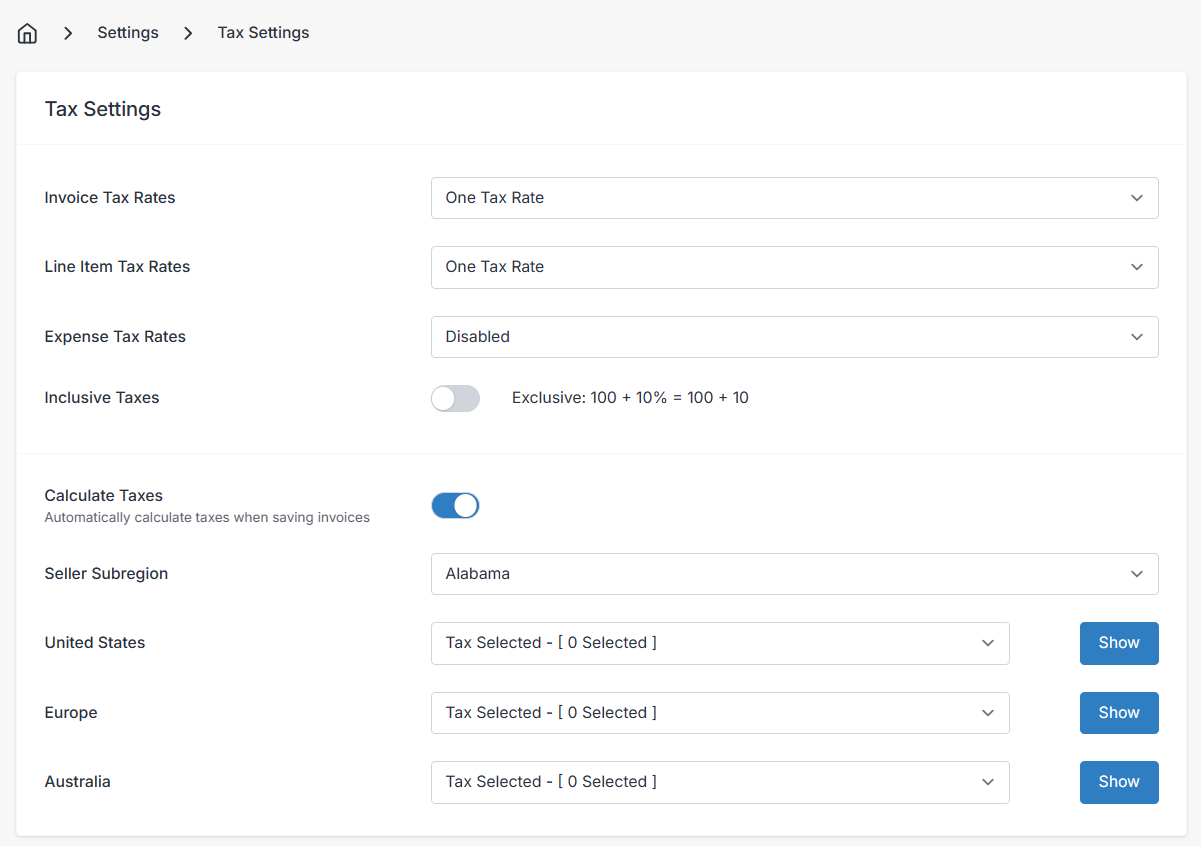
Flip the Calculate Taxes switch on and a new section appears. Set your seller subregion — the US state where your business is registered for tax purposes — since this is the nexus Invoice Ninja uses as the origin of every calculation.
Below the seller subregion is a list of regions where automatic calculation is supported. You have two choices per region: tax all states (Tax All), or tax only selected states (Tax Selected), using the Show option to tick the specific states where you're registered to collect. Save when you're done.
If a client has sites in multiple states, attach a location to each site — the location's address then drives the tax calculation per document, so a single client can be billed under the correct state-level rules without creating duplicate client records.
Product Tax Categories
How sales tax applies depends heavily on what you're selling, because each state sets its own rules about what's taxable. Tangible goods are usually taxed, but groceries, prescription medicines, and sometimes clothing may be exempt or reduced. Services are trickier still — some states tax all services, some tax a handful, and some don't tax services at all.
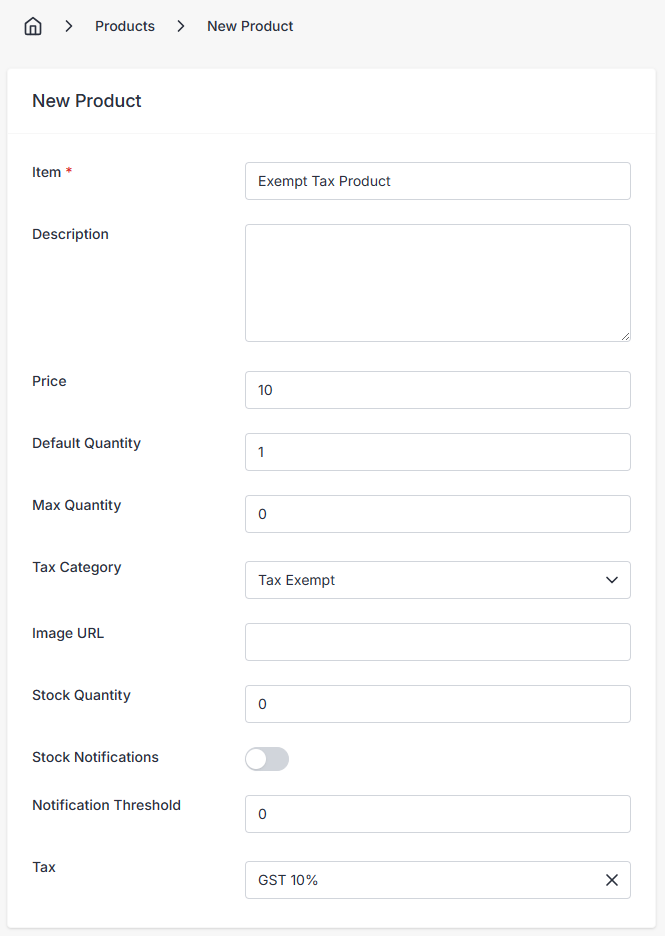
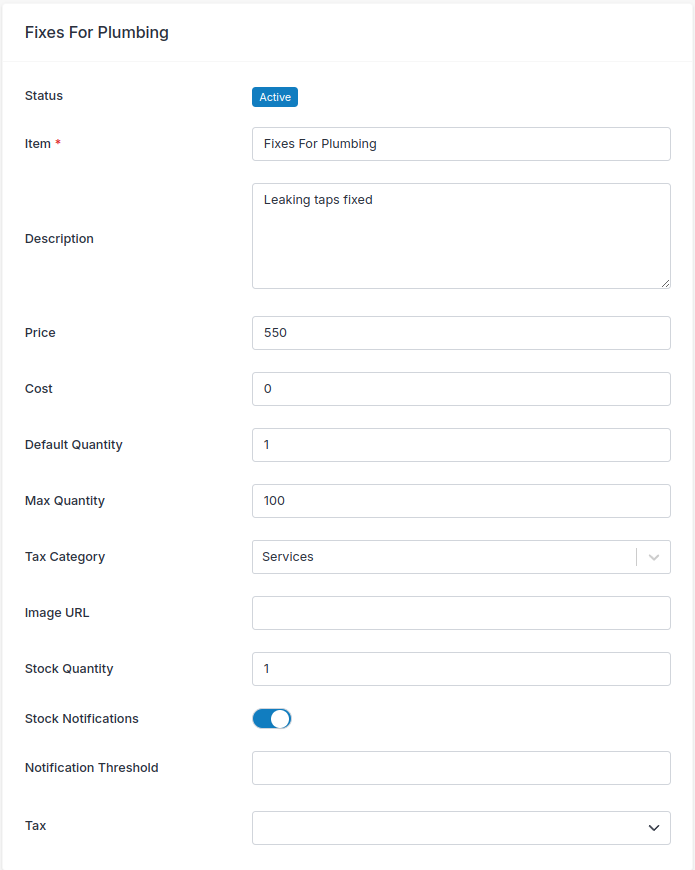
To handle this, each product carries a tax category. The calculator reads the category, the seller subregion, and the destination address, and picks the right rate for that combination.
The categories are:
- Physical Goods
- Digital Products
- Services
- Shipping
- Tax Exempt
- Reduced Tax
- Override Tax
- Zero Rated
- Reverse Tax (Use Tax)
Physical Goods are tangible personal property — electronics, furniture, vehicles. This is the most common taxable category in the US, though groceries, prescriptions, and sometimes clothing may be exempt or reduced in certain states. Use this for taxable tangible items.
Digital Products cover e-books, music and video downloads, software, and digital subscriptions. This is an evolving area: some states tax digital goods the same as physical goods, some tax only certain types, and others don't tax them at all. The treatment can also depend on whether the good is considered a service or a product, and whether it's delivered on a physical medium.
Services are taxed inconsistently across states. Professional services like consulting, legal, and accounting may be exempt in one state and taxable in the next. Personal services — haircuts, repairs, fitness training — follow the same pattern. Select this category and let the calculator apply the right treatment per destination.
Tax Exempt marks goods or services that aren't subject to sales tax. The specifics vary by state, but common exemptions include groceries and prescription medicines, with clothing sometimes exempt or reduced (notably in Pennsylvania and Minnesota).
Reduced Tax applies to items that many states tax at a lower rate to keep essentials affordable or to support certain sectors — some states apply a reduced rate to educational services, medical services, or public transportation.
Override Tax is the escape hatch. If a product sits outside the normal sales tax scope, choose Override Tax and pick whatever tax (if any) you want to apply to the line.
Zero Rated looks similar to tax-exempt but is technically different: the item remains taxable but at a rate of 0%. In VAT systems this matters because businesses in the supply chain can still reclaim input VAT on zero-rated goods, which they can't on exempt goods. In the US sales tax system the distinction is less meaningful, since states classify goods as taxable, exempt, or reduced rather than zero-rated.
Reverse Tax (Use Tax) covers out-of-state purchases used in the buyer's home state where no sales tax was charged at the point of sale. Use tax is the mirror of sales tax — it stops buyers sidestepping tax by purchasing across state lines, and it's usually the buyer's job to report and remit. Some states require larger businesses with a significant in-state presence to charge use tax up front, which is where the "reverse" framing comes from.
Tax Exemptions
Tax exemptions are specific scenarios where sales tax doesn't apply. They fall into four broad shapes.
Product-based exemptions attach to the item itself — groceries, prescription medications, sometimes clothing, or temporary back-to-school holidays.
Use-based exemptions attach to how an item is used. Goods bought for resale are commonly exempt because tax is collected further down the chain. Items used in manufacturing, or purchased by non-profits for their charitable work, are often exempt too.
Buyer-based exemptions attach to who's buying — government agencies, non-profit organisations, and certain other groups may be exempt regardless of what they purchase.
Transaction-based exemptions attach to the nature of the sale itself. Interstate commerce sales can qualify in some cases.
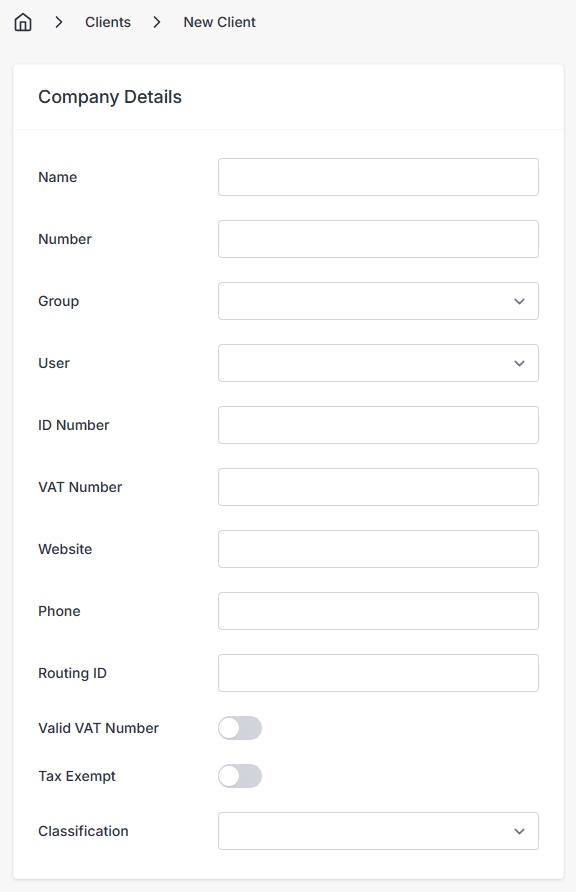
If you sell to a tax-exempt client, edit the client record and turn on the Tax Exempt switch — Invoice Ninja will then skip tax on their invoices automatically. See Clients for where the switch lives.
EU VAT
The EU engine has been extended to support EU-wide VAT calculations. Enable it in:
Settings > Tax Settings
When you turn on Calculate Taxes for the EU, the system configures itself in a specific way so the numbers come out right:
- Invoice-level taxes are disabled
- Line-item taxes are enabled
- Tax calculations are set to exclusive — i.e. 100 × 19% = 119 total
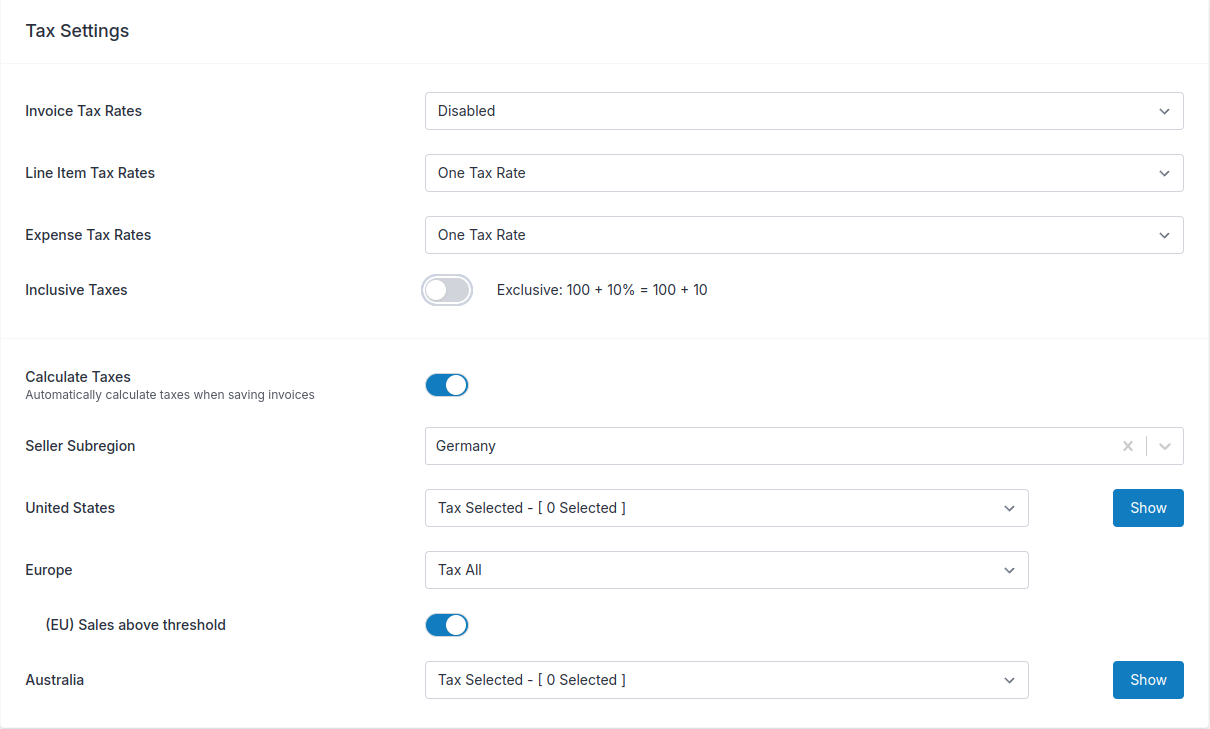
As with the US, set your seller subregion — the country that counts as your nexus for VAT.
EU VAT Thresholds
The EU-wide threshold for distance selling is €10,000. Once your cross-border B2C sales exceed that in a year, you must register for VAT in the destination country, charge VAT at that country's rate, and submit returns there. Toggle (EU) Sales above threshold in settings and Invoice Ninja applies the destination-country rules automatically for you.
If you use our Peppol integration, additional VAT numbers can be stored in Invoice Ninja and the system will pick the right VAT identifier on each e-invoice based on the destination.
One-Stop Shop (OSS)
The EU One-Stop Shop simplifies cross-border VAT by letting you register for VAT in a single EU country, file returns for all EU sales through that one country, and still charge the correct destination-country rate on each sale. Invoice Ninja supports OSS by calculating the destination rate automatically from the client's location, so you don't have to maintain a rate table yourself.
Product Tax Categories
In the EU, tax categories are also configured per product and drive how the calculator treats each line.
| Tax Category | Description |
|---|---|
| Physical | A physical product for sale, e.g. a car |
| Service | A service-based product such as bricklaying |
| Digital | A digital product such as a software service |
| Shipping | A charge relating to shipment |
| Exempt | A product that is tax exempt |
| Reduced | A product that attracts a reduced rate |
| Override | A product that doesn't fit a standard category — a custom name and rate are applied |
| Zero Rated | A product that attracts a 0% rate |
| Reverse Tax | Not charged at origin; the buyer pays the tax at their end (reverse-charge) |
| Intra Community | A cross-border supply that carries no tax under intra-community supply rules |
Set the category on the create/edit product screen and it applies every time the product is added to an invoice.
Client Setup
A few client fields (see Clients) carry real weight once Calculate Taxes is on.
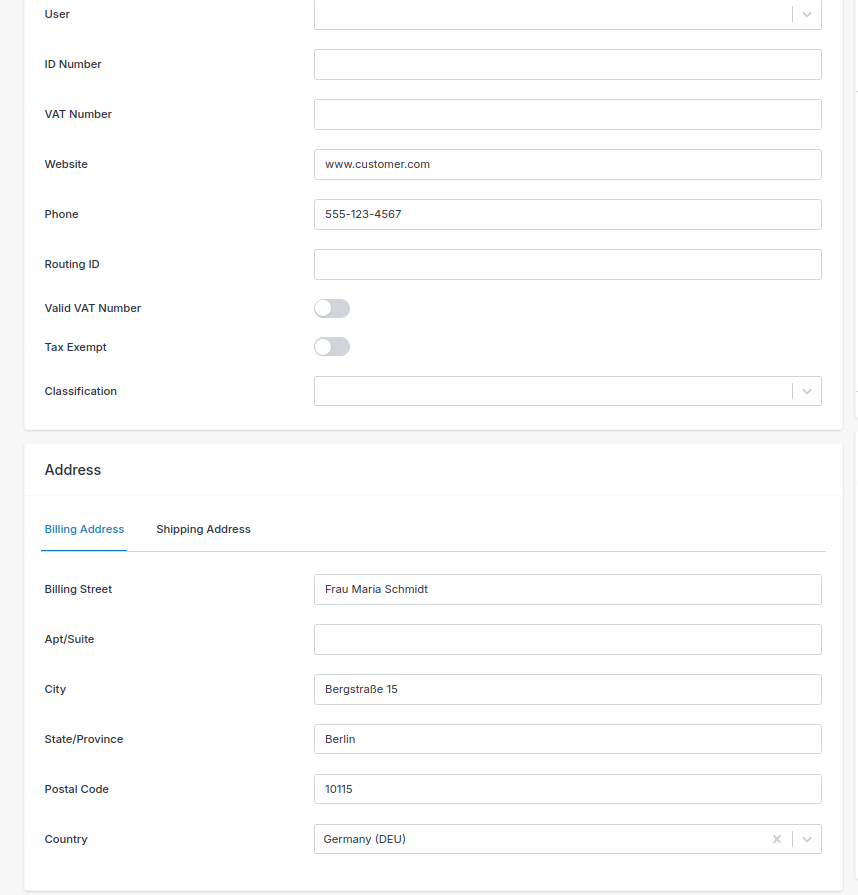
- VAT Number — must be populated if the client has one. The EU requires businesses with VAT numbers to supply them; otherwise tax may be applied that shouldn't be.
- Valid VAT number — toggling this on or off forces the calculation to follow this setting regardless of what's in the VAT Number field. Useful for overriding validation on known-good clients when the VIES service is flaky.
- Tax Exempt — if the client is exempt, toggle this on and no tax will ever be applied to their invoices.
- Classification — a material input to the calculator. In some regions, government agencies aren't taxable entities, so the classification gives the engine another parameter to determine taxability.
Where a valid VAT number is present, the calculator takes it into account and applies or removes tax based on the client's location. The VAT number must pass VIES validation — you can check a number manually here.
Self-hosted users need the PHP SOAP extension installed for VAT number validation to work.
VAT, GST, and Sales Tax at a Glance
If you move between jurisdictions it helps to know how the three major systems differ in principle, even though day-to-day configuration in Invoice Ninja looks similar across all of them.
VAT (Value-Added Tax), used across the EU, UK, and many other countries, is charged at every stage of the supply chain, with businesses reclaiming the VAT they've paid on inputs. The end consumer ultimately bears the cost. Zero-rated and exempt items look alike to consumers but are treated very differently on the business side.
GST (Goods and Services Tax), used in Australia, New Zealand, India, Canada, and others, works on the same value-added mechanics as VAT — just with a different name and national quirks. Australia's GST, for example, is a flat 10% on most goods and services with its own exempt list.
Sales tax, used in the United States, is charged only at the final sale to the end consumer, not at each step in the chain. That makes it conceptually simpler but practically more fragmented, because thousands of state, county, and city jurisdictions each set their own rates and rules.
The categories, client flags, and product settings in Invoice Ninja are designed to cover all three models — you just enable the regional calculator that matches where you operate.
Confirm Taxes Before Sending
Always eyeball the taxes on an invoice before it goes out. The calculator is only as accurate as the data feeding it — the client's address and VAT number, the product's tax category, and your own company country and seller subregion all have to be right for the result to be right. When in doubt, preview the invoice PDF and check the numbers against what your accountant expects.